
Celery User Guide
# Application
The Celery library must be instantiated before use, this instance is called an application (or app for short).
The application is thread-safe so that multiple Celery applications with different configurations, components, and tasks can co-exist in the same process space.
Let's create one now:
from celery import Celery
app = Celery()
app
<Celery __main__:0x100469fd0>
2
3
4
The last line shows the textual representation of the application: including the name of the app class (Celery), the name of the current main module (__main__), and the memory address of the object(0x100469fd0).
# Main Name
Only one of these is important, and that's the main module name. Let's look at why that is.
When you send a task message in Celery, that message won't contain any source code, but only the name of the task you want to execute. This works similarly to how host names work on the internet: every worker maintains a mapping of task names to their actual functions, called the task registry.
Whenever you define a task, that task will also be added to the local registry:
@app.task
def add(x, y):
    return x + y


add
<@task: __main__.add>


add.name
__main__.add


app.tasks['__main__.add']
<@task: __main__.add>
2
3
4
5
6
7
8
9
10
11
12
13
14
15
and there you see that __main__ again; whenever Celery isn't able to detect what module the function belongs to, it uses the main module name to generated the beginning of the task name.
This is only a problem in a limited set of use cases:
- If the module that the task is defined in is run as a program.
- If the application is created in the Python shell(REPL).
For example here, where the tasks module is also used to start a worker with app.worker_main():
tasks.py:
from celery import Celery

app = Celery()

@app.task
def add(x, y): return x + y

if __name__ == '__main__':
    args = ['worker', '--loglevel=INFO']
    app.worker_main(argv=args)
2
3
4
5
6
7
8
9
10
When this module is executed the tasks will be named starting with __main__, but when the module is imported by another process, say to call a task, the tasks will be named starting with tasks(the real name of the module):
from tasks import add
add.name
tasks.add
2
3
You can specify another name for the main module:
app = Celery('tasks')
app.main
'tasks'

@app.task
def add(x, y)
    return x + y


add.name
tasks.add
2
3
4
5
6
7
8
9
10
11
See also
# Configuration
There are several options you can set that'll change how Celery works. These options can be set directly on the app instance, or you can use a dedicated configuration module.
The configuration is available as app.conf:
app.conf.timezone
'Europe/London'
2
where you can also set configuration values directly:
app.conf.enable_utc = True
or update several keys at once by using the update method:
app.conf.update(
    enable_utc=True,
    timezone='Europe/London'
)
2
3
4
The configuration object consists of multiple dictionaries that are consulted in order:
- Changes made at run-time.
- The configuration module(if any)
- The default configuration(celery.app.defaults).
You can even add new default sources by using the app.add_defaults() method.
See also
Go to the Configuration reference for a complete listing of all the available settings, and their default values.
# config_from_object
The app.config_from_object() method loads configuration from a configuration object.
This can be a configuration module, or any object with configuration attributes.
Note that any configuration that was previously set will be reset when config_from_object() is called. If you want to set additional configuration you should do so after.
# Example 1: Using the name of a module
The app.config_from_object() method can take the fully qualified name of a Python module, or even the name of a Python attribute, for example: "celeryconfig", "myproj.config.celery", or "myproj.config:CeleryConfig":
from celery import Celery

app = Celery()
app.config_from_object('celeryconfig')
2
3
4
The "celeryconfig" module may then look like this:
celeryconfig.py:
enable_utc = True
timezone = 'Europe/London'
2
and the app will be able to use it as long as import celeryconfig is possible.
# Example 2: Passing an actual module object
You can also pass an already imported module object, but this isn't always recommended.
Using the name of a module is recommended as this means the module does not need to be serialized when the prefork pool is used. If you're experiencing configuration problems or pickle errors then please try using the name of a module instead.
import celeryconfig

from celery import Celery


app = Celery()
app.config_from_object(celeryconfig)
2
3
4
5
6
7
# Example 3: Using a configuration class/object
from celery import Celery

app = Celery()

class Config:
    enable_utc = True
    timezone = 'Europe/London'

app.config_from_object(Config)
# or using the fully qualified name of the object:
#   app.config_from_object('module:Config')
2
3
4
5
6
7
8
9
10
11
# config_from_envvar
The app.config_from_envvar() takes the configuration module name from an environment variable.
For example -- to load configuration from a module specified in the environment variable named CELERY_CONFIG_MODULE:
import os
from celery import Celery

# Set default configuration module name
os.environ.setdefault('CELERY_CONFIG_MODULE', 'celeryconfig')

app = Celery()
app.config_from_envvar('CELERY_CONFIG_MODULE')
2
3
4
5
6
7
8
You can then specify the configuration module to use via the environment:
CELERY_CONFIG_MODULE="celeryconfig.prod" celery worker -l INFO
# Censored configuration
If you ever want to print out the configuration, as debugging information or similar, you may also want to filter out sensitive information like passwords and API keys.
Celery comes with several utilities useful for presenting the configuration, one is humanize().
app.conf.humanize(with_defaults=False, censored=True)
This method returns the configuration as a tabulated string. This will only contain changes to the configuration by default, but you can include the built-in default keys and values by eanbling the with_defaults argument.
If you instead want to work with the configuration as a dictionary, you can use the table() method:
app.conf.table(with_defaults=False, censored=True)
Please note that Celery won't be able to remove all sensitive information, as it merely uses a regular expression to search for commonly named keys. If you add custom settings containing sensitive information you should name the keys using a name that Celery identifies as secret.
A configuration setting will be censored if the name contains any of these sub-strings: API, TOKEN, KEY, SECRET, PASS, SIGNATURE, DATABASE
# Laziness
The application instance is lazy, meaning it won't be evaluated until it's actually needed.
Creating a Celery instance will only do the following:
- Create a logical clock instance, used for events.
- Create the task registry.
- Set itself as the current app(but not if the
set_as_currentargument was disabled) - Call the app.on_init() callback (does nothing by default).
The app.task() decorators don't create the tasks at the point when the task is defined, instead it'll defer the creation of the task to happen either when the task is used, or after the application has been finalized.
This example shows how the task isn't created until you use the task, or access an attribute(in this case repr()):
@app.task
def add(x, y):
    return x + y


type(add)
<class 'celery.local.PromiseProxy'>

add.__evaluated__()
False


add                     # <-- causes repr(add) to happen
<@task: __main__.add>


add.__evaluated__()
True
2
3
4
5
6
7
8
9
10
11
12
13
14
15
16
17
18
Finalization of the app happens either explicitly by calling app.finalize() -- or implicitly by accessing the app.tasks attribute.
Finalizing the object will:
- Copy tasks that must be shared between apps. Tasks are shared by default, but if the
sharedargument to the task decorator is disabled, then the task will be private to the app it's bound to. - Evaluate all pending task decorators.
- Make sure all tasks are bound to the current app. Tasks are bound to an app so that they can read default values from the configuration.
The "default app"
Celery didn't always have applications, it used to be that there was only a module-based API. A compatibility API was available at the old location until the release of Celery 5.0, but has been removed.
Celery always creates a special app - the "default app", and this is used if no custom application has been instantiated.
The celery.task module is no longer available. Use the methods on the app instance, not the module based API:
from celery.task import Task         # << OLD Task base class.

from celery import Task              # << NEW base class.
2
3
# Breaking the chain
While it's possible to depend on the current app being set, the best practice is to always pass the app instance around to anything that needs it.
I call this the "app chain", since it creates a chain of instances depending on the app being passed.
The following example is considered bad practice:
from celery import current_app

class Scheduler:

    def run(self):
        app = current_app
2
3
4
5
6
Instead it should take the app as an argument:
class Scheduler:

    def __init__(self, app):
        self.app = app
2
3
4
Internally Celery uses the celery.app.app_or_default() function so that everything also works in the module-based compatibility API.
from celery.app import app_or_default

class Scheduler:

    def __init__(self, app=None):
        self.app = app_or_default(app)
2
3
4
5
6
In development you can set the CELERY_TRACE_APP environment variable to raise an exception if the app chain breaks:
CELERY_TRACE_APP=1 celery worker -l INFO
Evolving the API
Celery has changed a lot from 2009 since it was initially created.
For example, int the beginning it was possible to use any callable as a task:
def hello(to):
    return 'hello {0}'.format(to)

from celery.execute import apply_async

apply_async(hello, ('world!',))
2
3
4
5
6
or you could also create a Task class to set certain options, or override other behavior
from celery import Task
from celery.registry import tasks

class Hello(Task):
    queue = 'hipri'

    def run(self, to):
        return 'hello {0}'.format(to)

tasks.register(Hello)

Hello.delay('world!')
2
3
4
5
6
7
8
9
10
11
12
Later, it was decided that passing arbitrary call-able's was an anti-pattern, since it makes it very hard to use serializers other than pickle, and the feature was removed in 2.0, replaced by task decorators:
from celery import app

@app.task(queue='hipri')
def hello(to):
    return 'hello {0}'.format(to)
2
3
4
5
# Abstract Tasks
All Tasks created using the app.task() decorator will inherit from the application's base Task class.
You can specify a different base class using the base argument:
@app.task(base=OtherTask)
def add(x, y):
    return x + y
2
3
To create a custom task class you should inherit from the neutral base class:
celery.Task:
from celery import Task

class DebugTask(Task):

    def __call__(self, *args, **kwargs):
        print('TASK_STARTING: {0.name}[{0.request.id}]'.format(self))
        return self.run(*args, **kwargs)
2
3
4
5
6
7
If you override the task's __call__ method, then it's very important that you also call self.run to execute the body of the task. Do not call super().__call__. The __call__ method of the neutral base class celery.Task is only present for reference. For optimization, this has been unrolled into celery.app.trace.build_tracer.trace_task which calls run directly on the custom task class if no __call__ method is defined.
The neutral base class is special because it's not bound to any specific app yet. Once a task is bound to an app it'll read configuration to set default values, and so on.
To realize a base class you need to create a task using the app.task() decorator:
@app.task(base=DebugTask)
def add(x, y):
    return x + y
2
3
It's even possible to change the default base class for an application by changing its app.Task() attribute:
from celery import Celery, Task

app = Celery()

class MyBaseTask(Task):
    queue = 'hipri'

app.Task = MyBaseTask
app.Task
<unbound MyBaseTask>

@app.task
def add(x, y):
    return x + y

add
<@task: __main__.add>


add.__class__.mro()
[<class add of <Celery __main__:0x1012b4410>>,
 <unbound MyBaseTask>,
 <unbound Task>,
 <type 'object'>]
2
3
4
5
6
7
8
9
10
11
12
13
14
15
16
17
18
19
20
21
22
23
24
# Tasks
Tasks are the building blocks of Celery applications.
A task is a class that can be created out of any callable. It performs dual roles in that it defines both what happens when a task is called (sends a message), and what happens when a worker receives that message.
Every task class has a unique name, and this name is referenced in messages so the worker can find the right function to execute.
A task message is not removed from the queue until that message has been acknowledged by a worker. A worker can reserve many messages in advance and even if the worker is killed -- by power failure or some other reason -- the message will be redelivered to another worker.
Ideally task functions should be idempotent: meaning the function won't cause unitended effects even if called multiple times with the same arguments. Since the worker cannot detect if your tasks are idempotent, the default behavior is to acknowledge the message in advance, just before it's executed, so that a task invocation that already started is never executed again.
If your task is idempotent you can set the acks_late option to have the worker acknowledge the message after the task returns instead. See also the FAQ entry Should I use retry or acks_late?.
Note that the worker will acknowledge the message if the child process executing the task is terminated (either by the task calling sys.exit(), or by signal) even when acks_late is enabled. This behavior is intentional as
- We don't want to return tasks that forces the kernel to send a SIGSEGV (segmentation fault) or similar signals to the process.
- We assume that a system administrator deliberately killing the task does not want it to automatically restart.
- A task that allocates too much memory is in danger of triggering the kernel OM killer, the same may happen again.
- A task that always fails when redelivered my cause a high-frequency message loop taking down the system.
If you really want a task to be redelivered in these scenarios you should consider enabling the task_reject_on_worker_lost setting.
A task that blocks indefinitely may eventually stop the worker instance from doing any other worker.
If your task does I/O then make sure you add timeouts to these operations, like adding a timeout to a web request using the https://pypi.org/project/requests/ library:
connect_timeout, read_timeout = 5.0, 30.0
response = requests.get(URL, timeout=(connect_timeout, read_timeout))
2
Time limits are convenient for making sure all tasks return in a timely manner, but a time limit event will actually kill the process by force so only use them to detect cases where you haven't used manual timeouts yet.
In previous versions, the default prefork pool scheduler was not friendly to long-running tasks, so if you had tasks that ran for minutes/hours, it was advised to enable the -Ofair command-line argument to the celery worker. However, as of version 4.0, -Ofair is now the default scheduling strategy. See Prefetch Limits for more information, and for the best performance route long-running and short-running tasks to dedicated workers (Automatic routing).
In this chapter you'll learn all about defining tasks.
# Basics
You can easily create a task from any callable by using the app.task() decorator:
from .models import User

@app.task
def create_user(username, password):
    User.objects.create(username=username, password=password)
2
3
4
5
There are also many options that can be set for the task, these can be specified as arguments to the decorator:
@app.task(serializer='json')
def create_user(username, password):
    User.objects.create(username=username, password=password)
2
3
# How do i import the task decorator?
The task decorator is available on your Celery application instance, if you don't know what this is then please read First Steps with Celery.
If you're using Django(see First steps with Django), or you're the author of a library then you probably want to use the shared_task() decorator:
from celery import shared_task

@shared_task
def add(x, y):
    return x + y
2
3
4
5
# Multiple decorators
When using multiple decorators in combination with the task decorator you must make sure that the task decorator is applied last (oddly, in Python this means it must be first in the list):
@app.task
@decorator2
@decorator1
def add(x, y):
    return x + y
2
3
4
5
# Bound tasks
A task being bound means the first argument to the task will always be the task instance (self), just like Python bound methods:
logger = get_task_logger(__name__)

@app.task(bind=True)
def add(self, x, y):
    logger.info(self.request.id)
2
3
4
5
Bound tasks are needed for retries (using app.Task.retry()), for accessig information about the current task request, and for any additional functionality you add to custom task base classes.
# Task inheritance
The base argument to the task decorator specifies the base class of the task:
import celery

class MyTask(celery.Task):

    def on_failure(self, exc, task_id, args, kwargs, einfo):
        print('{0!r} failed: {1!r}'.format(task_id, exc))


@app.task(base=MyTask)
def add(x, y):
    raise KeyError()
2
3
4
5
6
7
8
9
10
11
# Names
Every task must have a unique name.
If no explicit name is provided the task decorator will generate one for you, and this name will be based on 1 the module the task is defined in, and 2 the name of the task function.
Example setting explicit name:
@app.task(name='sum-of-two-numbers')
def add(x, y):
    return x + y

add.name
'sum-of-two-numbers'
2
3
4
5
6
A best practice is to use the module name as a name-space, this way names won't collide if there's already a task with that name defined in another module.
@app.task(name='tasks.add')
def add(x, y):
    return x + y
2
3
You can tell the name of the task by investigating its .name attribute:
add.name
'tasks.add'
2
The name we specified here (tasks.add) is exactly the name that would've been automatically generated for us if the task was defined in a module named tasks.py:
tasks.py:
@app.task
def add(x, y):
    return x + y
2
3
from tasks import add

add.name
'tasks.add'
2
3
4
You can use the inspect command in a worker to view the names of all registered tasks. See the inspect registered command in the Management Command-line Utilities section of the User Guide.
# Changing the automatic naming behavior
Added in version 4.0.
There are some cases when the default automatic naming isn't suitable. Consider having many tasks within many different modules:
project/
       /__init__.py
       /celery.py
       /moduleA/
               /__init__.py
               /tasks.py
       /moduleB/
               /__init__.py
               /tasks.py
2
3
4
5
6
7
8
9
Using the default automatic naming, each task will have a generated name like moduleA.tasks.taskA, moduleA.tasks.taskB, moduleB.tasks.test, and so on. You may want to get rid of having tasks in all task names. As pointed above, you can explicitly give names for all tasks, or you can change the automatic naming behavior by overriding app.gen_task_name(). Continuing with the example, celery.py may contain:
from celery import Celery

class MyCelery(Celery):

    def gen_task_name(self, name, module):
        if module.endswith('.tasks'):
            module = module[:-6]
        return super().gen_task_name(name, module)

app = MyCelery('main')
2
3
4
5
6
7
8
9
10
So each task will have a name like moduleA.taskA, moduleA.taskB and moduleB.test.
Make sure that your app.gen_task_name() is a pure function: meaning that for the same input it must always return the same output.
# Task Request
app.Task.request contains information and state related to the currently executing task.
The request defines the following attributes:
id: The unique id of the executing task.group: The unique id of the task's group, if this task is a member.chord: The unique id of the chord this task belongs to (if the task is part of the header).correlation_id: Custom ID used for things like de-duplication.args: Positional arguments.kwargs: Keyword arguments.origin: Name of host that sent this task.retries: How many times the current task has been retried. An integer starting at 0.is_eager: Set to True if the task is executed locally in the client, not by a worker.eta: The original ETA of the task (if any). This is in UTC time (depending on the enable_utc setting).expires: The original expiry time of the task (if any). This is in UTC time (depending on the enable_utc setting).hostname: Node name of the worker instance executing the task.delivery_info: Additional message delivery information. This is a mapping containing the exchange and routing key used to deliver this task. Used by for example app.Task.retry() to resend the task to the same destination queue. Availability of keys in this dict depends on the message broker used.reply-to: Name of queue to send replies back to (used with RPC result backend for example).called_directly: This flag is set to true if the task wasn't executed by the worker.timelimit: A tuple of the current(soft, hard)time limits active for this task (if any).callbacks: A list of signatures to be called if this task returns successfully.errbacks: A list of signatures to be called if this task fails.utc: Set to true the caller has UTC enabled (enable_utc).
Added in version 3.1.
headers: Mapping of message headers sent with this task message (may be None).reply_to: Where to send reply to (queue name).correlation_id: Usually the same as the task id, often used in amqp to keep track of what a reply is for.
Added in version 4.0.
root_id: The unique id of the first task in the workflow this task is part of (if any).parent_id: The unique id of the task that called this task (if any).chain: Reversed list of tasks that form a chain (if any). The last item in this list will be the next task to succeed the current task. If using version one of the task protocol the chain tasks will be inrequest.callbacksinstead.
Added in version 5.2.
properties: Mapping of message properties received with this task message (may be None or {}).replaced_task_nesting: How many times the task was replaced, if at all. (may be 0).
An example task accessing information in the context is:
@app.task(bind=True)
def dump_context(self, x, y):
    print('Executing task id {0.id}, args: {0.args!r} kwargs: {0.kwargs!r}'.format(
            self.request))
2
3
4
The bind argument means that the function will be a "bound method" so that you can access attributes and methods on the task type instance.
# Logging
The worker will automatically set up logging for you, or you can configure logging manually.
A special logger is available named "celery.task", you can inherit from this logger to automatically get the task name and unique id as part of the logs.
The best practice is to create a common logger for all of your tasks at the top of your module:
from celery.utils.log import get_task_logger

logger = get_task_logger(__name__)

@app.task
def add(x, y):
    logger.info('Adding {0} + {1}'.format(x, y))
    return x + y
2
3
4
5
6
7
8
Celery uses the standard Python logger library, and the documentation can be found there.
You can also use print(), as anything written to standard out/-err will be redirected to the logging system (you can disable this, see worker_redirect_stdouts).
The worker won't update the redirection if you create a logger instance somewhere in your task or task module.
If you want to redirect sys.stdout and sys.stderr to a custom logger you have to enable this manually, for example:
import sys

logger = get_task_logger(__name__)

@app.task(bind=True)
def add(self, x, y):
    old_outs = sys.stdout, sys.stderr
    rlevel = self.app.conf.worker_redirect_stdouts_level
    try:
        self.app.log.redirect_stdouts_to_logger(logger, rlevel)
        print('Adding {0} + {1}'.format(x, y))
        return x + y
    finally:
        sys.stdout, sys.stderr = old_outs
2
3
4
5
6
7
8
9
10
11
12
13
14
If a specific Celery logger you need is not emitting logs, you should check that the logger is propagating properly. In this example "celery.app.trace" is enabled so that "succeeded in" logs are emitted:
import celery
import logging

@celery.signals.after_setup_logger.connect
def on_after_setup_logger(**kwargs):
    logger = logging.getLogger('celery')
    logger.propagate = True
    logger = logging.getLogger('celery.app.trace')
    logger.prpagate = True
2
3
4
5
6
7
8
9
If you want to completely disable Celery logging configuration, use the setup_logging signal:
import celery

@celery.signals.setup_logging_connect
def on_setup_logging(**kwargs):
    pass
2
3
4
5
# Argument checking
Added in version 4.0.
Celery will verify the arguments passed when you call the task, just like Python does when calling a normal function:
@app.task
def add(x, y):
    return x + y

# Calling the task with two arguments works:
add.delay(8, 8)
<AsyncResult: f59d71ca-1549-43e0-be41-4e8821a83c0c>

# Calling the task with only one argument fails:
add.delay(8)
Traceback (most recent call last):
  File "<stdin>", line 1, in <module>
  File "celery/app/task.py", line 376, in delay
    return self.apply_async(args, kwargs)
  File "celery/app/task.py", line 485, in apply_async
    check_arguments(*(args or ()), **(kwargs or {}))
TypeError: add() takes exactly 2 arguments (1 given)
2
3
4
5
6
7
8
9
10
11
12
13
14
15
16
17
You can disable the argument checking for any task by setting its typing attribute to False:
@app.task(typing=False)
def add(x, y):
    return x + y

# Works locally, but the worker receiving the task will raise an error
add.delay(8)
<AsyncResult: f59d71ca-1549-43e0-be41-4e8821a83c0c>
2
3
4
5
6
7
# Hiding sensitive information in arguments
Added in version 4.0.
When using task_protocol 2 or higher (default since 4.0), you can override how positional arguments and keyword arguments are represented in logs and monitoring events using the argsrepr and kwargsrepr calling arguments:
add.apply_async((2, 3), argsrepr='(<secret-x>, <secret-y>)')

charge.s(account, card='1234 5678 1234 5678').set(kwargsrepr=repr({'card': '**** **** **** 5678'})).delay()
2
3
Sensitive information will still be accessible to anyone able to read your task message from the broker, or otherwise able intercept it.
For this reason you should probaly encrypt your message if it contains sensitive information, or in this example with a credit card number the actual number could be stored encrypted in a secure store that you retrieve and decrypt in the task itself.
# Retrying
app.Task.retry() can be used to re-execute the task, for example in the event of recoverable errors.
When you call retry it'll send a new message, using the same task-id, and it'll take care to make sure the message is delivered to the same queue as the originating task.
When a task is retried this is also recorded as a task state, so that you can track the progress of the task using the result instance (see States).
Here's an example using retry:
@app.task(bind=True)
def send_twitter_status(self, oauth, tweet):
    try:
        twitter = Twitter(oauth)
        twitter.update_status(tweet)
    except (Twitter.FailWhaleError, Twitter.LoginError) as exc:
        raise self.retry(exc=exc)
2
3
4
5
6
7
The app.Task.retry() call will raise an exception so any code after the retry won't be reached. This is the Retry exception, it isn't handled as an error but rather as a semi-predicate to signify to the worker that the task is to be retried, so that it can store the correct state when a result backend is enabled.
This is normal operation and always happens unless the throw argument to retry is set to False.
The bind argument to the task decorator will give access to self (the task type instance).
The exc argument is used to pass exception information that's used in logs, and when storing task results. Both the exception and the traceback will be available in the task state (if a result backend is eanbled).
If the task has a max_retries value the current exception will be re-raised if the max number of retries has been exceeded, but this won't happen if:
- An
excargument wasn't given. In this case the MaxRetriesExceededError exception will be raised. - There's no current exception. If there's no original exception to re-raise the
excargument will be used instead, so:self.retry(exc=Twitter.LoginError())will raise theexcargument given.
# Using a custom retry delay
When a task is to be retried, it can wait for a given amount of time before doing so, and the default delay is defined by the default_retry_delay attribute. By default this is set to 3 minutes. Note that the unit for setting the delay is in seconds (int or float).
You can also provide the countdown argument to retry() to override this default.
@app.task(bind=True, default_retry_delay=30 * 60) # retry in 30 minutes
def add(self, x, y):
    try:
        something_raising()
    except Exception as exc:
        # overrides the default delay to retry after 1 minute
        raise self.retry(exc=exc, countdown=60)
2
3
4
5
6
7
# Automatic retry for known exceptions
Added in version 4.0.
Sometimes you just want to retry a task whenever a particular exception is raised.
Fortunately, you can tell Celery to automatically retry a task using autoretry_for argument in the app.task() decorator:
from twitter.exceptions import FailWhaleError

@app.task(autoretry_for=(FailWhaleError,))
def refresh_timeline(user):
    return twitter.refresh_timeline(user)
2
3
4
5
If you want to specify custom arguments for an internal retry() call, pass retry_kwargs argument to app.Task() decorator:
@app.task(autoretry_for=(FailWhaleError,), retry_kwargs={'max_retries': 5})
def refresh_timeline(user):
    return twitter.refresh_timeline(user)
2
3
This is provided as an alternative to manually handling the exceptions, and the example above will do the same as wrapping the task body in a try ... except statement:
@app.task
def refresh_timeline(user):
    try:
        twitter.refresh_timeline(user)
    except FailWhaleError as exc:
        raise refresh_timeline.retry(exc=exc, max_retries=5)
2
3
4
5
6
If you want to automatically retry on any error, simply use:
@app.task(autoretry_for=(Exception,))
def x()
    ...
2
3
Added in version 4.2.
If your task depend on another service, like making a request to an API, then it's a good idea to use exponential backoff to avoid overwhelming the service with your requests. Fortunately, Celery's automatic retry support makes it easy. Just specify the retry_backoff argument, like this:
from requests.exceptions import RequestException

@app.task(autoretry_for=(RequestException,), retry_backoff=True)
def x():
    ...
2
3
4
5
By default, this exponential backoff will also introduce random jitter to avoid having all the tasks run at the same moment. It will also cap the maximum backoff delay to 10 minutes. All these settings can be customized via options documented below:
Added in version 4.4.
You can also set autoretry_for, max_retries, retry_backoff, retry_backoff_max and retry_jitter options in class-based tasks:
class BaseTaskWithRetry(Task):
    autoretry_for = (TypeError,)
    max_retries = 5
    retry_backoff = True
    retry_backoff_max = 700
    retry_jitter = False
2
3
4
5
6
Task.autoretry_for: A list/tuple of exception classes. If any of these exceptions are raised during the execution of the task, the task will automatically be retried. By default, no exceptions will be autoretried.
Task.max_retries: A number. Maximum number of retries before giving up. A value of None means task will retry forever. By default, this option is set to 3.
Task.retry_backoff: A boolean, or a number. If this option is set to True, autoretries will be delayed following the rules of exponential backoff. The first retry will have a delay of 1 second, the second retry will have a delay of 2 seconds, the third will delay 4 seconds, the fourth will delay 8 seconds, and so on. (However, this delay value is modified by retry_jitter, if it is enabled.) If this option is set to a number, it is used as a delay factor. For example, if this option is set to 3, the first retry will delay 3 seconds, the second will delay 6 seconds, the third will delay 12 seconds, the fourth will delay 24 seconds, and so on. By default, this option is set to False, and autoretries will not be delayed.
Task.retry_backoff_max: A number, if retry_backoff is enabled, this option will set a maximum delay in seconds between task autoretries. By default, this option is set to 600, which is 10 minutes.
Task.retry_jitter: A boolean. Jitter is used to introduce randomness into exponential backoff delays, to prevent all tasks in the queue from being executed simultaneously. If this option is set to True, the delay value calculated by retry_backoff is treated as a maximum, and the actual delay value will be a random number between zero and that maximum. By default, this option is set to True.
Added in version 5.3.0.
Task.dont_autoretry_for: A list/tuple of exception classes. These exceptions won't be autoretried. This allows to exclude some exceptions that match autoretry_for but for which you don't want a retry.
# Argument validation with Pydantic
Added in version 5.5.0.
You can use Pydantic to validate and convert arguments as well as serializing results based on typehints by passing pydantic=True.
Argument validation only covers arguments/retrun values on the task side. You still have serialize arguments yourself when invoking a task with delay() or apply_async().
For example:
from pydantic import BaseModel

class ArgModel(BaseModel):
    value: int

class ReturnModel(BaseModel):
    value: str

@app.task(pydantic=True)
def x(arg: ArgModel) -> ReturnModel:
    # args/kwargs type hinted as Pydantic model will be converted
    assert isinstance(arg, ArgModel)

    # The returned model will be converted to a dict automatically
    return ReturnModel(value=f"example: {arg.value}")
2
3
4
5
6
7
8
9
10
11
12
13
14
15
The task can then be called using a dict matching the model, and you'll receive the returned model "dumped" (serialized using BaseModel.model_dump()):
result = x.delay({'value': 1})

result.get(timeout=1)
{'value': 'example: 1'}
2
3
4
# Union types, arguments to generics
Union types (e.g. Union[SomeModel, OtherModel]) or arguments to generics (e.g. list[SomeModel]) are not supported.
In case you want to support a list or similar types, it is recommended to use pydantic.RootModel.
# Optional parameters/return values
Optional parameters or return values are also handled properly. For example, given this task:
from typing import Optional

# models are the same as above

@app.task(pydantic=True)
def x(arg: Optional[ArgModel] = None) -> Optional[ReturnModel]:
    if arg is None:
        return None
    return ReturnModel(value=f"example: {arg.value}")
2
3
4
5
6
7
8
9
You'll get the following behavior:
result = x.delay()

result.get(timeout=1) is None
True

result = x.delay({'value': 1})
result.get(timeout=1)
{'value': 'example: 1'}
2
3
4
5
6
7
8
# Return value handling
Return values will only be serialized if the returned model matches the annotation. If you pass a model instance of a different type, it will not be serialized. mypy should already catch such errors and you should fix your typehints then.
# Pydantic parameters
There are a few more options influencing Pydantic behavior:
Task.pydantic_strict: By default, strict mode is disabled. You can pass True to enable strict model validation.
Task.pydantic_context: Pass additional validation context during Pydantic model validation. The Context already includes the application object as celery_app and the task name as celery_task_name by default.
Task.pydantic_dump_kwargs: When serializing a result, pass these additional arguments to dump_kwargs(). By default, only mode='json' is passed.
# List of Options
The task decorator can take a number of options that change the way the task behaves, for example you can set the rate limit for a task using the rate_limit option.
Any keyword argument passed to the task decorator will actually be set as an attribute of the resulting task class, and this is a list of the built-in attributes.
# General
Task.name: The name the task is registered as. You can set this name manually, or a name will be automatically using the module and class name. See also Names.
Task.request: If the task is being executed this will contain information about the current request. Thread local storage is used. See Task Request.
Task.max_retries: Only applies if the task calls self.retry or if the task is decorated with the autoretry_for argument. The maximum number of attempted retries before giving up. If the number of retries exceeds this value a MaxRetriesExceededError exception will be raised.
You have to call retry() manually, as it won't automatically retry on exception.
The default is 3. A value of None will disable the retry limit and the task will retry forever until it succeeds.
Task.throws: Optional tuple of expected error classes that shouldn't be regarded as an actual error. Errors in this list will be reported as a failure to the result backend, but the worker won't log the event as an error, and no traceback will be include.
Example:
@task(throws={KeyError, HttpNotFound})
def get_foo():
    something()
2
3
Error types:
- Expected errors(in
Task.throws): Logged with servrity INFO, traceback excluded. - Unexpected errors: Logged with severity ERROR, with traceback included.
Task.default_retry_delay: Default time in seconds before a retry of the task should be executed. Can be either int or float. Default is a three minute delay.
Task.rate_limit: Set the rate limit for this task type (limits the number of tasks that can be run in a given time frame). Tasks will still complete when a rate limit is in effect, but it may take some time before it's allowed to start. If this is None no rate limit is in effect. If it is an integer or float, it is interpreted as "tasks per second". The rate limits can be specified in seconds, minutes or hours by appending /s, /m, or /h to the value. Tasks will be evenly distributed over the specified time frame. Example: 100/m (hundred tasks a minute). This will enforce a minimum delay of 600ms between starting two tasks on the same worker instance. Default is the task_default_rate_limit setting: if not specified means rate limiting for tasks is disabled by default. Note that this is a per worker instance rate limit, and not a global rate limit. To enforce a global rate limit(e.g. for an API with a maximum number of requests per second), you must restrict to a given queue.
Task.time_limit: The hard time limit, in seconds, for this task. When not set the workers default is used.
Task.soft_time_limit: The soft time limit for this task. When not set the workers default is used.
Task.ignore_result: Don't store task state. Note that this means you can't use AsyncResult to check if the task is ready, or get its return value. Note: Certain features will not work if task results are disabled. For more details check the Canvas documentation.
Task.store_errors_even_if_ignored: If True, errors will be stored even if the task is configured to ignore results.
Task.serializer: A string identifying the default serialization method to use. Defaults to the task_serializer setting. Can be pickle, json, yaml, or any custom serialization methods that have been registered with kombu.serialization.registry. Please see Serializers for more information.
Task.compression: A string identifying the default compression scheme to use. Defaults to the task_compression setting. Can be gzip, or bzip2, or any custom compression schemes that have been registered with the kombu.compression registry. Please see Compression for more information.
Task.backend: The result store backend to use for this task. An instance of one of the backed classes in celery.backends. Defaults to app.backend, defined by the result_backend setting.
Task.acks_late: If set to True messages for this task will be acknowledged after the task has been executed, not just before (the default behavior). Note: This means the task may be executed multiple times should the worker crash in the middle of execution. Make sure your tasks are idempotent. The global default can be overridden by the task_acks_late setting.
Task.track_started: If True the task will report its status as "started" when the task is executed by a worker. The default value is False as the normal behavior is to not report that level of granularity. Tasks are either pending, finished, or waiting to be retried. Having a "started" status can be useful for when there are long running tasks and there's a need to report what task is currently running. The host name and process id of the worker executing the task will be available in the state meta-data (e.g., result.info['pid']). The global default can be overridden by the task_track_started setting.
See also
The API reference for Task.
# States
Celery can keep track of the tasks current state. The state also contains the result of a successful task, or the exception and traceback information of a failed task.
There are several result backends to choose from, and they all have different strengths and weaknesses (see Result Backends).
During its lifetime a task will transition through several possible states, and each state may have arbitrary meta-data attached to it. When a task moves into a new state the previous state is forgotten about, but some transitions can be deduced, (e.g., a task now in the FAILED state, is implied to have been in the STARTED state at some point).
The client uses the membership of these sets to decide whether the exception should be re-raised (PROPAGATE_STATES), or whether the state can be cached (it can if the task is ready).
You can also define Custom states.
# Result Backends
If you want to keep track of tasks or need the return values, then Celery must store or send the states somewhere so that they can be retrieved later. There are several built-in result backends to choose from: SQLAlchemy/Django ORM, Memcached, RabbitMQ/QPid(rpc), and Redis -- or you can define your own.
No backend works well for every use case. You should read about the strengths and weaknesses of each backend, and choose the most appropriate for your needs.
Backends use resources to store and transmit results. To ensure that resources are released, you must eventually call get() or forget() on EVERY AsyncResult instance returned after calling a task.
# RPC Result Backend (RabbitMQ/QPid)
The RPC result backend (rpc://) is special as it doesn't actually store the states, but rather sends them as messages. This is an important difference as it means that a result can only be retrieved once, and only by the client that initiated the task. Two different processes can't wait for the same result.
Even with that limitation, it is an excellent choice if you need to receive state changes in real-time. Using messaging means the client doesn't have to pol for new states.
The messages are transient (non-persistent) by default, so the results will disappear if the broker restarts. You can configure the result backend to send persistent messages using the result_persistent setting.
# Database Result Backend
Keeping state in the database can be convenient for many, especially for web applications with a database already in place, but it also comes with limitations.
- Polling the database for new states is expensive, and so you should increase the polling intervals of operations, such as result.get().
- Some database use a default transaction isolation level that isn't suitable for polling tables for changes.
In MySQL the default transaction isolation level is REPEATABLE-READ: meaning the transaction won't see changes made by other transactions until the current transaction is commited.
Changing that to the READ-COMMITTED isolation level is recommended.
# Built-in States
PENDING: Task is waiting for execution or unkown. Any task id that's not known is implied to be in the pending state.
STARTED: Task has been started. Not reported by default, to enable please see app.Task.track_started. meta-data: pid and hostname of the worker process executing the task.
SUCCESS: Task has been successfully executed. meta-data: result contains the return value of the task. propagates: Yes. ready: Yes.
FAILURE: Task execution resulted in failure. meta-data: result contains the exception occurred, and traceback contains the backtrace of the stack at the point when the exception was raised. propagates: Yes.
RETRY: Task is being retried. meta-data: result contains the exception that caused the retry, and traceback contains the backtrace of the stack at the point when the exceptions was raised. propagates: No.
REVOKED: Task has been revoked. propagates: Yes.
# Custom states
You can easily define your own states, all you need is a unique name. The name of the state is usually an uppercase string. As an example you could have a look at the abortable tasks which defines a custome ABORTED state.
Use update_state() to update a task's statue:
@app.task(bind=True)
def upload_files(self, filenames):
    for i, file in enumerate(filenames):
        if not self.request.called_directly:
            self.update_state(state='PROGRESS', meta={'current': i, 'total': len(filenames)})
2
3
4
5
Here I created the state "PROGRESS", telling any application aware of this state that the task is currently in progress, and also where it is in the process by having current and total counts as part of the state meta-data. This can then be used to create progress bars for example.
# Creating pickleable exceptions
A rarely known Python fact is that exceptions must conform to some simple rules to support being serialized by the pickle module.
Tasks taht raise exceptions that aren't pickleable won't work properly when Pickle is used as the serializer.
To make sure that your exceptions are pickleable the exception MUST provide the original arguments it was instantiated with its .args attribute. The simplest way to ensure this is to have the exception call Exception.__init__.
Let's look at some examples that work, and one that doesn't:
# OK:
class HttpError(Exception):
    pass


# BAD:
class HttpError(Exception):

    def __init__(self, status_code):
        self.status_code = status_code


# OK:
class HttpError(Exception):

    def __init__(self, status_code):
        self.status_code = status_code
        Exception.__init__(self, status_code) # <- REQUIRED
2
3
4
5
6
7
8
9
10
11
12
13
14
15
16
17
18
So the rule is: For any exception that supports custom arguments *args, Exception.__init__(self, *args) must be used.
There's no special support for keyword arguments, so if you want to preserve keyword arguments when the exception is unpickled you have to pass them as regular args:
class HttpError(Exception):

    def __init__(self, status_code, headers=None, body=None):
        self.status_code = status_code
        self.headers = headers
        self.body = body

        super(HttpError, self).__init__(status_code, headers, body)
2
3
4
5
6
7
8
# Semipredicates
The worker wraps the task in a tracing function that records the final state of the task. There are a number of exceptions that can be used to signal this function to change how it treats the return of the task.
# Ignore
The task may raise Ignore to force the worker to ignore the task. This means that no state will be recorded for the task, but the message is still acknowledged (removed from queue).
This can be used if you want to implement custom remove-like functionality, or manually store the result of a task.
Example keeping revoked tasks in a Redis set:
from celery.exceptions import Ignore

@app.task(bind=True)
def some_task(self):
    if redis.ismember('tasks.revoked', self.request.id):
        raise Ignore()
2
3
4
5
6
Example that stores results manually:
from celery import states
from celery.exceptions import Ignore

@app.task(bind=True)
def get_tweets(self, user):
    timeline = twitter.get_timeline(user)
    if not self.request.called_directly:
        self.update_state(state=states.SUCCESS, meta=timeline)
    raise Ignore()
2
3
4
5
6
7
8
9
# Reject
The task may raise Reject to reject the task message using AMQPs basic_reject method. This won't have any effect unless Task.acks_late is enabled.
Rejecting a message has the same effect as acking it, but some brokers may implement additional functionality that can be used. For example RabbitMQ supports the concept of Dead Letter Exchanges where a queue can be configured to use a dead letter exchange that rejected messages are redelivered to.
Reject can also be used to re-queue messages, but please be very careful when using this as it can easily result in an infinite message loop.
Example using reject when a task causes an out of memory condition:
import errno
from celery.exceptions import Reject

@app.task(bind=True, acks_late=True)
def render_scene(self, path):
    file = get_file(path)
    try:
        renderer.render_scene(file)

    # if the file is too big to fit in memory
    # we reject it so that it's redelivered to the dead letter exchange
    # and we can manually inspect the situation.
    except MemoryError as exc:
        raise Reject(exc, requeue=False)
    except OSError as exc:
        if exc.errno == errno.ENOMEM:
            raise Reject(exc, requeue=False)

    # For any other error we retry after 10 seconds.
    except Exception as exc:
        raise self.retry(exc, contdown=10)
2
3
4
5
6
7
8
9
10
11
12
13
14
15
16
17
18
19
20
21
Example re-queuing the message:
from celery.exceptions import Reject

@app.task(bind=True, acks_late=True)
def requeues(self):
    if not self.request.delivery_info['redelivered']:
        raise Reject('no reason', requeue=True)
    print('received two times')
2
3
4
5
6
7
Consult your broker documentation for more details about the basic_reject method.
# Retry
The Retry exception is raised by the Task.retry method to tell the worker that the task is being retried.
# Custom task classes
All tasks inherit from the app.Task class. The run() method becomes the task body.
As an example, the following code,
@app.task
def add(x, y):
    return x + y
2
3
will do roughly this behind the scenses:
class _AddTask(app.Task):

    def run(self, x, y):
        return x + y

add = app.tasks[_AddTask.name]
2
3
4
5
6
# Instantiation
A task is not instantiated for every request, but is registered in the task registry as a global instance.
This means that the __init__ constructor will only be called once per process, and that the task class is semantically closer to an Actor.
If you have a task,
from celery import Task

class NaiveAuthenticateServer(Task):

    def __init__(self):
        self.users = {'george': 'password'}

    def run(self, username, password):
        try:
            return self.users[username] == password
        except KeyError:
            return False
2
3
4
5
6
7
8
9
10
11
12
And you route every request to the same process, then it will keep state between requests.
This can also be useful to cache resources, For example, a base Task class that caches a database connection:
from celery import Task

class DatabaseTask(Task):
    _db = None

    @property
    def db(self):
        if self._db is None:
            self._db = Database.connect()
        return self._db
2
3
4
5
6
7
8
9
10
# Per task usage
The above can be added to each task like this:
from celery.app import task

@app.task(base=DatabaseTask, bind=True)
def process_rows(self: task):
    for row in self.db.table.all():
        process_row(row)
2
3
4
5
6
The db attribute of the process_rows task will then always stay the same in each process.
# App-wide usage
You can also use your custom class in your whole Celery app by passing it as the task_cls argument when instantiating the app. This argument should be either a string giving the python path to your Task class or the class itself:
from celery import Celery

app = Celery('tasks', task_cls='your.module.path:DatabaseTask')
2
3
This will make all your tasks declared using the decorator syntax within your app to use your DatabaseTask class and will all have a db attribute.
The default value is the classs provided by Celery: celery.app.task:Task.
# Handlers
before_start(self, task_id, args, kwargs): Run by the worker before the task starts executing. Added in version 5.2.- Parameters:
- task_id: Unique id of the task to execute.
- args: Original arguments for the task to execute.
- kwargs: Original keyword arguments for the task to execute. The return value of this handler is ignored.
- Parameters:
after_return(self, status, retval, task_id, args, kwargs, einfo): Handler called after the task returns.
- Parameters:
- status: Current task state.
- retval: Task return value/exception.
- task_id: Unique id of the task.
- args: Original arguments for the task that returned.
- kwargs: Original keyword arguments for the task that returned.
- Keyword Arguments:
- einfo: ExceptionInfo instance, containing the traceback(if any). The return value of this handler is ignored.
- Parameters:
on_failure(self, exc, task_id, args, kwargs, einfo): This is run by the worker when the task fails.
- Parameters:
- exc: The exception raised by the task.
- task_id: Unique id of the failed task.
- args: Original arguments for the task that failed.
- kwargs: Original keyword arguments for the task that failed.
- Keyword Arguments:
- einfo: ExceptionInfo instance, containing the traceback. The return value of this handler is ignored.
- Parameters:
on_retry(self, exc, task_id, args, kwargs, einfo): This is run by the worker when the task is to be retried.
- Parameters:
- exc: The exception sent to retry().
- task_id: Unique id of the retried task.
- args: Original arguments for the retried task.
- kwargs: Original keyword arguments for the retried task.
- Keyword Arguments:
- einfo: ExceptionInfo instance, containing the traceback.
- Parameters:
on_success(self, retval, task_id, args, kwargs): Run by the worker if the task executes successfully.
- Parameters:
- retval: The return value of the task.
- task_id: Unique id of the executed task.
- args: Original arguments for the executed task.
- kwargs: Original keyword arguments for the executed task. The return value of this handler is ignored.
- Parameters:
# Requests and custom requests
Upon receiving a message to run a task, the worker creates a request to represent such demand.
Custom task classes may override which request class to use by changing the attribute celery.app.task.Task.Request. You may either assign the custom request class itself, or its qualified name.
The request has several responsibilities. Custom request classes should cover them all -- they are responsible to actually run and trace the task. We strongly recommend to inherit from celery.worker.request.Request.
When using the pre-forking worker, the methods on_timeout() and on_failure() are executed in the main worker process. An application may leverage such facility to detect failures which are not detected using celery.app.task.Task.on_failure().
As an example, the following custom request detects and logs hard time limits, and other failures.
import logging
from celery import Task
from celery.worker.request import Request

logger = logging.getLogger('my.package')

class MyRequest(Request):
    'A minimal custom request to log failures and hard time limits.'

    def on_timeout(self, soft, timeout):
        super(MyRequest, self).on_timeout(soft, timeout)
        if not soft:
           logger.warning(
               'A hard timeout was enforced for task %s',
               self.task.name
           )

    def on_failure(self, exc_info, send_failed_event=True, return_ok=False):
        super().on_failure(
            exc_info,
            send_failed_event=send_failed_event,
            return_ok=return_ok
        )
        logger.warning(
            'Failure detected for task %s',
            self.task.name
        )

class MyTask(Task):
    Request = MyRequest  # you can use a FQN 'my.package:MyRequest'

@app.task(base=MyTask)
def some_longrunning_task():
    # use your imagination
2
3
4
5
6
7
8
9
10
11
12
13
14
15
16
17
18
19
20
21
22
23
24
25
26
27
28
29
30
31
32
33
34
# How it works
Here come the technical details. This part isn't something you need to know, but you may be interested.
All defined tasks are listed in a registry. The registry contains a list of task names and their task classes. You can investigate this registry yourself:
from proj.celery import app
app.tasks
{'celery.chord_unlock':
    <@task: celery.chord_unlock>,
 'celery.backend_cleanup':
    <@task: celery.backend_cleanup>,
 'celery.chord':
    <@task: celery.chord>}
2
3
4
5
6
7
8
This is the list of tasks built into Celery. Note that tasks will only be registered when the module they're defined in is imported.
The default loader imports any modules listed in the imports setting.
The app.task() decorator is responsible for registering your task in the applications task registry.
When tasks are sent, no actual function code is sent with it, just the name of the task to execute. When the worker then receives the message it can look up the name in its task registry to find the execution code.
This means that your workers should always be updated with the same software as the client. This a drawback, but the alternative is a technical challenge that's yet to be resolved.
# Tips and Best Practices
# Ignore results you don't want
If you don't care about the results of a task, be sure to set the ignore_result option, as storing results wastes time and resources.
@app.task(ignore_result=True)
def mytask():
    something()
2
3
Results can even be disabled globaly using the task_ignore_result setting.
Results can be enabled/disabled on a per-execution basis, by passing the ignore_result boolean parameter, when calling apply_async.
@app.task
def mytask(x, y):
    return x + y

# No result will be stored
result = mytask.apply_async((1, 2), ignore_result=True)
print(result.get()) # -> None

# Result will be stored
result = mytask.apply_async((1, 2), ignore_result=False)
print(result.get()) # -> 3
2
3
4
5
6
7
8
9
10
11
By default task will not ingore results(ignore_result=False) when a result backend is configured.
The option precedence order is the following:
- Global task_ignore_result.
- ignore_result option
- Task execution option
ignore_result.
# More optimization tips
You find additional optimization tips in the Optimizing Guide.
# Avoid launching synchronous subtasks
Having a task wait for the result of another task is really inefficient, and may even cause a deadlock if the worker pol is exhaused.
Make your design asynchronous instead, for example by using callbacks.
Bad:
@app.task
def update_page_info(url):
    page = fetch_page.delay(url).get()
    info = parse_page.delay(page).get()
    store_page_info.delay(url, info)

@app.task
def fetch_page(url):
    return myhttplib.get(url)

@app.task
def parse_page(page):
    return myparser.parse_document(page)

@app.task
def store_page_info(url, info):
    return PageInfo.objects.create(url, info)
2
3
4
5
6
7
8
9
10
11
12
13
14
15
16
17
Good:
def update_page_info(url):
    # fetch_page -> parse_page -> store_page
    chain = fetch_page.s(url) | parse_page.s() | store_page_info.s(url)
    chain()

@app.task()
def fetch_page(url):
    return myhttplib.get(url)

@app.task()
def parse_page(page):
    return myparser.parse_document(page)

@app.task(ignore_result=True)
def store_page_info(info, url):
    PageInfo.objects.create(url=url, info=info)
2
3
4
5
6
7
8
9
10
11
12
13
14
15
16
Here i instead created a chain of tasks by linking together different signature()'s. You can read about chains and other powerful constructs at Canvas: Designing Workflows.
By default Celery will not allow you to run subtasks synchronously within a task, but in rare or extreme cases you might need to do so. WARNING: enabling subtasks to run synchronously is not recommended!
@app.task
def update_page_info(url):
    page = fetch_page.delay(url).get(disable_sync_subtasks=False)
    info = parse_page.delay(page).get(disable_sync_subtasks=False)
    store_page_info.delay(url, info)

@app.task
def fetch_page(url):
    return myhttplib.get(url)

@app.task
def parse_page(page):
    return myparser.parse_document(page)

@app.task
def store_page_info(url, info):
    return PageInfo.objects.create(url, info)
2
3
4
5
6
7
8
9
10
11
12
13
14
15
16
17
# Performance and Strategies
# Granularity
The task granularity is the amount of computation needed by each subtask. In general it is better to split the problem up into many small tasks rather than have a few long running tasks.
With smaller tasks you can process more tasks in parallel and the tasks won't run long enough to block the worker from processing other waiting tasks.
However, executing a task does have overhead. A message needs to be sent, data my not be local, etc. So if the tasks are too fin-grained the overhead added probably removes any benefit.
See also:
The book Art of Concurrency has a section dedicated to the topic of task granularity AOC1.
[AOC1] Breshears, Clay. Section 2.2.1, “The Art of Concurrency”. O’Reilly Media, Inc. May 15, 2009. ISBN-13 978-0-596-52153-0.
# Data locality
The worker processing the task should be as close to the data as possible. The best would be to have a copy in memory, the worst would be a full transfer from another continent.
If the data is far away, you could try to run another worker at location, or if that's not possible - cache often used data, or preload data you know is going to be used.
The easiest way to share data between workers is to use a distributed cache system, like memcached.
See also:
The paper Distributed Computing Economics by Jim Gray is an excellent introduction to the topic of data locality.
# State
Since Celery is a distributed system, you can't know which process, or on what machine the task will be executed. You can't even know if the task will run in a timely manner.
The ancient async sayings tells us that "asserting the world is the responsibility of the task". What this means is that the world view may have changed since the task was requested, so the task is responsible for making sure the world is how it should be; If you have a task that re-indexes a search engine, and the search engine should only be re-indexed at maximum every 5 minutes, then it must be the task responsibility to assert that, not the callers.
Another gotcha is Django model objects. They shouldn't be passed on as arguments to tasks. It's almost always better to re-fetch the object from the database when the task is running instead, as using old data my lead to race conditions.
Imaging the following scenario where you have an article and a task that automatically expands some abbreviations in it:
class Article(models.Model):
    title = models.CharField()
    body = models.TextField()

@app.task
def expand_abbreviations(article):
    article.body.replace('MyCorp', 'My Corporation')
    article.save()
2
3
4
5
6
7
8
First, an author creates an article and saves it, then the author clicks on a button that initiates the abbreviation task:
article = Article.objects.get(id=102)
expand_abbreviations.delay(article)
2
Now, the queue is very busy, so the task won't be run for another 2 minutes. In the meantime another makes changes to the article, so when the task is finally run, the body of the article is reverted to old version beacause the task had the old body in its argument.
Fixing the race condition is easy, just use the article id instead, and re-fetch the article in the task body:
@app.task
def expand_abbreviations(article_id):
    article = Article.objects.get(id=article_id)
    article.body.replace('MyCorp', 'My Corporation')
    article.save()
2
3
4
5
expand_abbreviations.delay(article_id)
There might even be performance benefits to this approach, as sending large messages may be expensive.
# Database transactions
Let's have a look at another example:
from django.db import transaction
from django.http import HttpResponseRedirect

@transaction.atomic
def create_article(request):
    article = Article.objects.create()
    expand_abbreviations.delay(article.pk)
    return HttpResponseRedirect('/articles/')
2
3
4
5
6
7
8
This is a Django view creating an article object in the database, then passing the primary key to a task. It uses the transaction.atomic decorator, that will commit the transaction when the view returns, or roll back if the view raises an exception.
There is a race condition because transactions are atomic. This means the article object is not persisted to the database until after the view function returns a response. If the asynchronous task starts executing before the transaction is commited, it may attempt to query the article object before it exists. To prevent this, we need to ensure that the transaction is commited before triggering the task.
The solution is to use delay_on_commit() instead:
from django.db import transaction
from django.http import HttpResponseRedirect

@transaction.atomic
def create_article(request):
    article = Article.objects.create()
    expand_abbreviations.delay_on_commit(article.pk)
    return HttpResponseRedirect('/articles/')
2
3
4
5
6
7
8
This method was added in Celery 5.4. It's shortcut that uses Django's on_commit callback to launch your Celery task once all transactions have been committed successfully.
# With Celery <5.4
If you're using an older version of Celery, you can replicate this behaviour using the Django callback directly as follows:
import functools
from django.db import transaction
from django.http import HttpResponseRedirect

@transaction.atomic
def create_article(request):
    article = Article.objects.create()
    transaction.on_commit(
        functools.partial(expand_abbreviations.delay, article.pk)
    )
    return HttpResponseRedirect('/articles/')
2
3
4
5
6
7
8
9
10
11
Note
on_commit is available in Django 1.9 and above, if you are using a version prior to thant then the django-transaction-hooks library adds support for this.
# Example
Let's take a real world example: a blog where comments posted need to be filtered for spam. When the comment is created, the spam filter runs in the background, so the user doesn't have to wait for it to finish.
I have a Django blog application allowing comments on blog posts. I'll describe parts of the models/views and tasks for this application.
# blog/models.py
The comment model looks like this:
from django.db import models
from django.utils.translation import ugettext_lazy as _

class Comment(models.Model):
    name = models.CharField(_('name'), max_length=64)
    email_address = models.EmailField(_('email_address'))
    homepage = models.URLField(_('home page'), blank=True, verify_exists=False)
    comment = models.TextField(_('comment'))
    pub_date = models.DateTimeField(_('Published date'), editable=False, auto_add_now=True)
    is_spam = models.BooleanField(_('spam?'), default=False, editable=False)

    class Meta:
        verbose_name = _('comment')
        verbose_name_plural = _('comments')
2
3
4
5
6
7
8
9
10
11
12
13
14
In the view where the comment is posted, I first write the comment to the database, then I launch the spam filter task in the background.
# blog/views.py
from django import forms
from django.http import HttpResponseRedirect
from django.template.context import RequestContext
from django.shortcuts import get_object_or_404, render_to_response

from blog import tasks
from blog.models import Comment

class CommentForm(forms.ModelForm):

    class Meta:
        model = Comment


def add_comment(request, slug, template_name='comments/create.html'):
    post = get_object_or_404(Entry, slug=slug)
    remote_addr = request.META.get('REMOTE_ADDR')

    if request.method == 'post':
        form = CommentForm(request.POST, request.FILES)
        if form.is_valid():
            comment = form.save()
            # Check spam asynchronously
            tasks.spam_filter.delay(comment_id=comment.id, remote_addr=remote_addr)
            return HttpResponseRedirect(post.get_absolute_url())
    else:
        form = CommentForm()

    context = RequestContext(request, {'form': form})
    return render_to_response(template_name, context_instance=context)
2
3
4
5
6
7
8
9
10
11
12
13
14
15
16
17
18
19
20
21
22
23
24
25
26
27
28
29
30
# blog/tasks.py
To filter spam in comments I use Akismet, the service used to filter spam in comments posted to the free blog platform Wordpress. Akismet is free for personal use, but for commercial use you need to pay. You have to sign up to their service to get an API key.
To make API calls to Akismet I use the akismet.py library written by Michael Foord.
from celery import Celery

from akismet import Akismet

from django.core.exceptions import ImproperlyConfigured
from django.contrib.sites.models import Site

from blog.models import Comment


app = Celery(broker='amqp://')


@app.task
def spam_filter(comment_id, remote_addr=None):
    logger = spam_filter.get_logger()
    logger.info('Running spam filter for comment %s', comment_id)

    comment = Comment.objects.get(pk=comment_id)
    current_domain = Site.objects.get_current().domain
    akismet = Akismet(settings.AKISMET_KEY, 'http://{0}'.format(domain))
    if not akismet.verify_key():
        raise ImproperlyConfigured('Invalid AKISMET_KEY')

    is_spam = akismet.comment_check(user_ip=remote_addr, comment_content=comment.comment, comment_author=comment.name, comment_author_email=comment.emial_address)

    if is_spam:
        comment.is_spam = True
        comment.save()

    return is_spam
2
3
4
5
6
7
8
9
10
11
12
13
14
15
16
17
18
19
20
21
22
23
24
25
26
27
28
29
30
31
# Calling Tasks
# Basics
This document describes Celery's uniform "Calling API" used by task instances and the canvas.
The API defines a standard set of execution options, as well as three methods:
apply_async(args[, kwargs[, ...]]): Sends a task message.delay(*args, **kwargs): Shortcut to send a task message, but doesn't support execution options.calling(__call__): Applying an object supporting the calling API (e.g.add(2, 2)) means that the task will not be executed by a worker, but in the current process instead (a message won't be sent).
Quick Cheat Sheet
T.delay(arg, kwarg=value): Star arguments shortcut to.apply_async.(.delay(*args, **kwargs))calls.apply_async(args, kwargs)).T.apply_async((arg,), {'kwarg': value}):T.apply_async(countdown=10): executes in 10 seconds from now.T.apply_async(eta=now + timedelta(seconds=10)): executes in 10 seconds from now, specified using eta.T.apply_async(countdown=60, expires=120): executes in one minute from now, but expires after 2 minutes.T.apply_async(expires=now + timedelta(days=2)): expires in 2 days, set using datetime.
# Example
The delay() is convenient as it looks like calling a regular function:
task.delay(arg1, arg2, kwarg1='x', kwarg2='y')
Using apply_async() instead you have to write:
task.apply_async(args=[arg1, arg2], kwargs={'kwarg1': 'x', 'kwarg2': 'y'})
So delay is clearly convenient, but if you want to set additional execution options you have to use apply_async.
If the task isn't registered in the current process you can use send_task() to call the task by name instead.
The rest of this document will go into the task execution options in detail. All examples use a task called add, returning the sum of two arguments:
@app.task
def add(x, y):
    return x + y
2
3
There's another way...
You'll learn more about this later while reading about the Canvas, but signature's are objects used to pass around the signature of a task invocation, (for example to send it over the network), and they also support the Calling API:
task.s(arg1, arg2, kwarg1='x', kwarg2='y').apply_async()
# Linking(callbacks/errbacks)
Celery supports linking tasks together so that one task follows another. The callback task will be applied with the result of the parent task as a partial argument:
add.apply_async((2, 2), link=add.s(16))
Here the result of the first task (4) will be sent to a new task that adds 16 to the previous result, forming the expression (2 + 2) + 16 = 20.
What's s?
The add.s call used here is called a signature. If you don't know what they are you should read about them in the canvas guide. There you can also learn about chain: a simpler way to chain tasks together.
In practice the link execution option is considered an internal primitive, and you'll probably not use it directly, but use chains instead.
You can also cause a callback to be applied if task raises an exception (errback). The worker won't actually call the errback as a task, but will instead call the errback function directly so that the raw request, exception and traceback objects can be passed to it.
This is an example error callback:
@app.task
def error_handler(request, exc, traceback):
    print('Task {0} raised exception: {1!r}\n{2!r}'.format(request.id, exc, traceback))
2
3
It can be added to the task using the link_error execution option:
add.apply_async((2, 2), link_error=error_handler.s())
In addition, both the link and link_error options can be expressed as a list:
add.apply_async((2, 2), link=[add.s(16), other_task.s()])
The callbacks/errbacks will then be called in order, and all callbacks will be called with the return value of the parent task as a partial argument.
In the case of a chord, we can handle errors using multiple handling strategies. See chord error handling for more information.
# On message
Celery supports catching all states changes by setting on_message callback.
For example for long-running tasks to send task progress you can do something like this:
@app.task(bind=True)
def hello(self, a, b):
    time.sleep(1)
    self.update_state(state="PROGRESS", meta={'progress': 50})
    time.sleep(1)
    self.update_state(state="PROGRESS", meta={'progress': 90})
    time.sleep(1)
    return 'hello world: %i' % (a+b)
2
3
4
5
6
7
8
def on_raw_message(body):
    print(body)

a, b = 1, 1
r = hello.apply_async(args=(a, b))
print(r.get(on_message=on_raw_message, propagate=False))
2
3
4
5
6
Will generate output like this:
{'task_id': '5660d3a3-92b8-40df-8ccc-33a5d1d680d7',
 'result': {'progress': 50},
 'children': [],
 'status': 'PROGRESS',
 'traceback': None}
{'task_id': '5660d3a3-92b8-40df-8ccc-33a5d1d680d7',
 'result': {'progress': 90},
 'children': [],
 'status': 'PROGRESS',
 'traceback': None}
{'task_id': '5660d3a3-92b8-40df-8ccc-33a5d1d680d7',
 'result': 'hello world: 10',
 'children': [],
 'status': 'SUCCESS',
 'traceback': None}
hello world: 10
2
3
4
5
6
7
8
9
10
11
12
13
14
15
16
# ETA and Countdown
The ETA (estimated time of arrival) lets you set a specific date and time that is the earliest time at which your task will be executed. countdown is a shortcut to set ETA by seconds into the future.
result = add.apply_async((2, 2), countdown=3)
result.get()    # this takes at least 3 seconds to return
4
2
3
The task is guaranteed to be executed at some time after the specified date and time, but not necessarily at that exact time. Possible reasons for broken deadlines may include many items waiting in the queue, or heavy network latency. To make sure your tasks are executed in a timely manner you should monitor the queue for congestion. Use Munin, or similar tools, to receive alerts, so appropriate action can be taken to ease the workload. See Munin.
While countdown is an integer, eta must be a datetime object, specifying an exact date and time (including millisecond precision, and timezone information):
from datetime import datetime, timedelta, timezone

tomorrow = datetime.now(timezone.utc) + timedelta(days=1)
add.apply_async((2, 2), eta=tomorrow)
2
3
4
Tasks with eta or countdown are immediately fetched by the worker and until the scheduled time passes, they reside in the worker's memory. When using those options to schedule lots of tasks for a distant future, those tasks may accumulate in the worker and make a significant impact on the RAM usage.
Moreover, tasks are not acknowledged until the worker starts executing them. If using Redis as a broker, task will get redelivered when countdown exceeds visibility_timeout (see Caveats).
Therefore, using eta and countdown is not recommended for scheduling tasks for a distant future. Ideally, use values no longer than serveral minutes. For longer durations, consider using database-backed periodic tasks, e.g. with https://pypi.org/project/django-celery-beat/ if using Django (see Using custom scheduler classes).
When using RabbitMQ as a message broker when specifying a countdown over 15 minutes, you may encounter the problem that the worker terminates with an PreconditionFailed error will be raised:
amqp.exceptions.PreconditionFailed: (0, 0): (406) PRECONDITION_FAILED - consumer ack timed out on channel
In RabbitMQ since version 3.8.15 the default value for consumer_timeout is 15 minutes. Since version 3.8.17 it was increased to 30 minutes. If a consumer does not ack its delivery for more than the timeout value, its channel will be closed with a PRECONDITION_FAILED channel exception. See Delivery Acknowledgement Timeout for more information.
To solve the problem, in RabbitMQ configuration file rabbitmq.conf you should specify the consumer_timeout parameter greater than or equal to your countdown value. For example, you can specify a very large value of consumer_timeout = 31622400000, which is euqal to 1 year in milliseconds, to avoid problems in the future.
# Expiration
The expires argument defines an optional expiry time, either as seconds after task publish, or a specific date and time using datetime.
# Task expires after one minute from now.
add.apply_async((10, 10), expires=60)

# Also supports datetime
from datetime import datetime, timedelta, timezone
add.apply_async((10, 10), kwargs, expires=datetime.now(timezone.utc) + timedelta(days=1))
2
3
4
5
6
When a worker receives an expired task it will mark the task as REVOKED (TaskRevokedError).
# Message Sending Retry
Celery will automatically retry sending messages in the event of connection failure, and retry behavior can be configured -- like how often to retry, or a maximum number of retries -- or disabled all together.
To disable retry you can set the retry execution option to False.
add.apply_async((2, 2), retry=False)
Related Settings
# Retry Policy
A retry policy is a mapping that controls how retries behave, and can contain the following keys:
max_retries: Maximum number of retries before giving up, in this case the exception that caused the retry to fail will be raised. A value of None means it will retry forever. The default is to retry 3 times.interval_start: Defines the number of seconds (float or integer) to wait between retries. Default is 0 (the first retry will be instantaneous).interval_step: On each consecutive retry this number will be added to the retry delay (float or integer). Default is 0.2.interval_max: Maximum number of seconds (float or integer) to wait between retries. Default is 0.2.retry_errors: retry_errors is a tuple of exception classes that should be retried. It will be ignored if not specifid. Default is None (ignored). For example, if you want to retry only tasks that were timed out, you can use TimeoutError: Added in version 5.3.
from kombu.exceptions import TimeoutError

add.apply_async((2, 2), retry=True, retry_policy={
    'max_retries': 3,
    'retry_errors': (TimeoutError,)
})
2
3
4
5
6
For example, the default policy correlates to:
add.apply_async((2, 2), retry=True, retry_policy={
    'max_retries': 3,
    'interval_start': 0,
    'interval_step': 0.2,
    'interval_max': 0.2,
    'retry_errors': None,
})
2
3
4
5
6
7
The maximum time spent retrying will be 0.4 seconds. It's set relatively short by default because a connection failure could lead to a retry pile effect if the broker connection is down -- For example, many web server processes waiting to retry, blocking other incoming requests.
# Connection Error Handling
When you send a task and the message transport connection is lost, or the connection cannot be initiated, an OperationalError error will be raised:
from proj.tasks import add
add.delay(2, 2)
Traceback (most recent call last):
  File "<stdin>", line 1, in <module>
  File "celery/app/task.py", line 388, in delay
        return self.apply_async(args, kwargs)
  File "celery/app/task.py", line 503, in apply_async
    **options
  File "celery/app/base.py", line 662, in send_task
    amqp.send_task_message(P, name, message, **options)
  File "celery/backends/rpc.py", line 275, in on_task_call
    maybe_declare(self.binding(producer.channel), retry=True)
  File "/opt/celery/kombu/kombu/messaging.py", line 204, in _get_channel
    channel = self._channel = channel()
  File "/opt/celery/py-amqp/amqp/connection.py", line 272, in connect
    self.transport.connect()
  File "/opt/celery/py-amqp/amqp/transport.py", line 100, in connect
    self._connect(self.host, self.port, self.connect_timeout)
  File "/opt/celery/py-amqp/amqp/transport.py", line 141, in _connect
    self.sock.connect(sa)
  kombu.exceptions.OperationalError: [Errno 61] Connection refused
2
3
4
5
6
7
8
9
10
11
12
13
14
15
16
17
18
19
20
21
If you have retries enabled this will only happen after retries are exhausted, or when disabled immediately.
You can handle this error too:
from celery.utils.log import get_logger
logger = get_logger(__name__)

try:
    add.delay(2, 2)
except add.OperationalError as exc:
    logger.exception('Sending task raised: %r', exc)
2
3
4
5
6
7
# Serializers
Data transferred between clients and workers needs to be serialized, so every message in Celery has a content_type header that describes the serialization method used to encode it.
Security
The pickle module allows for execution of arbitrary functions, please see the security guide.
Celery also comes with a special serializer that uses cryptography to sign your messages.
The default serializer is JSON, but you can change this using the task_serializer setting, or for each individual task, or even per message.
There's built-in support for JSON, pickle, YAML and msgpack, and you can also add your own custom serializers by registering them into the Kombu serializer registry.
See also:
Message Serialization in the Kombu user guide.
Each option has its advantages and disadvantages.
JSON -- JSON is supported in many programming languages, is now a standard part of Python (since 2.6), and is fairly fast to decode.
The primary disadvantage to JSON is that it limits you to the following data types: strings, Unicode, floats, Boolean, dictionaries, and lists. Decimals and dates are notably missing.
Binary data will be transferred using Base64 encoding, increasing the size of the transferred data by 34% compared to an encoding format where native binary types are supported.
However, if your data fits inside the above constraints and you need cross-language support, the default setting of JSON is probably your best choice.
See http://json.org for more information.
(From Python official docs https://docs.python.org/3.6/library/json.html) Keys in key/value pairs of JSON are always of the type str. When a dictionary is converted into JSON, all the keys of the dictionary are coerced to strings. As a result of this, if a dictionary is converted into JSON and then back into a dictionary, the dictionary may not equal the original one. That is, loads(dumps(x)) != x if x has non-string keys.
pickle -- If you have no desire to support any language other than Python, then using the pickle encoding will gain you the support of all built-in Python data types (except class instances), smaller messages when sending binary files, and a slight speedup over JSON processing. See pickle for more information.
YAML -- YAML has many of the same characteristics as json, except that it natively supports more data types (including dates, recursive references, etc.). However, the Python libraries for YAML are a good bit slower than the libraries for JSON. If you need a more expressive set of data types and need to maintain cross-language compatibility, then YAML may be a better fit than the above.
To use it, install Celery with:
pip install celery[yaml]
See http://yaml.org/ for more information.
msgpack -- msgpack is a binary serialization format that's closer to JSON in features. The format compresses better, so is a faster to parse and encode compared to JSON.
To use it, install Celery with:
pip install celery[msgpack]
See http://msgpack.org/ for more information.
To use a custom serializer you need to add the content type to accept_content. By default, only JSON is accepted, and tasks containing other content headers are rejected.
The following order is used to decide the serializer used when sending a task:
- The serializer execution option.
- The Task.serializer attribute.
- The task_serializer setting.
Example setting a custom serializer for a single task invocation:
add.apply_async((10, 10), serializer='json')
# Compression
Celery can compress messages using the following builtin schemes:
- brotli:
brotli is optimized for the web, in particular small text documents. It is most effective for serving static content such as fonts and html pages.
To use it, install Celery with:
pip install celery[brotli]
- bzip2:
bzip2 creates smaller files than gzip, but compression and decompression speeds are noticeably slower than those of gzip.
To use it, please ensure your Python executable was compiled with bzip2 support.
If you get the following ImportError:
import bz2
Traceback (most recent call last):
  File "<stdin>", line 1, in <module>
ImportError: No module named 'bz2'
2
3
4
It means that you should recompile your Python version with bzip2 support.
- gzip:
gzip is suitable for systems that require a small memory footprint, making it ideal for systems with limited memory. It is often used to generate files with the ".tar.gz" extension.
To use it, please ensure your Python executable was compiled with gzip support.
If you get the following ImportError:
import gzip
Traceback (most recent call last):
  File "<stdin>", line 1, in <module>
ImportError: No module named 'gzip'
2
3
4
It means that you need should recompile your Python version with gzip support.
- lzma:
lzma provides a good compression ratio and executes with fast compression and decompression speeds at the expense of higher memory usage.
To use it, please ensure your Python executable was compiled with lzma support and that your Python version is 3.3 and above.
If you get the following ImportError:
import lzma
Traceback (most recent call last):
  File "<stdin>", line 1, in <module>
ImportError: No module named 'lzma'
2
3
4
It means that you should recompile your Python version with lzma support.
Alternatively, you can also install a backport using:
pip install celery[lzma]
- zlib:
zlib is an abstraction of the Deflate algorithm in library form which includes support both for the gzip file format and a lightweight stream format in its API. It is a crucial component of many software systems -- Linux kernel and Git VCS just to name a few.
To use it, please ensure your Python executable was compiled with zlib support.
If you get the following ImportError:
import zlib
Traceback (most recent call last):
  File "<stdin>", line 1, in <module>
ImportError: No module named 'zlib'
2
3
4
It means that you should recompile your Python version with zlib support.
- zstd:
zstd targets real-time compression scenarios at zlib-level and better compression ratios. It's backed by a very fast entropy stage, provided by Huff0 and FSE library.
To use it, install Celery with:
pip install celery[zstd]
You can also create your own compression schemes and register them in the kombu compression registry.
The following order is used to decide the compression scheme used when sending a task:
- The compression execution option.
- The Task.compression attribute.
- The task_compression attribute.
Example specifying the compression used when calling a task:
add.apply_async((2, 2), compression='zlib')
# Connections
You can handle the connection manually by creating a publisher:
numbers = [(2, 2), (4, 4), (8, 8), (16, 16)]
results = []
with add.app.pool.acquire(block=True) as connection:
    with add.get_publisher(connection) as publisher:
        try:
            for i, j in numbers:
                res = add.apply_async((i, j), publisher=publisher)
                results.append(res)

print([res.get() for res in results])
2
3
4
5
6
7
8
9
10
Though this particular example is much better expressed as a group:
from celery import group

numbers = [(2, 2), (4, 4), (8, 8), (16, 16)]
res = group(add.s(i, j) for i, j in numbers).apply_async()

res.get()
[4, 8, 16, 32]
2
3
4
5
6
7
# Routing options
Celery can route tasks to different queues.
Simple routing (name <-> name) is accomplished using the queue option:
add.apply_async(queue='priority.high')
You can then assign workers to the priority.high queue by using the workers -Q argument:
celery -A proj worker -l INFO -Q celery,priority.high
See also
Hard-coding queue names in code isn't recommended, the best practice is to use configuration routers (task_routes).
To find out more about routing, please see Routing Tasks.
# Results options
You can enable or disable result storage using the task_ignore_result setting or by using the ignore_result option:
result = add.apply_async((1, 2), ignore_result=True)
result.get()
None

# Do not ignore result (default)
result = add.apply_async((1, 2), ignore_result=False)
result.get()
3
2
3
4
5
6
7
8
If you'd like to store additional metadata about the task in the result backend set the result_extended setting to True.
See also
For more information on tasks, please see Tasks.
# Advanced Options
These options are for advanced users who want to take use of AMQP's full routing capabilities. Interested parties may read the routing guide.
- exchange: Name of exchange (or a kombu.entity.Exchange) to send the message to.
- routing_key: Routing key used to determine.
- priority: A number between 0 and 255, where 255 is the highest priority. Supported by: RabbitMQ, Redis(priority reversed, 0 is highest).
# Canvas: Designing Work-flows
# Signatures
Added in version 2.0.
You just learned how to call a task using the tasks delay method in the calling guide, and this is often all you need, but sometimes you may want to pass the signature of a task invocation to another process or as an argument to another function.
A signature() wraps the arguments, keyword arguments, and execution options of a single task invocation in a way such that it can be passed to functions or even serialized and sent across the wire.
- You can create a signature for the add task using its name like this:
from celery import signature

signature('tasks.add', args=(2, 2), countdown=10)
# tasks.add(2, 2)
2
3
4
This task has a signature of arity 2 (two arguments): (2, 2), and sets the countdown execution option to 10.
- or you can create one using the task's signature method:
add.signature((2, 2), countdown=10)
# tasks.add(2, 2)
2
- There's also a shortcut using star arguments:
add.s(2, 2)
# tasks.add(2, 2)
2
- Keyword arguments are also supported:
add.s(2, 2, debug=True)
# tasks.add(2, 2, debug=True)
2
- From any signature instance you can inspect the different fields:
s = add.signature((2, 2), {'debug': True}, countdown=10)
s.args
# (2, 2)
s.kwargs
# {'debug': True}
s.options
# {'countdown': 10}
2
3
4
5
6
7
- It supports the "Calling API" of
delay,apply_async, etc., including being called directly (__call__). Calling the signature will execute the task inline in the current process:
add(2, 2)
# 4
add.s(2, 2)()
# 4
2
3
4
delay is our beloved shortcut to apply_async taking star-arguments:
result = add.delay(2, 2)
result.get()
# 4
2
3
apply_async takes the same arguments as the app.Task.apply_async() method:
add.apply_async(args, kwargs, **options)
add.signature(args, kwargs, **options).apply_async()

add.apply_async((2, 2), countdown=1)
add.signature((2, 2), countdown=1).apply_async()
2
3
4
5
- You can't define options with s(), but a chaining
setcall takes care of that:
add.s(2, 2).set(countdown=1)
# proj.tasks.add(2, 2)
2
# Partials
With a signature, you can execute the task in a worker:
add.s(2, 2).delay()
add.s(2, 2).apply_async(countdown=1)
2
Or you can call it directly in the current process:
add.s(2, 2)()
# 4
2
Specifying additional args, kwargs, or options to apply_async/delay creates partials:
- Any arguments added will be prepended to the args in the signature:
partial = add.s(2) # incomplete signature
partial.delay(4)   # 4 + 2
partial.apply_async((4,)) # same
2
3
- Any keyword arguments added will be merged with the kwargs in the signature, with the new keyword arguments taking precedence:
s = add.s(2, 2)
s.delay(debug=True) # -> add(2, 2, debug=True)
s.apply_async(kwargs={'debug': True}) # same
2
3
- Any options added will be merged with the options in the signature, with the new options taking precedence:
s = add.signature((2, 2), countdown=10)
s.apply_async(countdown=1) # countdown is now 1
2
You can also clone signatures to create derivatives:
s = add.s(2)
# proj.tasks.add(2)

s.clone(args=(4,), kwargs={'debug': True})
# proj.tasks.add(4, 2, debug=True)
2
3
4
5
# Immutability
Added in version 3.0.
Partials are meant to be used with callbacks, any tasks linked, or chord callbacks will be applied with the result of the parent task. Sometimes you want to specify a callback that doesn't tak additional arguments, and in that case you can set the signature to be immutable:
add.apply_async((2, 2), link=reset_buffers.signature(immutable=True))
The .si() shortcut can also be used to create immutable signatures:
add.apply_async((2, 2), link=reset_buffers.si())
Only the execution options can be set when a signature is immutable, so it's not possible to call the signature with partial args/kwargs.
Note:
In this tutorial I sometimes use the prefix operator ~ to signatures. You probably shouldn't use it in your production code, but it's a handy shortcut when experimenting in the Python shell:
~sig

# is the same as
sig.delay().get()
2
3
4
# Callbacks
Added in version 3.0.
Callbacks can be added to any task using the link argument to apply_async:
add.apply_async((2, 2), link=other_task.s())
The callback will only be applied if the task exited successfully, and it will be applied with the return value of the parent task as argument.
As i mentioned earlier, any arguments you add a signature, will be prepended to the arguments specified by the signature itself!
If you have the signature:
sig = add.s(10)
then sig.delay(result) becomes:
add.apply_async(args=(result, 10))
Now let's call our add task with a callback using partial arguments:
add.apply_async((2, 2), link=add.s(8))
As expected this will first launch one task calculating 2 + 2, then another task calculating 8 + 4.
# The Primitives
Added in version 3.0.
Overview
- group:
The group primitive is a signature that takes a list of tasks that should be applied in parallel.
- chain:
The chain primitive lets us link together signatures so that one is called after the other, essentially forming a chain of callbacks.
- chord:
A chord is just like a group but with a callback. A chord consists of a header group and a body, where the body is a task that should execute after all of the tasks in the header are complete.
- map:
The map primitive works like the built-in map function, but creates a temporary task where a list of arguments is applied to the task. For example, task.map([1, 2]) -- results in a single task being called, applying the arguments in order to the task function so that the result is:
res = [task(1), task(2)]
- starmap:
Works exactly like map except the arguments are applied as *args. For example add.starmap([(2, 2), (4, 4)]) results in a single task calling:
res = [add(2, 2), add(4, 4)]
- chunks:
Chunking splits a long list of arguments into parts, for example the operation:
items = zip(range(1000), range(1000)) # 1000 items
add.chunks(items, 10)
2
will split the list of items into chunks of 10, resulting in 100 tasks (each processing 10 items in sequence).
The primitives are also signature objects themselves, so that they can be combined in any number of ways to compose complex work-flows.
Here's some examples:
- Simple chain
Here's a simple chain, the first task executes passing its return value to the next task in the chain, and so on.
from celery import chain

# 2 + 2 + 4 + 8
res = chain(add.s(2, 2), add.s(4), add.s(8))()
res.get()
# 16
2
3
4
5
6
This can also be written using pipes:
(add.s(2, 2) | add.s(4) | add.s(8))().get()
# 16
2
- Immutable signatures
Signatures can be partial so arguments can be added to the existing arguments, but you may not always want that, for example if you don't want the result of the previous task in a chain.
In that case you can mark the signature as immutable, so that the arguments cannot be changed:
add.signature((2, 2), immutable=True)
There's also a .si() shortcut for this, and this is the preferred way of creating signatures:
add.si(2, 2)
Now you can create a chain of independent tasks instead:
res = (add.si(2, 2) | add.si(4, 4) | add.si(8, 8))()
res.get()
# 16

res.parent.get()
# 8

res.parent.parent.get()
# 4
2
3
4
5
6
7
8
9
- Simple group
You can easily create a group of tasks to execute in parallel:
from celery import group
res = group(add.s(i, i) for i in range(10))()
res.get(timeout=1)
# [0, 2, 4, 6, 8, 10, 12, 14, 16, 18]
2
3
4
- Simple chord
The chord primitive enables us to add a callback to be called when all of the tasks in a group have finished executing. This is often required for algorithms that aren't embarrassingly parallel:
from celery import chord
res = chord((add.s(i, i) for i in range(10)), tsum.s())()
res.get()
# 90
2
3
4
The above example creates 10 tasks that all start in parallel, and when all of them are complete the return values are combined into a list and sent to the tsum task.
The body of a chord can also be immutable, so that the return value of the group isn't passed on to the callback:
chord((import_contact.s(c) for c in contacts), notify_complete.si(import_id)).apply_async()
Note the use of .si above; this creates an immutable signature, meaning any new arguments passed (including to return value of the previous task) will be ignored.
- Blow your mind by combining
Chains can be partial too:
c1 = (add.s(4) | mul.s(8))

# (16 + 4) * 8
res = c1(16)
res.get()
# 160
2
3
4
5
6
This means that you can combine chains:
# ((4 + 16) * 2 + 4) * 8
c2 = (add.s(4, 16) | mul.s(2) | (add.s(4) | mul.s(8)))

res = c2()
res.get()
# 352
2
3
4
5
6
Chaining a group together with another task will automatically upgrade it to be a chord:
c3 = (group(add.s(i, i) for i in range(10)) | tsum.s())
res = c3()
res.get()
# 90
2
3
4
Groups and chords accepts partial arguments too, so in a chain the return value of the previous task is forwared to all tasks in the group:
new_user_workflow = (create_user.s() | group(import_contacts.s(), send_welcome_email.s()))
new_user_workflow.delay(username='artv', first='Art', last='Vandelay', email='art@vandelay.com')
2
If you don't want to forward arguments to the group then you can make the signatures in the group immutable:
res = (add.s(4, 4) | group(add.si(i, i) for i in range(10)))
res.get()
# [0, 2, 4, 6, 8, 10, 12, 14, 16, 18]

res.parent.get()
# 8
2
3
4
5
6
# Chains
Added in version 3.0.
Tasks can be linked together: the linked task is called when the task returns successfully:
res = add.apply_async((2, 2), link=mul.s(16))
res.get()
# 4
2
3
The linked task will be applied with the result of its parent task as the first argument. In the above case where the result was 4, this will result in mul(4, 16).
The results will keep track of any subtasks called by the original task, and this can be accessed from the result instance:
res.children
# [<AsyncResult: 8c350acf-519d-4553-8a53-4ad3a5c5aeb4>]

res.children[0].get()
# 64
2
3
4
5
The result instance also has a collect() method that treats the result as a graph, enabling you to iterate over the results:
list(res.collect())
# [(<AsyncResult: 7b720856-dc5f-4415-9134-5c89def5664e>, 4),
#  (<AsyncResult: 8c350acf-519d-4553-8a53-4ad3a5c5aeb4>, 64)]
2
3
By default collect() will raise an IncompleteStream exception if the graph isn't fully formed (one of the tasks hasn't completed yet), but you can get an intermediate representation of the graph too:
for result, value in res.collect(intermediate=True):
# ....
2
You can link together as many tasks as you like, and signatures can be linked too:
s = add.s(2, 2)
s.link(mul.s(4))
s.link(log_result.s())
2
3
You can also add error callbacks using the on_error method:
add.s(2, 2).on_error(log_error.s()).delay()
This will result in the following .apply_async call when the signature is applied:
add.apply_async((2, 2), link_error=log_error.s())
The worker won't actually call the errback as a task, but will instead call the errback function directly so that the raw request, exception and traceback objects can be passed to it.
Here's an example errback:
import os

from proj.celery import app

@app.task
def log_error(request, exc, traceback):
    with open(os.path.join('/var/errors', request.id), 'a') as fh:
        print('--\n\n{0} {1} {2}'.format(request.id, exc, traceback), file=fh)
2
3
4
5
6
7
8
To make it even easier to link tasks together there's a special signature called chain that lets you chain tasks together:
from celery import chain
from proj.tasks import add, mul

# (4 + 4) * 8 * 10
res = chain(add.s(4, 4), mul.s(8), mul.s(10))
# proj.tasks.add(4, 4) | proj.tasks.mul(8) | proj.tasks.mul(10)
2
3
4
5
6
Calling the chain will call the tasks in the current process and return the result of the last task in the chain:
res = chain(add.s(4, 4), mul.s(8), mul.s(10))()
res.get()
# 640
2
3
It also sets parent attributes so that you can work your way up the chain to get intermediate results:
res.parent.get()
# 64

res.parent.parent.get()
# 8

res.parent.parent
# <AsyncResult: eeaad925-6778-4ad1-88c8-b2a63d017933>
2
3
4
5
6
7
8
Chains can also be make using the |(pipe) operator:
(add.s(2, 2) | mul.s(8) | mul.s(10)).apply_async()
# Task ID
Added in version 5.4.
A chain will inherit the task id of the last task in the chain.
# Graphs
In addition you can work with the result graph as a DependencyGraph:
res = chain(add.s(4, 4), mul.s(8), mul.s(10))()

res.parent.parent.graph

# 285fa253-fcf8-42ef-8b95-0078897e83e6(1)
#     463afec2-5ed4-4036-b22d-ba067ec64f52(0)
# 872c3995-6fa0-46ca-98c2-5a19155afcf0(2)
#     285fa253-fcf8-42ef-8b95-0078897e83e6(1)
#         463afec2-5ed4-4036-b22d-ba067ec64f52(0)
2
3
4
5
6
7
8
9
You can even convert these graphs to dot format:
with open('graph.dot', 'w') as fh:
    res.parent.parent.graph.to_dot(fh)
2
and create images:
dot -Tpng graph.dot -o graph.png
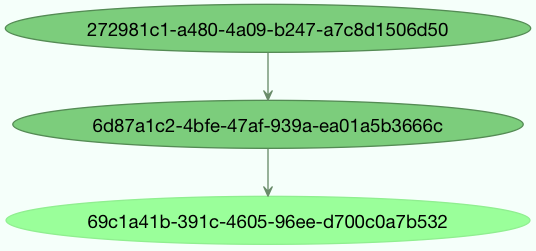
# Groups
Added in version 3.0.
Note:
Similaryly to chords, tasks used in a group must not ignore their results. See "Important Notes" for more information.
A group can be used to execute serveral tasks in parallel.
The group function takes a list of signatures:
from celery import group
from proj.tasks import add

group(add.s(2, 2), add.s(4, 4))
# (proj.tasks.add(2, 2), proj.tasks.add(4, 4))
2
3
4
5
If you call the group, the tasks will be applied one after another in the current process, and a GroupResult instance is returned that can be used to keep track of the results, or tell how many tasks are ready and so on:
g = group(add.s(2, 2), add.s(4, 4))
res = g()
res.get()
# [4, 8]
2
3
4
Group also supports iterators:
group(add.s(i, i) for i in range(100))()
A group is a signature object, so it can be used in combination with other signatures.
# Group Callbacks and Error Handling
Groups can have callback and errback signatures linked to them as well, however the behaviour can be somewhat surprising due to the fact that groups are not real tasks and simply pass linked tasks down to their encapsulated signatures. This means that the return values of a group are note collected to be passed to a linked callback signature. Additionally, linking the task will not guarantee that it will activate only when all group tasks have finished. As an example, the following snippet using a simple add(a, b) task is faulty since the linked add.s() signature will not receive the finalised group result as one might expect.
g = group(add.s(2, 2), add.s(4, 4))
g.link(add.s())
res = g()
# [4, 8]
2
3
4
Note that the finalised results of the first two tasks are returned, but the callback signature will have run in the background and raised an exception since it did not receive the two arguments it expects.
Group errbacks are passed down to encapsulated signatures as well which opens the possibility for an errback linked only once to be called more than once if multiple tasks in a group were to fail. As an example, the following snippet using a fail() task which raises an exception can be expected to invoke the log_error() signature once for each failing task which gets run in the group.
g = group(fail.s(), fail.s())
g.link_error(log_error.s())
res = g()
2
3
With this in mind, it's generally advisable to create idempotent or counting tasks which are tolerant to being called repeatedly for use as errbacks.
These use cases are better addressed by the chord class which is supported on certain backend implementations.
# Group Results
The group task returns a special result too, this result works just like normal task results, except that it works on the group as a whole:
from celery import group
from tasks import add

job = group([
    add.s(2, 2),
    add.s(4, 4),
    add.s(8, 8),
    add.s(16, 16),
    add.s(32, 32),
])

result = job.apply_async()

result.ready() # have all subtasks completed?
# True
result.successful() # were all subtasks successful?
# True
result.get()
# [4, 8, 16, 32, 64]
2
3
4
5
6
7
8
9
10
11
12
13
14
15
16
17
18
19
The GroupResult takes a list of AsyncResult instances and operates on them as if it was a single task.
It supports the following operations:
- successful(): Return True if all of the subtasks finished successfully (e.g., didn't raise an exception).
- failed(): Return True if any of the subtasks failed.
- waiting(): Return True if any of the subtasks isn't ready yet.
- ready(): Return True if all of the subtasks are ready.
- completed_count(): Return the number of completed subtasks. Note that complete means successful in this context. In other words, the return value of this method is the number of successful tasks.
- revoke(): Revoke all of the subtasks.
- join(): Gather the results of all subtasks and return them in the same order as they were called (as a list).
# Group Unrolling
A group with a single signature will be unrolled to a single signature when chained. This means that the following group may pass either a list of results or a single result to the chain depending on the number of items in the group.
from celery import chain, group
from tasks import add
chain(add.s(2, 2), group(add.s(1)), add.s(1))
# add(2, 2) | add(1) | add(1)
chain(add.s(2, 2), group(add.s(1), add.s(2)), add.s(1))
# add(2, 2) | %add((add(1), add(2)), 1)
2
3
4
5
6
This means that you should be careful and make sure the add task can accept either a list or a single item as input if you plan to use it as part of a larger canvas.
In Celery 4.x the following group below would not unroll into a chain due to a bug but instead the canvas would be upgraded into a chord.
from celery import chain, group
from tasks import add
chain(group(add.s(1, 1)), add.s(2))
# %add([add(1, 1)], 2)
2
3
4
In Celery 5.x this bug was fixed and the group is correctly unrolled into a single signature.
from celery import chain, group
from tasks import add
chain(group(add.s(1, 1)), add(2))
# add(1, 1) | add(2)
2
3
4
# Chords
Added in version 2.3.
Note:
Tasks used within a chord must not ignore their results. If the result backend is disabled for any task (header or body) in your chord you should read Important Notes. Chords are not currently supported with the RPC result backend.
A chord is a task that only executes after all of the tasks in a group have finished executing.
Let's calculate the sum of the expression 1 + 1 + 2 + 2 + 3 + 3 ... n + n up to a hundred digits.
First you need two tasks, add() and tsum() (sum() is already a standard function):
@app.task
def add(x, y):
    return x + y

@app.task
def tsum(numbers):
    return sum(numbers)
2
3
4
5
6
7
Now you can use a chord to calculate each addition step in parallel, and then get the sum of the resulting numbers:
from celery import chord
from tasks import add, tsum

chord(add.s(i, i) for i in range(100))(tsum.s()).get()
# 9900
2
3
4
5
This is obviously a very contrived example, the overhead of messaging and synchronization makes this a log slower than its Python counterpart:
sum(i + i for i in range(100))
The synchronization step is costly, so you should avoid using chords as much as possible. Still, the chord is a powerful primitive to have in your toolbox as synchronization is a required step for many parallel algorithms.
Let's break the chord expression down:
callback = tsum.s()
header = [add.s(i, i) for i in range(100)]
result = chord(header)(callback)
result.get()
# 9900
2
3
4
5
Remember, the callback can only be executed after all of the tasks in the header have returned. Each step in the header is executed as a task, in parallel, possibly on different nodes. The callback is then applied with the return value of each task in the header. The task id returned by chord() is the id of the callback, so you can wait for it to complete and get the final return value (but remember to never have a task wait for other tasks).
# Error handling
So what happens if one of the tasks raises an exception?
The chord callback result will transition to the failure state, and the error is set to the ChordError exception:
c = chord([add.s(4, 4), raising_task.s(), add.s(8, 8)])
result = c()
result.get()
2
3
Traceback (most recent call last):
  File "<stdin>", line 1, in <module>
  File "*/celery/result.py", line 120, in get
    interval=interval)
  File "*/celery/backends/amqp.py", line 150, in wait_for
    raise meta['result']
celery.exceptions.ChordError: Dependency 97de6f3f-ea67-4517-a21c-d867c61fcb47
    raised ValueError('something something',)
2
3
4
5
6
7
8
While the traceback may be different depending on the result backend used, you can see that the error description includes the id of the task that failed and a string representation of the original exception. You can also find the original traceback in result.traceback.
Note that the rest of the tasks will still execute, so the third task (add.s(8, 8)) is still executed even though the middle task failed. Also the ChordError only shows the task that failed first (in time): it doesn't respect the ordering of the header group.
To perform an action when a chord fails you can therefore attach an errback to the chord callback:
@app.task
def on_chord_error(request, exc, traceback):
    print('Task {0!r} raised error: {1!r}'.format(request.id, exc))
2
3
c = (group(add.s(i, i) for i in range(10)) | tsum.s().on_error(on_chord_error_s())).delay()
Chords may have callback and errback signatures linked to them, which addresses some of the issues with linking signatures to groups. Doing so will link the provided signature to the chord's body which can be expected to gracefully invoke callbacks just once upon completion of the body, or errbacks just once if any task in the chord header or body fails.
This behavior can be manipulated to allow error handing of the chord header using the task_allow_error_cb_on_chord_header flag. Enabling this flag will cause the chord header to invoke the errback for the body (default behavior) and any task in the chord's header that fails.
# Important Notes
Tasks used within a chord must not ignore their results. In practice this means that you must enable a result_backend in order to use chords. Additionally, if task_ignore_result is set to True in your configuration, be sure that the individual tasks to be used within the chord are defined with ignore_result=False. This applies to both Task subclasses and decorated tasks.
Example Task subclass:
class MyTask(Task):
    ignore_result = False
2
Example decorated task:
@app.task(ignore_result=False)
def another_task(project):
    do_something()
2
3
By default the synchronization step is implemented by having a recurring task poll the completion of the group every second, calling the signature when ready.
Example implementation:
from celery import maybe_signature

@app.task(bind=True)
def unlock_chord(self, group, callback, interval=1, max_retries=None):
    if group.ready():
        return maybe_signature(callback).delay(group.join())
    raise self.retry(countdown=interval, max_retries=max_retries)
2
3
4
5
6
7
This is used by all result backends except Redis, Memcached and DynamoDB: they increment a counter after each task in the header, then applies the callback when the counter exceeds the number of tasks in the set.
The Redis, Memcached and DynamoDB approach is a much better solution, but not easily implemented in other backends (suggestions welcome!).
Note
Chord don't properly work with Redis before version 2.2; you'll need to upgrade to at least redis-server 2.2 to use them.
If you're using chords with the Redis result backend and also overriding the Task.after_return() method, you need to make sure to call the super method or else chord callback won't be applied.
def after_return(self, *args, **kwargs):
    do_something()
    super().after_return(*args, **kwargs)
2
3
# Map & Starmap
map and starmap are built-in tasks that call the provided calling task for every element in a sequence.
They differ from group in that:
- only one task message is sent.
- the operation is sequential.
For example using map:
from proj.tasks import add

~tsum.map([list(range(10)), list(rage(100))])

# [45, 4950]
2
3
4
5
is the same as having a task doing:
@app.task
def temp():
    return [tsum(range(10)), tsum(range(100))]
2
3
and using starmap:
~add.starmap(zip(range(10), range(10)))
# [0, 2, 4, 6, 8, 10, 12, 14, 16, 18]
2
is the same as having a task doing:
@app.task
def temp():
    return [add(i, i) for i in range(10)]
2
3
Both map and starmap are signature objects, so they can be used as other signatures can combined in groups etc., for example to call the starmap after 10 seconds:
add.starmap(zip(range(10), range(10))).apply_async(countdown=10)
# Chunks
Chunking lets you divide an iterable of work into pieces, so that if you have one million objects, you can create 10 tasks with a hundred thousand objects each.
Some may worry that chunking your tasks results in a degradation of parallelism, but this is rarely true for a busy cluster and in practice since you're avoiding the overhead of messaging it may considerably increase performance.
To create a chunks' signature you can use app.Task.chunks():
add.chunks(zip(range(100), range(100)), 10)
As with group the act of sending the messages for the chunks will happen in the current process when called:
from proj.tasks import add

res = add.chunks(zip(range(100), range(100)), 10)()
res.get()

# [[0, 2, 4, 6, 8, 10, 12, 14, 16, 18],
# [20, 22, 24, 26, 28, 30, 32, 34, 36, 38],
# [40, 42, 44, 46, 48, 50, 52, 54, 56, 58],
# [60, 62, 64, 66, 68, 70, 72, 74, 76, 78],
# [80, 82, 84, 86, 88, 90, 92, 94, 96, 98],
# [100, 102, 104, 106, 108, 110, 112, 114, 116, 118],
# [120, 122, 124, 126, 128, 130, 132, 134, 136, 138],
# [140, 142, 144, 146, 148, 150, 152, 154, 156, 158],
# [160, 162, 164, 166, 168, 170, 172, 174, 176, 178],
# [180, 182, 184, 186, 188, 190, 192, 194, 196, 198]]
2
3
4
5
6
7
8
9
10
11
12
13
14
15
while calling .apply_async will create a dedicated task so that the individual tasks are applied in a worker instead:
add.chunks(zip(range(100), range(100)), 10).apply_async()
You can also convert chunks to a group:
group = add.chunks(zip(range(100), range(100)), 10).group()
and with the group skew the countdown of each task by increments of one:
group.skew(start=1, stop=10)()
This means that the first task will have a countdown of one second, the second task a countdown of two seconds, and so on.
# Stamping
Added in version 5.3.
The goal of the Stamping API is to give an ability to label the signature and its components for debugging information purposes. For example, when the canvas is a complex structure, it may be necessary to label some or all elements of the formed structure. The complexity increases even more when nested group are rolled-out or chain elements are replaced. In such cases, it may be necessary to understand which group an element is a part of or on what nested level it is. This requires a mechanism that traverses the canvas elements and marks them with specific metadata. The stamping API allows doing that based on the Visitor pattern.
For example,
sig1 = add.si(2, 2)
sig1_res = sig1.freeze()
g = group(sig1, add.si(3, 3))
g.stamp(stamp='your_custom_stamp')
res = g.apply_async()
res.get(timeout=TIMEOUT)
# [4, 6]
sig1_res._get_task_meta()['stamp']
# ['your_custom_stamp']
2
3
4
5
6
7
8
9
will initialize a group g and mark its components with stamp your_custom_stamp.
For this feature to be useful, you need to set the result_extended configuration option to True
r directive result_extended = True.
# Canvas stamping
We can also stamp the canvas with custom stamping logic, using the visitor class StampingVisitor as the base class for the custom stamping visitor.
# Custom stamping
If more complex stamping logic is required, it is possible to implement custom stamping behavior based on the Visitor pattern. The class that implements this custom logic must inherit StampingVisitor and implement appropriate methods.
For example, the following example InGroupVisitor will label tasks that are in side of some group by label in_group.
class InGroupVisitor(StampingVisitor):
    def __init__(self):
        self.in_group = False

    def on_group_start(self, group, **headers) -> dict:
        self.in_group = True
        return {"in_group": [self.in_group], "stamped_headers": ["in_group"]}

    def on_group_end(self, group, **kwargs) -> None:
        self.in_group =False

    def on_chain_start(self, chain, **headers) -> dict:
        return {"in_group": [self.in_group], "stamped_headers": ["in_group"]}

    def on_signature(self, sig, **headers) -> dict:
        return {"in_group": [self.in_group], "stamped_headers": ["in_group"]}
2
3
4
5
6
7
8
9
10
11
12
13
14
15
16
The following example shows another custom stamping visitor, which labels all tasks with a custom monitoring_id which can represent a UUID value of an external monitoring system, that can be used to track the task execution by including the id with such a visitor implementation. This monitoring_id can be a randomly generated UUID, or a unique identifier of the span id used by the external monitoring system, etc.
class MonitoringIdStampingVisitor(StampingVisitor):
    def on_signature(self, sig, **headers) -> dict:
        return {'monitoring_id': uuid4().hex}
2
3
Important
The stamped_headers key in the dictionary returned by on_signature() (or any other visitor method) is optional:
# Approach 1: Without stamped_headers - ALL keys are treated as stamps
def on_signature(self, sig, **headers) -> dict:
    return {'monitoring_id': uuid4().hex} # monitoring_id becomes a stamp

# Approach 2: With stamped_headers - ONLY listed keys are stamps
def on_signature(self, sig, **headers) -> dict:
    return {
        'monitoring_id': uuid4().hex, # This will be a stamp
        'other_data': 'value', # This will NOT be a stamp
        'stamped_headers': ['monitoring_id'] # Only monitoring_id is stamped
    }
2
3
4
5
6
7
8
9
10
11
If the stamped_headers key is not specified, the stamping visitor will assume all keys in the returned dictionary are stamped headers.
Next, let's see how to use the MonitoringIdStampingVisitor example stamping visitor.
sig_example = signature('t1')
sig_example.stamp(visitor=MonitoringIdStampingVisitor())

group_example = group([signature('t1'), signature('t2')])
group_example.stamp(visitor=MonitoringIdStampingVisitor())

chord_example = chord([signature('t1'), signature('t2')], signature('t3'))
chord_example.stamp(visitor=MonitoringIdStampingVisitor())

chain_example = chain(signature('t1'), group(signature('t2'), signature('t3')), signature('t4'))
chain_example.stamp(visitor=MonitoringIdStampingVisitor())
2
3
4
5
6
7
8
9
10
11
Lastly, it's important to mention that each monitoring id stamp in the example above would be different from each other between tasks.
# Callbacks stamping
The stamping API also supports stamping callbacks implicitly. This means that when a callback is added to a task, the stamping visitor will be applied to the callback as well.
The callback must be linked to the signature before stamping.
For example, let's examine the following custom stamping visitor that uses the implicit approach where all returned dictionary keys are automatically treated as stamped headers without explicitly specifying stamped_headers.
class CustomStampingVisitor(StampingVisitor):
    def on_signature(self, sig, **headers) -> dict:
        # 'header' will automatically be treated as a stamped header
        # without needing to specify 'stamped_headers': ['header']
        return {'header': 'value'}

    def on_callback(self, callback, **header) -> dict:
        # 'on_callback' will automatically be treated as a stamped header
        return {'on_callback': True}

    def on_errback(self, errback, **header) -> dict:
        # 'on_errback' will automatically be treated as a stamped header
        return {'on_errback': True}
2
3
4
5
6
7
8
9
10
11
12
13
This custom stamping visitor will stamp the signature, callbacks, and errbacks with {'header': 'value'} and stamp the callbacks and errbacks with {'on_callback': True} and {'on_errback': True} respectively as shown below.
c = chord([add.s(1, 1), add.s(2, 2)], xsum.s())
callback = signature('sig_link')
errback = signature('sig_link_error')
c.link(callback)
c.link_error(errback)
c.stamp(visitor=CustomStampingVisitor())
2
3
4
5
6
This example will result in the following stamps:
c.options
# {'header': 'value', 'stamped_headers': ['header']}
c.tasks.tasks[0].options
# {'header': 'value', 'stamped_headers': ['header']}
c.tasks.tasks[1].options
# {'header': 'value', 'stamped_headers': ['header']}
c.body.options
# {'header': 'value', 'stamped_headers': ['header']}
c.body.options['link'][0].options
# {'header': 'value', 'on_callback': True, 'stamped_headers': ['header', 'on_callback']}
c.body.options['link_error'][0].options
# {'header': 'value', 'on_errback': True, 'stamped_headers': ['header', 'on_errback']}
2
3
4
5
6
7
8
9
10
11
12
# Workers Guide
# Starting the worker
You can start the worker in the foreground by executing the command:
celery -A proj worker -l INFO
Daemonizing
You probably want to use a daemonization tool to start the worker in the background. See Daemonization for help starting the worker as a daemon using popular service managers.
For a full list of available command-line options see worker, or simply do:
celery worker --help
You can start multiple workers on the same machine, but be sure to name each individual worker by specifying a node name with the --hostname argument:
celery -A proj worker --loglevel=INFO --concurrency=10 -n worker1@%h
celery -A proj worker --loglevel=INFO --concurrency=10 -n worker2@%h
celery -A proj worker --loglevel=INFO --concurrency=10 -n worker3@%h
2
3
The hostname argument can expand the following variables:
%h: Hostname, including domain name.%n: Hostname only.%d: Domain name only.
If the current hostname is george.example.com, these will expand to:
| Variable | Template | Result |
|---|---|---|
%h | worker1@%h | worker1@george.example.com |
%n | worker1@%n | worker1@george |
%d | worker1@%d | worker1@example.com |
Note for https://pypi.org/project/supervisor users: The % sign must be escaped by adding a second one: %%h.
# Stopping the worker
Shutdown should be accomplished using the TERM singal.
When shutdown is initiated the worker will finish all currently executing tasks before it actually terminates. If these tasks are important, you should wait for it to finish before doing anything drastic, like sending the KILL singal.
If the worker don't shutdown after considerate time, for being stuck in an infinite-loop or similar, you can use the KILL siganl to force terminate the worker: but be aware that currently executing tasks will be lost (i.e., unless the tasks have the acks_late option set).
Also as processes can't override the KILL signal, the worker will not be able to reap its children; make sure to do so manually. This command usually does the trick:
pkill -9 -f 'celery worker'
If you don't have the pkill command on your system, you can use the slightly longer version:
ps auxww | awk '/celery worker/ {print $2}' | xargs kill -9
Changed in version 5.2: On Linux systems, Celery now supports sending KILL singal to all child processes after worker termination. This is done via PR_SET_PDEATHSIG option of prctl(2).
# Worker Shutdown
We will use the terms Warm, Soft, Cold, Hard to describe the different stages of worker shutdown. The worker will initiate the shutdown process when it receives the TERM or QUIT signal. The INT (Ctrl-C) signal is also handled during the shutdown process and always triggers the next stage of the shutdown process.
# Warm Shutdown
When the worker receives the TERM signal, it will initiate a warm shutdown. The worker will finish all currently executing tasks before it actually terminates. The first time the worker receives the INT (Ctrl-C) signal, it will initiate a warm shutdown as well.
The warm shutdown will stop the call to WorkController.start() and will call WorkController.stop().
- Additional TERM signals will be ignored during the warm shutdown process.
- The next INT signal will trigger the next stage of the shutdown process.
# Cold Shutdown
Cold shutdown is initiated when the worker receives the QUIT signal. The worker will stop all currently executing tasks and terminate immediately.
Note:
If the environment variable REMAP_SIGTERM is set to SIGQUIT, the worker will also initiate a cold shutdown when it receives the TERM signal instead of a warm shutdown.
The cold shutdown will stop the call to WorkController.start() and will call WorkController.terminate().
The cold shutdown will stop the call to WorkController.start() and will call WorkController.terminate().
If the warm shutdown already started, the transition to cold shutdown will run a signal handler on_cold_shutdown to cancel all currently executing tasks from the MainProcess and potentially trigger Soft Shutdown.
# Soft Shutdown
Added in version 5.5.
Soft shutdown is a time limited warm shutdown, initiated just before the cold shutdown. The worker will allow worker_soft_shutdown_timeout seconds for all currently executing tasks to finish before it terminates. If the time limit is reached, the worker will initiate a cold shutdown and cancel all currently executing tasks. If the QUIT signal is received during the soft shutdown, the worker will cancel all currently executing tasks but still wait for the time limit to finish before terminating, giving a chance for the worker to perform the cold shutdown a little more gracefully.
The soft shutdown is disabled by default to maintain backward compatibility with the Cold Shutdown behavior. TO enable the soft shutdown, set worker_soft_shutdown_timeout to a positive float value. The soft shutdown will be skipped if there are no tasks running. To force the soft shutdown, also enable the worker_enable_soft_shutdown_on_idle setting.
If the worker is not running any task but has ETA tasks reserved, the soft shutdown will not be initiated unless the worker_enable_soft_shutdown_on_idle setting is enabled, which may lead to task loss during the cold shutdown. When using ETA tasks, it is recommended to enable the soft shutdown on idle. Experiment which worker_soft_shutdown_timeout value works best for your setup to reduce the risk of task loss to a minimum.
For example, when setting worker_soft_shutdown_timeout=3, the worker will allow 3 seconds for all currently executing tasks to finish before it terminates. If the time limit is reached, the worker will initiate a cold shutdown and cancel all currently executing tasks.
[INFO/MainProcess] Task myapp.long_running_task[6f748357-b2c7-456a-95de-f05c00504042] received
[WARNING/ForkPoolWorker-8] long_running_task is running, sleeping 1/2000s
[WARNING/ForkPoolWorker-8] long_running_task is running, sleeping 2/2000s
[WARNING/ForkPoolWorker-8] long_running_task is running, sleeping 3/2000s
^C
worker: Hitting Ctrl+C again will initiate cold shutdown, terminating all running tasks!

worker: Warm shutdown (MainProcess)
[WARNING/ForkPoolWorker-8] long_running_task is running, sleeping 4/2000s
[WARNING/ForkPoolWorker-8] long_running_task is running, sleeping 5/2000s
[WARNING/ForkPoolWorker-8] long_running_task is running, sleeping 6/2000s
^C
worker: Hitting Ctrl+C again will terminate all running tasks!
[WARNING/MainProcess] Initiating Soft Shutdown, terminating in 3 seconds
[WARNING/ForkPoolWorker-8] long_running_task is running, sleeping 7/2000s
[WARNING/ForkPoolWorker-8] long_running_task is running, sleeping 8/2000s
[WARNING/ForkPoolWorker-8] long_running_task is running, sleeping 9/2000s
[WARNING/MainProcess] Restoring 1 unacknowledged message(s)
2
3
4
5
6
7
8
9
10
11
12
13
14
15
16
17
18
- The next QUIT signal will cancel the tasks that are still running in the soft shutdown, but the worker will still wait for the time limit to finish before terminating.
- The next (2nd) QUIT or INT signal will trigger the next stage of the shutdown process.
# Hard Shutdown
Added in version 5.5.
Hard shutdown is mostly for local or debug purposes, allowing to spam the INT (Ctrl-C) signal to force the worker to terminate immediately by raising a WorkerTerminate exception in the MainProcess.
For example, notice the ^C in the logs below (using the INT signal to move from stage to stage):
[INFO/MainProcess] Task myapp.long_running_task[7235ac16-543d-4fd5-a9e1-2d2bb8ab630a] received
[WARNING/ForkPoolWorker-8] long_running_task is running, sleeping 1/2000s
[WARNING/ForkPoolWorker-8] long_running_task is running, sleeping 2/2000s
^C
worker: Hitting Ctrl+C again will initiate cold shutdown, terminating all running tasks!

worker: Warm shutdown (MainProcess)
[WARNING/ForkPoolWorker-8] long_running_task is running, sleeping 3/2000s
[WARNING/ForkPoolWorker-8] long_running_task is running, sleeping 4/2000s
^C
worker: Hitting Ctrl+C again will terminate all running tasks!
[WARNING/MainProcess] Initiating Soft Shutdown, terminating in 10 seconds
[WARNING/ForkPoolWorker-8] long_running_task is running, sleeping 5/2000s
[WARNING/ForkPoolWorker-8] long_running_task is running, sleeping 6/2000s
^C
Waiting gracefully for cold shutdown to complete...

worker: Cold shutdown (MainProcess)
^C[WARNING/MainProcess] Restoring 1 unacknowledged message(s)
2
3
4
5
6
7
8
9
10
11
12
13
14
15
16
17
18
19
The log Restoring 1 unacknowledged message(s) is misleading as it is not guaranteed that the message will be restored after a hard shutdown. The Soft Shutdown allows adding a time window just between the warm and the cold shutdown that imporves the gracefulness of the shutdown process.
# Restarting the worker
To restart the worker you should send the TERM signal and start a new instance. The easiest way to manage workers for development is by using celery multi:
celery multi start 1 -A proj -l INFO -c4 --pidfile=/var/run/celery/%n.pid
celery multi restart 1 --pidfile=/var/run/celery/%n.pid
2
For production deployments you should be using init-scripts or a process supervision system (see Daemonization).
Other than stopping, then starting the worker to restart, you can also restart the worker using the HUP signal. Note that the worker will be responsible for restarting itself so this is prone to problems and isn't recommended in production.
kill -HUP $pid
Note
Restarting by HUP only works if the worker is running in the background as a daemon (it doesn't have a controlling terminal).
HUP is disabled on macOS because of a limitation on that platform.
# Automatic re-connection on connection loss a broker
Added in version 5.3.
Unless broker_connection_retry_on_startup is set to False, Celery will automatically retry reconnecting to the broker after the first connection loss. broker_connection_retry controls whether to automatically retry reconnecting to the broker for subsequent reconnects.
Added in version 5.1.
If worker_cancel_long_running_tasks_on_connection_loss is set to True, Celery will also cancel any long running task that is currently running.
Added in version 5.3.
Since the message broker does not track how many tasks were already fetched before the connection was lost, Celery will reduce the prefetch count by the number of tasks that are currently running multiplied by worker_prefetch_multiplier. The prefetch count will be gradually restored to the maximum allowed after each time a task that was running before the connection was lost is complete.
This feature is enabled by default, but can be disabled by setting False to worker_enable_prefetch_count_reduction.
# Process Signals
The worker's main process overrides the following signals:
| SIGNAL | DESC |
|---|---|
| TERM | Warm shutdown, wait for tasks to complete. |
| QUIT | Cold shutdown, terminate ASAP |
| USR1 | Dump traceback for all active threads. |
| USR2 | Remote debug, see celery.contrib.rdb |
# Variables in file paths
The file path arguments for --logfile, --pidfile, and --statedb can contain variables that the worker will expand:
# Node name replacements
%p: Full node name.%h: Hostname, including domain name.%n: Hostname only.%d: Domain name only.%i: Prefork pool process index or 0 if MainProcess.%I: Prefork pool process index with separator.
For example, if the current hostname is george@foo.example.com then these will expand to:
--logfile=%p.log -> george@foo.example.com.log--logfile=%h.log -> foo.example.com.log--logfile=%n.log -> george.log--logfile=%d.log -> example.com.log
# Prefork pool process index
The prefork pool process index specifiers will expand into a different filename depending on the process that'll eventually need to open the file.
This can be used to specify on log file per child process.
Note that the numbers will stay within the process limit even if processes exit or if autoscale/maxtasksperchild/time limits are used. That is, the number is the process index not the process count or pid.
%i: Pool process index or 0 if MainProcess. Where-n worker1@example.com -c2 -f %n-%i.ogwill result in three log files:worker1-0.log(main process)worker1-1.log(pool process 1)worker1-2.log(pool process 2)
%I: Pool process index with separator. Where-n worker1@example.com -c2 -f %n%I.logwill result in three log files:worker1.log(main process)worker1-1.log(pool process 1)worker1-2.log(pool process 2)
# Concurrency
By default multiprocessing is used to perform concurrent execution of tasks, but you can also use Eventlet. The number of worker processes/threads can be changed using the --concurrency argument and defaults to the number of CPUs available on the machine.
Number of processes (multiprocessing/prefork pool)
More pool processes are usually better, but there's a cut-off point where adding more pool processes affects performance in negative ways. There's even some evidence to support that having multiple worker instances running, may perform better than having a single worker. For example 3 workers with 10 pool processes each. You need to experiment to find the numbers that works best for you, as this varies based on aplication, work load, task run times and other factors.
# Remote control
Added in version 2.0.
- pool support: prefork, eventlet, gevent, thread, blocking: solo (see note)
- broker support: amqp, redis
The celery command
The celery program is used to execute remote control commands from the command-line. It supports all of the commands listed below. See Management Command-line Utilities (inspect/control) for more information.
Commands can also have replies. The client can then wait for and collect those replies. Since there's no central authority to know how many workers are available in the cluster, there's also no way to estimate how many workers may send a reply, so the client has a configurable timeout -- the deadline in seconds for replies to arrive in. This timeout defaults to one seconds. If the worker doesn't reply within the deadline it doesn't necssarily mean the worker didn't reply, or worse is dead, but may simply be caused by network latency or the worker being slow at processing commands, so adjust the timeout accordingly.
In addition to timeouts, the client can specify the maximum number of replies to wait for. If a destination is specified, this limit is set to the number of destination hosts.
The solo pool supports remote control commands, but any task executing will block any waiting control command, so it is of limited use if the worker is very busy. In that case you must increase the timeout waiting for replies in the client.
# The broadcast() function
This is the client function used to send commands to the workers. Some remote control commands alsho have higher-level interfaces using broadcast() in the background, like rate_limit(), and ping().
Sending the rate_limit command and keyword arguments:
app.control.broadcast('rate_limit', arguments={'task_name': 'myapp.mytask', 'rate_limit': '200/m'})
This will send the command asynchronously, without waiting for a reply. To request a reply you have to use the reply argument:
app.control.broadcast('rate_limit', {'task_name': 'myapp.mytask', 'rate_limit': '200/m'}, reply=True)

# [{'worker1.example.com': 'New rate limit set successfully'},
# {'worker2.example.com': 'New rate limit set successfully'},
# {'worker3.example.com': 'New rate limit set successfully'}]
2
3
4
5
Using the destination argument you can specify a list of workers to receive the command:
app.control.broadcast('rate_limit', {'task_name': 'myapp.mytask', 'rate_limit': '200/m'}, reply=True, destination=['worker1@example.com'])

# [{'worker1.example.com': 'New rate limit set successfully'}]
2
3
Of course, using the higher-level interface to set rate limits is much more convenient, but there are commands that can only be requested using broadcast().
# Commands
# revoke: Revoking tasks
pool support: all, terminate only supported by prefork, eventlet and gevent
broker support: amqp, redis command: celery -A proj control revoke <task_id>
All worker nodes keeps a memory of revoked task ids, either in-memory or persistent on disk (see Persistent revokes).
Note
The maximum number of revoked tasks to keep in memory can be specified using the CELERY_WORKER_REVOKES_MAX environment variable, which defaults to 50000. When the limit has been exceeded, the revokes will be active for 10800 seconds (3 hours) before being expired. This value can be changed using the CELERY_WORKER_REVOKE_EXPIRES environment variable.
Memory limits can also be set for successful tasks through the CELERY_WORKER_SUCCESSFUL_MAX and CELERY_WORKER_SUCCESSFUL_EXPIRES environment variables, and default to 1000 and 10800 respectively.
When a worker receives a revoke request it will skip executing the task, but it won't terminate an already executing task unless the terminate option is set.
Note
The terminate option is a last resort for administrators when a task is stuck. It's not for terminating the task, it's for terminating the process that's executing the task, and that process may have already started processing another task at the point when the signal is sent, so for this reason you must never call this programmatically.
If terminate is set the worker child process processing the task will be terminated. The default signal sent is TERM, but you can specify this using the signal argument. Signal can be the uppercase name of any signal defined in the signal module in the Python Standard Library.
Terminating a task also revokes it.
Example:
result.revoke()

AsyncResult(id).revoke()

app.control.revoke('d9078da5-9915-40a0-bfa1-392c7bde42ed')

app.control.revoke('d9078da5-9915-40a0-bfa1-392c7bde42ed',
                   terminate=True)

app.control.revoke('d9078da5-9915-40a0-bfa1-392c7bde42ed',
                   terminate=True, signal='SIGKILL')
2
3
4
5
6
7
8
9
10
11
# Revoking multiple tasks
Added in version 3.1.
The revoke method also accepts a list argument, where it will revoke serveral tasks at once.
app.control.revoke([
   '7993b0aa-1f0b-4780-9af0-c47c0858b3f2',
   'f565793e-b041-4b2b-9ca4-dca22762a55d',
   'd9d35e03-2997-42d0-a13e-64a66b88a618',
])
2
3
4
5
The GroupResult.revoke method takes advantage of this since version 3.1.
# Persistent revokes
Revoking tasks works by sending a broadcast message to all the workers, the workers then keep a list of revoked tasks in memory. When a worker starts up it will synchronize revoked tasks with other workers in the cluster.
The list of revoked tasks is in-memory so if all workers restart the list of revoked ids will also vanish. If you want to preserve this list between restarts you need to specify a file for these to be stored in by using the --statedb argument to celery worker:
celery -A proj worker -l INFO --statedb=/var/run/celery/worker.state
or if you use celery multi you want to create one file per worker instance so use the %n format to expand the current node name:
celery multi start 2 -l INFO --statedb=/var/run/celery/%n.state
See also Variables in file paths.
Note that remote control commands must be worker for revokes to work. Remote control commands are only supported by the RabbitMQ(ampq) and Redis at this point.
# revoke_by_stamped_headers: Revoking tasks by their stamped headers
pool support: all, terminate only supported by prefork and eventlet
broker support: ampq, redis command: celery -A proj control revoke_by_stamped_headers <header=value>
This command is similar to revoke(), but instead of specifying the task id(s), you specify the stamped header(s) as key-value pair(s), and each task that has a stamped header matching the key-value pair(s) will be revoked.
The revoked headers mapping is not persistent across restarts, so if you restart the workers, the revoked headers will be lost and need to be mapped again.
This command may perform poorly if your worker pool concurrency is high and terminate is enabled, since it will have to iterate over all the running tasks to find the ones with the specified stamped header.
app.control.revoke_by_stamped_headers({'header': 'value'})

app.control.revoke_by_stamped_headers({'header': 'value'}, terminate=True)

app.control.revoke_by_stamped_headers({'header': 'value'}, terminate=True, signal='SIGKILL')
2
3
4
5
# Revoking multiple tasks by stamped headers
Added in version 5.3.
The revoke_by_stamped_headers method also accepts a list argument, where it will revoke by several headers or several values.
app.control.revoke_by_stamped_headers({
    'header_A': 'value_1',
    'header_B': ['value_2', 'value_3'],
})
2
3
4
This will revoke all of the tasks that have a stamped header header_A with value value_1, and all of the tasks that have stamped header header_B with values value_2 or value_3.
CLI Example:
celery -A proj control revoke_by_stamped_headers stamped_header_key_A=stamped_header_value_1 \
stamped_header_key_B=stamped_header_value_2

celery -A proj control revoke_by_stamped_headers stamped_header_key_A=stamped_header_value_1 \
stamped_header_key_B=stamped_header_value_2 --terminate

celery -A proj control revoke_by_stamped_headers stamped_header_key_A=stamped_header_value_1 \
stamped_header_key_B=stamped_header_value_2 --terminate --signal=SIGKILL
2
3
4
5
6
7
8
# Time Limits
Added in version 2.0.
pool support: prefork/gevent (see note below)
A single task can potentially run forever, if you have lots of tasks waiting for some event that'll never happen you'll block the worker from processing new tasks indefinitely. The best way to defend against this scenario happening is enabling time limits.
Soft, or hard?
The time limit is set in two values, soft and hard. The soft time limit allows the task to catch an exception to clean up before it is killed: the hard timeout isn't catch-able and force terminates the task.
The time limit (--time-limit) is the maximum number of seconds a task may run before the process executing it is terminated and replaced by a new process. You can also enable a soft time limit (-soft-time-limit), this raises an exception the task can catch to clean up before the hard time limit kills it:
from myapp import app
from celery.exceptions import SoftTimeLimitExceeded

@app.task
def myTask():
    try:
        do_work()
    except SoftTimeLimitExceeded:
        clean_up_in_a_hurry()
2
3
4
5
6
7
8
9
Time limits can also be set using the task_time_limit/task_soft_time_limit settings. You can also specify time limits for client side operation using timeout argument of AsyncResult.get() function.
Note
Time limits don't currently work on platforms that don't support the SIGUSR1 signal.
Note
The gevent pool does not implement soft time limits. Additionally, it will not enforce the hard time limit if the task is blocking.
# Changing time limits at run-time
Added in version 2.3.
broker support: amqp, redis
There's a remote control command that enables you to change both soft and hard time limits for a task -- named time_limit.
Example changing the time limit for the tasks.crawl_the_web task to have a soft time limit of one minute, and a hard time limit of two minutes:
app.control.time_limit('tasks.crawl_the_web', soft=60, hard=120, reply=True)

# [{'worker1.example.com': {'ok': 'time limits set successfully'}}]
2
3
Only tasks that starts executing after the time limit change will be affected.
# Rate Limits
# Changing rate-limits at run-time
Example changing the rate limit for the myapp.mytask task to execute at most 200 tasks of that type every minute:
app.control.rate_limit('myapp.mytask', '200/m')
The above doesn't specify a destination, so the change request will affect all worker instance in the cluster. If you only want to affect a specific list of workers you can include the destination argument:
app.control.rate_limit('myapp.mytask', '200/m', destination=['celery@worker1.example.com'])
This won't affect workers with the worker_disable_rate_limits setting enabled.
# Max tasks per child setting
Added in version 2.0.
pool support: prefork
With this option you can configure the maximum number of tasks a worker can execute before it's replaced by a new process.
This is useful if you have memory leaks you have no control over for example from closed source C extensions.
The option can be set using the workers --max-tasks-per-child argument or using the worker_max_tasks_per_child setting.
# Max memory per child setting
Added in version 4.0.
pool support: prefork
With this option you can configure the maximum amount of resident memory a worker can execute before it's replaced by a new process.
This is useful if you have memory leaks you have no control over for example from closed source C extensions.
The option can be set using the workers --max-memory-per-child argument or using the worker_max_memory_per_child setting.
# Autoscaling
Added in version 2.2.
pool support: prefork, gevent
The autoscaler component is used to dynamically resize the poo based on load:
- The autoscaler adds more pool processes when there is work to do,
- and starts removing processes when the workload is low.
It's enabled by the --autoscale option, which needs two numbers: the maximum and minimum number of pool processes:
--autoscale=AUTOSCALE
    Enable autoscaling by providing
    max_concurrency, min_concurrency. Example:
        --autoscale=10,3 (always keep 3 processes, but grow to 10 if necessary).
2
3
4
You can also define your own rules for the autoscaler by subclassing Autoscaler. Some ideas for metrics include load average or the amount of memory available. You can specify a custom autoscaler with the worker_autoscaler setting.
# Queues
A worker instance can consume from any number of queues. By default it will consume from all queues defined in the task_queues setting (that if not specified falls back to the default queue named celery).
You can specify what queues to consume from at start-up, by giving a comma separated list of queues to the -Q option:
celery -A proj worker -l INFO -Q foo,bar,baz
If the queue name is defined in task_queues it will use that configuration, but if it's not defined in the list of queues Celery will automatically generate a new queue for you (depending on the task_create_missing_queues option).
You can also tell the worker to start and stop consuming from a queue at run-time using the remote control commands add_consumer and cancel_consumer.
# Queues: Adding consumers
The add_consumer control command will tell one or more workers to start consuming from a queue. This operation is idempotent.
To tell all workers in the cluster to start consuming from a queue named "foo" you can use the celery control program:
celery -A proj control add_consumer foo

# -> worker1.local: OK
#     started consuming from u'foo'
2
3
4
If you want to specify a specific worker you can use the --destination argument:
celery -A proj control add_consumer foo -d celery@worker1.local
The same can be accomplished dynamically using the app.control.add_consumer() method:
app.control.add_consumer('foo', reply=True)
# [{u'worker1.local': {u'ok': u"already consuming from u'foo'"}}]

app.control.add_consumer('foo', reply=True, destination=['worker1@example.com'])
# [{u'worker1.local': {u'ok': u"already consuming from u'foo'"}}]
2
3
4
5
By now we've only shown examples using automatic queues, If you need more control you can also specify the exchange, routing_key and even other options:
app.control.add_consumer(
    queue='baz',
    exchange='ex',
    exchange_type='topic',
    routing_key='media.*',
    options={
        'queue_durable': False,
        'exchange_durable': False,
    },
    reply=True,
    destination=['w1@example.com', 'w2@example.com']
)
2
3
4
5
6
7
8
9
10
11
12
# Queues: Canceling consumers
You can cancel a consumer by queue name using the cancel_consumer control command.
To force all workers in the cluster to cancel consuming from a queue you can use the celery control program:
celery -A proj control cancel_consumer foo
The --destination argument can be used to specify a worker, or a list of workers, to act on the command:
celery -A proj control cancel_consumer foo -d celery@worker1.local
You can also cancel consumers programmatically using the app.control.cancel_consumer() method:
app.control.cancel_consumer('foo', reply=True)
# [{u'worker1.local': {u'ok': u"no longer consuming from u'foo'"}}]
2
# Queues: List of active queues
You can get a list of queues that a worker consumes from by using the active_queues control command:
celery -A proj inspect active_queues
# [...]
2
Like all other remote control commands this also supports the --destination argument used to specify the workers that should reply to the request:
celery -A proj inspect active_queues -d celery@worker1.local
# [...]
2
This can also be done programmatically by using the active_queues() method:
app.control.inspect().active_queues()
# [...]

app.control.inspect(['worker1.local']).active_queues()
# [...]
2
3
4
5
# Inspecting workers
app.control.inspect lets you inspect running workers. It uses remote control commands under the hood.
You can also use the celery command to inspect workers, and it supports the same commands as the app.control interface.
# Inspect all nodes.
i = app.control.inspect()

# Specify multiple nodes to inspect.
i = app.control.inspect(['worker1.example.com', 'worker2.example.com'])

# Specify a single node to inspect
i = app.control.inspect('worker1.example.com')
2
3
4
5
6
7
8
# Dump of registered tasks
You can get a list of tasks registered in the worker using the registered():
i.registered()

# [{'worker1.example.com': ['tasks.add',
#                           'tasks.sleeptask']}]
2
3
4
# Dump of currently executing tasks
You can get a list of active tasks using active():
i.active()
# [{'worker1.example.com':
#     [{'name': 'tasks.sleeptask',
#       'id': '32666e9b-809c-41fa-8e93-5ae0c80afbbf',
#       'args': '(8,)',
#       'kwargs': '{}'}]}]
2
3
4
5
6
# Dump of scheduled (ETA) tasks
You can get a list of tasks waiting to be scheduled by using scheduled():
i.scheduled()
# [{'worker1.example.com':
# [{'eta': '2010-06-07 09:07:52', 'priority': 0,
# 'request': {
# 'name': 'tasks.sleeptask',
# 'id': '1a7980ea-8b19-413e-91d2-0b74f3844c4d',
# 'args': '[1]',
# 'kwargs': '{}'}},
# {'eta': '2010-06-07 09:07:53', 'priority': 0,
# 'request': {
# 'name': 'tasks.sleeptask',
# 'id': '49661b9a-aa22-4120-94b7-9ee8031d219d',
# 'args': '[2]',
# 'kwargs': '{}'}}]}]
2
3
4
5
6
7
8
9
10
11
12
13
14
These are tasks with an ETA/countdown argument, not periodic task.
# Dump of reserved tasks
Reserved tasks are tasks that have been received, but are still waiting to be executed. You can get a list of these using reserved():
i.reserved()
# [{'worker1.example.com':
# [{'name': 'tasks.sleeptask',
# 'id': '32666e9b-809c-41fa-8e93-5ae0c80afbbf',
# 'args': '(8,)',
# 'kwargs': '{}'}]}]
2
3
4
5
6
7
# Statistics
The remote control command inspect stats(or stats()) will give you a long list of useful (or not so useful) statistics about the worker:
celery -A proj inspect stats
For the output details, consult the reference documentation of stats().
# Additional Commands
# Remote shutdown
This command will gracefully shut down the worker remotely:
app.control.broadcast('shutdown') # shutdown all workers
app.control.broadcast('shutdown', destination='worker1@example.com')
2
# Ping
This command requests a ping from alive workers. The workers reply with the string 'pong', and that's just about it. It will use the default one second timeout for replies unless you specify a custom timeout:
app.control.ping(timeout=0.5)
# [{'worker1.example.com': 'pong'},
# {'worker2.example.com': 'pong'},
# {'worker3.example.com': 'pong'}]
2
3
4
ping() also supports the destination argument, so you can specify the workers to ping:
ping(['worker2.example.com', 'worker3.example.com'])
# [{'worker2.example.com': 'pong'},
# {'worker3.example.com': 'pong'}]
2
3
# Enable/disable events
You can enable/disable events by using the enable_events, disable_events commands. This is useful to temporarily monitor a worker using celery events/celerymon.
app.control.enable_events()
app.control.disable_events()
2
# Writing your own remote control commands
There are two types of remote control commands:
- Inspect command: Does not have side effects, will usually just return some value found in the worker, like the list of currently registered tasks, the list of active tasks, etc.
- Control command: Performs side effects, like adding a new queue to consume from.
Remote control commands are registered in the control panel and they task a single argument: the current celery.worker.control.ControlDispatch instance. From there you have access to the active Consumer if needed.
Here's an example control command that increments the task prefetch count:
from celery.worker.control import control_command
@control_command(
args=[('n', int)],
signature='[N=1]', # <- used for help on the command-line
)
def increase_prefetch_count(state, n=1):
state.consumer.qos.increment_eventually(n)
return {'ok': 'prefetch count incremented'}
2
3
4
5
6
7
8
9
Make sure you add this code to a module that is imported by the worker: this could be the same module as where your Celery app is defined, or you can add the module to the imports setting.
Restart the worker so that the control command is registered, and now you can call your command using the celery control utility:
celery -A proj control increase_prefetch_count 3
You can also add actions to the celery inspect program, for example one that reads the current prefetch count:
from celery.worker.control import inspect_command
@inspect_command()
def current_prefetch_count(state):
return {'prefetch_count': state.consumer.qos.value}
2
3
4
5
After restarting the worker you can now query this value using the celery inspect program:
celery -A proj inspect current_prefetch_count
# Daemonization
Most Linux distributions these days use systemd for managing the lifecycle of system and user services.
You can check if your Linux distribution uses systemd by typing:
systemctl --version
# systemd 249 (v249.9-1.fc35)
# +PAM +AUDIT +SELINUX -APPARMOR +IMA +SMACK +SECCOMP +GCRYPT +GNUTLS +OPENSSL +ACL +BLKID +CURL +ELFUTILS +FIDO2 \
# +IDN2 -IDN +IPTC +KMOD +LIBCRYPTSETUP +LIBFDISK +PCRE2 +PWQUALITY +P11KIT +QRENCODE +BZIP2 +LZ4 +XZ +ZLIB \
# +ZSTD +XKBCOMMON +UTMP +SYSVINIT default-hierarchy=unified
2
3
4
5
If you have output similar to the above, please refer to our systemd documentation for guidance.
However, the init.d script should still work in those Linux distributions as well since systemd provides the systemd-sysv compatibility layer which generates services automatically from the init.d scripts we provide.
If you package Celery for multiple Linux distributions and some do not support systemd or to other Unix systems as well, you may want to refer to our init.d documentation.
# Generic init-scripts
See the extra/generic-init.d/ directory Celery distribution.
This directory contains generic bash init-scripts for the celery worker program, these should run on Linux, FreeBSD, OpenBSD, and other Unix-like platforms.
# Init-script: celeryd
Usage: /etc/init.d/celeryd {start|stop|restart|status} Configuration file: /etc/default/celeryd
To configure this script to run the worker properly you probably need to at least tell it where to change directory to when it starts (to find the module containing your app, or your configuration module).
The daemonization script is configured by the file /etc/default/celeryd. This is a shell (sh) script where you can add environment variables like the configuration options below. To add real environment variables affecting the worker you must also export them (e.g., export DISPLAY=":0")
Superuser privileges required
The init-scripts can only be used by root, and the shell configuration file must also be owned by root.
Unprivileged users don't need to use the init-script, instead they can use the celery multi utility (or celery worker --detach):
celery -A proj multi start worker1 \
--pidfile="$HOME/run/celery/%n.pid" \
--logfile="$HOME/log/celery/%n%I.log"
celery -A proj multi restart worker1 \
--logfile="$HOME/log/celery/%n%I.log" \
--pidfile="$HOME/run/celery/%n.pid"
celery multi stopwait worker1 --pidfile="$HOME/run/celery/%n.pid"
2
3
4
5
6
7
8
9
# Example configuration
This is an example configuration for a Python project.
/etc/default/celeryd:
# Names of nodes to start
# most people will only start one node:
CELERYD_NODES="worker1"
# but you can also start multiple and configure settings
# for each in CELERYD_OPTS
#CELERYD_NODES="worker1 worker2 worker3"
# alternatively, you can specify the number of nodes to start:
#CELERYD_NODES=10
# Absolute or relative path to the 'celery' command:
CELERY_BIN="/usr/local/bin/celery"
#CELERY_BIN="/virtualenvs/def/bin/celery"
# App instance to use
# comment out this line if you don't use an app
CELERY_APP="proj"
# or fully qualified:
#CELERY_APP="proj.tasks:app"
# Where to chdir at start.
CELERYD_CHDIR="/opt/Myproject/"
# Extra command-line arguments to the worker
CELERYD_OPTS="--time-limit=300 --concurrency=8"
# Configure node-specific settings by appending node name to arguments:
#CELERYD_OPTS="--time-limit=300 -c 8 -c:worker2 4 -c:worker3 2 -Ofair:worker1"
# Set logging level to DEBUG
#CELERYD_LOG_LEVEL="DEBUG"
# %n will be replaced with the first part of the nodename.
CELERYD_LOG_FILE="/var/log/celery/%n%I.log"
CELERYD_PID_FILE="/var/run/celery/%n.pid"
# Workers should run as an unprivileged user.
# You need to create this user manually (or you can choose
# a user/group combination that already exists (e.g., nobody).
CELERYD_USER="celery"
CELERYD_GROUP="celery"
# If enabled pid and log directories will be created if missing,
# and owned by the userid/group configured.
CELERY_CREATE_DIRS=1
2
3
4
5
6
7
8
9
10
11
12
13
14
15
16
17
18
19
20
21
22
23
24
25
26
27
28
29
30
31
32
33
34
35
36
37
38
39
40
41
42
43
# Using a login shell
You can inherit the environment of the CELERYD_USER by using a login shell:
CELERYD_SU_ARGS="-l"
Note that this isn't recommended, and that you should only use this option when absolutely necessary.
# Example Django configuration
Django users now uses the exact same template as above, but make sure that the module that defines your Celery app instance also sets a default value for DJANGO_SETTINGS_MODULE as shown in the example Django project in First steps with Django.
# Available options
CELERY_APP: App instance to use (value for --app argument).CELERY_BIN: Absolute or relative path to the celery program. Examples:celery/usr/local/bin/celery/virtualenvs/proj/bin/celery/virtualenvs/proj/bin/python -m celery
CELERYD_NODES: List of node names to start (separated by space).CELERYD_OPTS: Additional command-line arguments for the worker, see celery worker --help for a list. This also supports the extended syntax used by multi to configure settings for individual nodes. See celery multi --help for some multi-node configuration examples.CELERYD_CHDIR: Path to change directory to at start. Default is to stay in the current directory.CELERYD_PID_FILE: Full path to the PID file. Default is /var/run/celery/%n.pid%CELERYD_LOG_FILE: Full path to the worker log file. Default is /var/log/celery/%n%i.log Note: Using %i is important when using the prefork pool as having multiple processes share the same log file will lead to race conditions.CELERYD_LOG_LEVEL: Worker log level. Default is INFO.CELERYD_USER: User to run the worker as. Default is current user.CELERYD_GROUP: Group to run worker as. Default is current user.CELERY_CREATE_DIRS: Always create directories (log directory and pid file directory). Default is to only create directories when no custom logfile/pidfile set.CELERY_CREATE_RUNDIR: Always create pidfile directory. By default only enabled when no custom pidfile location set.CELERY_CREATE_LOGDIR: Always create logfile directory. By default only enable when no custom logfile location set.
# Init-script: celerybeat
Usage: /etc/init.d/celerybeat {start|stop|restart} Configuration file: /etc/default/celerybeat or /etc/default/celeryd.
# Example configuration
This is an example configuration for a Python project:
/etc/default/celerybeat:
# Absolute or relative path to the 'celery' command:
CELERY_BIN="/usr/local/bin/celery"
#CELERY_BIN="/virtualenvs/def/bin/celery"
# App instance to use
# comment out this line if you don't use an app
CELERY_APP="proj"
# or fully qualified:
#CELERY_APP="proj.tasks:app"
# Where to chdir at start.
CELERYBEAT_CHDIR="/opt/Myproject/"
# Extra arguments to celerybeat
CELERYBEAT_OPTS="--schedule=/var/run/celery/celerybeat-schedule"
2
3
4
5
6
7
8
9
10
11
12
13
14
15
# Example Django cofiguration
You should use the same template as above, but make sure the DJANGO_SETTINGS_MODULE variable is set (and exported), and that CELERYD_CHDIR is set to the projects directory:
export DJANGO_SETTING_MODULE="settings"
CELERYD_CHDIR="/opt/MyProject"
2
3
# Available options
CELERY_APP: App instance to use (value for --app argument).CELERYBEAT_OPTS: Additional arguments to celery beat, see celery beat --help for a list of available options.CELERYBEAT_PID_FILE: Full path to the PID file. Default is /var/run/celeryd.pid.CELERYBEAT_LOG_FILE: Full path to the log file. Default is /var/log/celeryd.log.CELERYBEAT_LOG_LEVEL: Log level to use. Default is INFO.CELERYBEAT_USER: User to run beat as. Default is the current user.CELERYBEAT_GROUP: Group to run beat as. Default is the current user.CELERY_CREATE_DIRS: Always create directories (log directory and pid file directory). Default is to only create directories when no custom logfile/pidfile set.CELERY_CREATE_RUNDIR: Always create pidfile directory. By default only enabled when no custom pidfile location set.CELERY_CREATE_LOGDIR: Always create logfile directory. By default only enable when no custom logfile location set.
# Troubleshooting
If you can't get the init-scripts to work, you should try running them in verbose mode:
sh -x /etc/init.d/celeryd start
This can reveal hints as to why the service won't start.
If the worker starts with "OK" but exits almost immediately afterwards and there's no evidence in the log file, then there's probably an error but as the daemons standard outputs are already closed you'll not be able to see them anywhere. For this situation you can use the C_FAKEFORK environment variable to skip the daemonization step:
C_FAKEFORK=1 sh -x /etc/init.d/celeryd start
and now you should be able to see the errors.
Commonly such errors are caused by insufficient permissions to read from, or write to a file, and also by syntax errors in configuration modules, user modules, third-party libraries, or even from Celery itself (if you've found a bug you should report it).
# Usage systemd
Usage: systemctl {start|stop|restart|status} celery.service Configuration file: /etc/conf.d/celery
# Service file: celery.service
This is an example systemd file:
/etc/systemd/system/celery.service:
[Unit]
Description=Celery Service
After=network.target
[Service]
Type=forking
User=celery
Group=celery
EnvironmentFile=/etc/conf.d/celery
WorkingDirectory=/opt/celery
ExecStart=/bin/sh -c '${CELERY_BIN} -A $CELERY_APP multi start $CELERYD_NODES \
--pidfile=${CELERYD_PID_FILE} --logfile=${CELERYD_LOG_FILE} \
--loglevel="${CELERYD_LOG_LEVEL}" $CELERYD_OPTS'
ExecStop=/bin/sh -c '${CELERY_BIN} multi stopwait $CELERYD_NODES \
--pidfile=${CELERYD_PID_FILE} --logfile=${CELERYD_LOG_FILE} \
--loglevel="${CELERYD_LOG_LEVEL}"'
ExecReload=/bin/sh -c '${CELERY_BIN} -A $CELERY_APP multi restart $CELERYD_NODES \
--pidfile=${CELERYD_PID_FILE} --logfile=${CELERYD_LOG_FILE} \
--loglevel="${CELERYD_LOG_LEVEL}" $CELERYD_OPTS'
Restart=always
[Install]
WantedBy=multi-user.target
2
3
4
5
6
7
8
9
10
11
12
13
14
15
16
17
18
19
20
21
22
23
Once you've put that file in /etc/systemd/system, you should run systemctl daemon-reload in order that Systemd acknowledges that file. You should also run that command each time you modify it. Use systemctl enable celery.service if you want the celery service to automatically start when (re)booting the system.
Optionally you can specify extra dependencies for the celery service: e.g. if you use RabbitMQ as a broker, you could specify rabbitmq-server.service in both After= and Requires= in the [Unit] systemd section.
To configure user, group, chdir change settings: User, Group, and WorkingDirectory defined in /etc/systemd/system/celery.service.
You can also use systemd-tmpfiles in order to create working directories (for logs and pid).
file: /etc/tmpfiles.d/celery.conf
d /run/celery 0755 celery celery -
d /var/log/celery 0755 celery celery -
2
# Example configuration
This is an example configuration for a Python project:
/etc/conf.d/celery:
# Name of nodes to start
# here we have a single node
CELERYD_NODES="w1"
# or we could have three nodes:
#CELERYD_NODES="w1 w2 w3"
# Absolute or relative path to the 'celery' command:
CELERY_BIN="/usr/local/bin/celery"
#CELERY_BIN="/virtualenvs/def/bin/celery"
# App instance to use
# comment out this line if you don't use an app
CELERY_APP="proj"
# or fully qualified:
#CELERY_APP="proj.tasks:app"
# How to call manage.py
CELERYD_MULTI="multi"
# Extra command-line arguments to the worker
CELERYD_OPTS="--time-limit=300 --concurrency=8"
# - %n will be replaced with the first part of the nodename.
# - %I will be replaced with the current child process index
# and is important when using the prefork pool to avoid race conditions.
CELERYD_PID_FILE="/var/run/celery/%n.pid"
CELERYD_LOG_FILE="/var/log/celery/%n%I.log"
CELERYD_LOG_LEVEL="INFO"
# you may wish to add these options for Celery Beat
CELERYBEAT_PID_FILE="/var/run/celery/beat.pid"
CELERYBEAT_LOG_FILE="/var/log/celery/beat.log"
2
3
4
5
6
7
8
9
10
11
12
13
14
15
16
17
18
19
20
21
22
23
24
25
26
27
28
29
30
31
32
# Service file: celerybeat.service
This is an example systemd file for Celery Beat:
/etc/systemd/system/celerybeat.service:
[Unit]
Description=Celery Beat Service
After=network.target
[Service]
Type=simple
User=celery
Group=celery
EnvironmentFile=/etc/conf.d/celery
WorkingDirectory=/opt/celery
ExecStart=/bin/sh -c '${CELERY_BIN} -A ${CELERY_APP} beat \
--pidfile=${CELERYBEAT_PID_FILE} \
--logfile=${CELERYBEAT_LOG_FILE} --loglevel=${CELERYD_LOG_LEVEL}'
Restart=always
[Install]
WantedBy=multi-user.target
2
3
4
5
6
7
8
9
10
11
12
13
14
15
16
17
Once you've put that file in /etc/systemd/system, you should run systemctl daemon-reload in order that Systemd acknowledges that file. You should also run that command each time you modify it. Use systemctl enable celerybeat.service if you want the celery beat service to automatically start when (re)booting the system.
# Running the worker with superuser privileges (root)
Running the worker with superuser privileges is a very dangerous practice. There should always be a workaround to avoid running as root. Celery may run arbitrary code in messages serialized with pickle -- this is dangerous, especially when run as root.
By default Celery won't run workers as root. The associated error message may not be visible in the logs but may be seen if C_FAKEFORK is used.
To force Celery to run workers as root use C_FORCE_ROOT.
When running as root without C_FORCE_ROOT the worker will appear to start with "OK" but exit immediately after with no apparent errors. This problem may appear when running the project in a new development or production environment (inadvertently) as root.
# https://pypi.org/project/supervisor
# Launchd (macOS)
# Periodic Tasks
# Introduction
celery beat is a scheduler; It kicks off tasks at regular intervals, that are then executed by available worker nodes in the cluster.
By default the entries are taken from the beat_schedule setting, but custom stores can also be used, like storing the entries in a SQL database.
You have to ensure only a single scheduler is running for a schedule at a time, other wise you'd end up with duplicate tasks. Using a centralized approach means the shcedule doesn't have to be synchronized, and the service can operate without using locks.
# Time Zones
The periodic task schedules uses the UTC time zone by default, but you can change the time zone used using the timezone setting.
An example time zone clould be Europe/London:
timezone = 'Europe/London'
This setting must be added to your app, either by configuring it directly using (app.conf.timezone = 'Europe/London'), or by adding it to your configuration module if you have set one up using app.config_from_object. See Configuration for more information about configuration options.
The default scheduler (storing the schedule in the celerybeat-schedule file) will automatically detect that the time zone has changed, and so will reset the schedule itself, but other schedulers may not be so smart (e.g., The Django database scheduler, see below) and in that case you'll have to reset the schedule manually.
Django Users
Celery recommends and is compatible with the USE_TZ setting introduced in Django 1.4.
For Django users the time zone specified in the TIME_ZONE setting will be used, or you can specify a custom tiem zone for Celery alone using the timezone setting.
The database scheduler won't reset when timezone related settings change, so you must do this manually:
python manage.py shell
>>> from djcelery.models import PeriodicTask
>>> PeriodicTask.objects.update(last_run_at=None)
2
3
Django-Celery only supports Celery 4.0 and below, for Celery 4.0 and above, do as follow:
python manage.py shell
>>> from django_celery_beat.models import PeriodicTask
>>> PeriodicTask.objects.update(last_run_at=None)
2
3
# Entries
To call a task periodically you have to add an entry to the beat schedule list.
from celery import Celery
from celery.schedules import crontab
app = Celery()
@app.on_after_configure.connect
def setup_periodic_tasks(sender: Celery, **kwargs):
# Calls test('hello') every 10 seconds.
sender.add_periodic_task(10.0, test.s('hello'), name='add every 10')
# Calls test('hello') every 30 seconds
# It uses the same signature of previous task, an explicit name is
# defined to avoid this task replacing the previous one defined.
sender.add_periodic_task(30.0, test.s('hello'), name='add every 30')
# Calls test('world') every 30 seconds
sender.add_periodic_task(30.0, test.s('world'), expires=10)
# Executes every Monday morning at 7:30 a.m.
sender.add_periodic_task(
crontab(hour=7, minute=30, day_of_week=1),
test.s('Happy Mondays!'),
)
@app.task
def test(arg):
print(arg)
@app.task
def add(x, y):
z = x + y
print(z)
2
3
4
5
6
7
8
9
10
11
12
13
14
15
16
17
18
19
20
21
22
23
24
25
26
27
28
29
30
31
32
Setting these up from within the on_after_configure handler means that we'll not evaluate the app at module level when using test.s(). Note that on_after_configure is sent after the app is set up, so tasks outside the module where the app is declared (e.g. in a tasks.py file located by [celery.Celery.autodiscover_tasks()]) must use a later signal, such as on_after_finalize.
The [add_periodic_task()] function will add the entry to the beat_schedule setting behind the scenes, and the same setting can also be used to set up periodic tasks manually:
Example: Run the tasks.py task every 30 seconds.
app.conf.beat_schedule = {
'add-every-30-seconds': {
'task': 'tasks.add',
'schedule': 30.0,
'args': (16, 16)
},
}
app.conf.timezone = 'UTC'
2
3
4
5
6
7
8
If you're wondering where these settings should go then please see Configuration. You can either set these options on your app directly or you can keep a separate module for configuration.
If you want to use a single item tuple for args, don't forget that the constructor is a comma, and not a pair of parentheses.
Using a timedelta for the schedule means the task will be sent in 30 second intervals (the first task will be sent 30 seconds after celery beat starts, and then every 30 seconds after the last run).
A Crontab like schedule also exists, see the section on Crontab schedules.
Like with cron, the tasks may overlap if the first task doesn't complete before the next. If that's a concern you should use a locking strategy to ensure only one instance can run at a time (see for example Ensuring a task is only executed one at a time).
# Available Fields
- task:
The name of the task to execute.
Task names are described in the Names section of the User Guide. Note that this is not the import path of the task, even though the default naming pattern is built like it is.
- schedule:
The frequency of execution.
This can be the number of seconds as an integer, a timedelta, or a crontab. You can also define your own custom schedule types, by extending the interface of schedule.
- args:
Positional arguments (list or tuple)
- kwargs:
Keyword arguments (dict).
- options:
Execution options (dict).
This can be any argument supported by apply_async() -- exchange, routing_key, expires, and so on.
- relative:
If relative is true timedelta schedules are scheduled "by the clock". This means the frequency is rounded to the nearest second, minute, hour or day depending on the period of the timedelta.
By default relative is false, the frequency isn't rounded and will be relative to the time when celery beat was started.
# Crontab schedules
If you want more control over when the task is executed, for example, a particular time of day or day of the week, you can use the crontab schedule type:
from celery.schedules import crontab
app.conf.beat_schedule = {
# Executes every Monday morning at 7:30 a.m.
'add-every-monday-morning': {
'task': 'tasks.add',
'schedule': crontab(hour=7, minute=30, day_of_week=1),
'args': (16, 16)
}
}
2
3
4
5
6
7
8
9
10
The syntax of these Crontab expressions are very flexible.
Some examples:
| Example | Meaning |
|---|---|
crontab() | Execute every minute. |
crontab(minute=0, hour=0) | Execute daily at midnight. |
crontab(minute=0, hour='*/3') | Execute every three hours: midnight, 3am, 6am, 9am, noon, 3pm, 6pm, 9pm. |
crontab(minute=0, hour='0,3,6,9,12,15,18,21') | Same as previous. |
crontab(minute='*/15') | Execute every 15 minutes. |
crontab(day_of_week='sunday') | Execute every minute(!) at Sundays. |
crontab(minute='*', hour='*', day_of_week='sun') | Same as previous. |
crontab(minute='*/10', hour='3,17,22', day_of_week='thu,fri') | Execute every ten minutes, but only between 3-4 am, 5-6pm, and 10-11pm on Thursdays or Fridays. |
crontab(minute=0, hour='*/2,*/3') | Execute every even hour, and every hour divisible by three. This means: at every hour expect: 1am, 5am, 7am, 11am, 1pm, 5pm, 7pm, 11pm. |
crontab(minute=0, hour='*/5') | Execute hour divisible by 5. This means that it is triggered at 3pm, not 5pm (since 3pm equals the 24-hour clock value of "15", which is divisible by 5). |
crontab(minute=0, hour='*/3,8-17') | Execute every hour divisible by 3, and every hour during office hours (8am-5pm). |
crontab(0, 0, day_of_month='2') | Execute on the second day of every month. |
crontab(0, 0, day_of_month='2-30/2') | Execute on every even numbered day |
crontab(0, 0, day_of_month='1-7,15-21') | Execute on the first and third weeks of the month. |
crontab(0, 0, day_of_month='11', month_of_year='5') | Execute on the eleventh of May every year. |
crontab(0, 0, month_of_year='*/3') | Execute every day on the first month of every quarter. |
See celery.schedules.crontab for more documentation.
# Solar schedules
If you have a task that should be executed according to sunrise, sunset, dawn or dusk, you can use the solar schedule type:
from celery.schedules import solar
app.conf.beat_schedule = {
# Executes at sunset in Melbourne
'add-at-melbourne-sunset': {
'task': 'tasks.add',
'schedule': solar('sunset', -37.81753, 144.96715),
'args': (16, 16)
}
}
2
3
4
5
6
7
8
9
10
The arguments are simply: solar(event, latitude, longitude)
Be sure to use the correct sign for latitude and longitude:
| Sign | Argument | Meaning |
|---|---|---|
| + | latitude | North |
| - | latitude | South |
| + | longitude | East |
| - | longitude | West |
Possible event types are:
| Event | Meaning |
|---|---|
dawn_astronomical | Execute at the moment after which the sky is no longer completely dark. This is when the sun is 18 degrees below the horizon. |
dawn_nautical | Execute when there's enough sunlight for the horizon and some objects to be distinguishable; formally, when the sun is 12 degrees below the horizon. |
dawn_civil | Execute when there's enough light for objects to be distinguishable so that outdoor activities can commence; formally, when the Sun is 6 degrees below the horizon. |
sunrise | Execute when the upper edge of the sun appears over the eastern horizon in the morning. |
solar_noon | Execute when the sun is highest above the horizon on that day. |
sunset | Execute when the trailing edge of the sun disappears over the western horizon in the evening. |
dusk_civil | Execute at the end of civil twilight, when objects are still distinguishable and some stars and planets are visible. Formally, when the sun is 6 degrees below the horizon. |
dusk_nautical | Execute when the sun is 12 degrees below the horizon. Objects are no longer distinguishable, and the horizon is no longer visible to the naked eye. |
dusk_astronomical | Execute at the moment after which the sky becomes completely dark; formally, when the sun is 18 degrees below the horizon. |
All solar events are calculated usint UTC, and are therefore unaffected by your timezone setting.
In polar regions, the sun may not rise or set every day. The scheduler is able to handle these cases (i.e., a sunrise event won't run on a day when the sun doesn't rise). The one exception is solar_noon, which is formally defined as the moment the sun transits the celestial meridian, and will occur every day even if the sun is below the horizon.
Twilight is defined as the period between dawn and sunrise; and between sunset and dusk. You can schedule an event according to "twilight" depending on your definition of twilight (civil, nautical, or astronomical), and whether yo want the event to take place at the beginning or end of twilight, using the appropriate event from the list above.
See celery.schedules.solar for more documentation.
# Starting the Scheduler
To start the celery beat service:
celery -A proj beat
You can also embed beat inside the worker by enabling the workers -B option, this is convenient if you'll never run more than one worker node, but it's not commonly used and for that reason isn't recommended for production use:
celery -A proj worker -B
Beat needs to store the last run times of the tasks in a local database file (named celerybeat-schedule by default), so it needs access to write in the current directory, or alternatively you can specify a custom location for this file:
celery -A proj beat -s /home/celery/var/run/celerybeat-schedule
To daemonize beat see Daemonization.
# Using custom scheduler classes
Custom scheduler classes can be specified on the command-line (the --scheduler argument).
The default scheduler is the celery.beat.PersistentScheduler, that simply keeps track of the last run times in a local shelve database file.
There's also the https://pypi.org/project/django-celery-beat/ extension that stores the schedule in the Django database, and presents a convenient admin interface to manage periodic tasks at runtime.
To install and use this extension:
- Use pip to install the package:
pip install django-celery-beat
- Add the
django_celery_beatmodule to INSTALLED_APPS in your Django project'settings.py:
INSTALLED_APPS = {
...,
'django_celery_beat',
}
2
3
4
Note that there is dash in the module name, only underscores.
- Apply Django database migrations so that the necessary tables are created:
python manage.py migrate
- Start the celery beat service using the
django_celery_beat.schedulers:DatabaseSchedulerscheduler:
celery -A proj beat -l INFO --scheduler django_celery_beat.schedulers:DatabaseScheduler
Note: You may also add this as the beat_scheduler setting directly.
- Visit the Django-Admin interface to set up some periodic tasks.
# Routing Tasks
# Basics
# Automatic routing
The simplest way to do routing is to use the task_create_missing_queues setting (on by default).
With this setting on, a named queue that's not already in task_queues will be created automatically. This makes it easy to perform simple routing tasks.
Say yo have two servers, x, and y that handle regular tasks, and one server z, that only handles feed related tasks. You can use this configuration:
task_routes = {'feed.tasks.import_feed': {'queue': 'feeds'}}
With this route enabled import feed tasks will be routed to the "feeds" queue, while all other tasks will be routed to the default queue (named "celery" for historical reasons).
Alternatively, you can use glob pattern matching, or even regular expressions, to match all tasks in the feed.tasks name-space:
app.conf.task_routes = {'feed.tasks.*': {'queue': 'feeds'}}
If the order of matching patterns is important you should specify the router in items format instead:
task_routes = ([
('feed.tasks.*', {'queue': 'feeds'}),
('web.tasks.*', {'queue': 'web'}),
(re.compile(r'(video|image)\.tasks\..*'), {'queue': 'media'}),
])
2
3
4
5
The task_routes setting can either be a dictionary, or a list of router objects, so in this case we need to specify the setting as a tuple containing a list.
After installing the router, you can start server z to only process the feeds queue like this:
celery -A proj worker -Q feeds
You can specify as many queues as you want, so you can make this server process the default queue as well:
celery -A proj worker -Q feeds,celery
# Changing the name of the default queue
You can change the name of the default queue by using the following configuration:
app.conf.task_default_queue = 'default'
# How the queues are defined
The point with this feature is to hide the complex AMQP protocol for users with only basic needs. However -- you may still be interested in how these queues are delcared.
A queue named "video" will be created with the following settings:
{
'exchange': 'video',
'exchange_type': 'direct',
'exchange_key': 'video'
}
2
3
4
5
The non-AMQP backends like Redis or SQS don't support exchanges, so they require the exchange to have the same name as the queue. Using this design ensures it will work for them as well.
# Manual routing
Say you have two servers, x, and y that handle regular tasks, and one server z, that only handles feed related tasks, you can use this configuration:
from kombu import Queue
app.conf.task_default_queue = 'default'
app.conf.task_queues = (
Queue('default', routing_key='task.#'),
Queue('feed_tasks', routing_key='feed.#'),
)
app.conf.task_default_exchange = 'tasks'
app.conf.task_default_exchange_type = 'topic'
app.conf.task_default_routing_key = 'task.default'
2
3
4
5
6
7
8
9
10
task_queues is a list of Queue instances. If you don't set the exchange of exchange type values for a key, these will be taken from the task_default_exchange and task_default_exchange_type settings.
To route a task to the feed_tasks queue, you can add an entry in the task_routes setting:
task_routes = {
'feeds.tasks.import_feed': {
'queue': 'feed_tasks',
'routing_key': 'feed.import',
}
}
2
3
4
5
6
You can also override this using the routing_key argument to Task.apply_async(), or send_task():
from feeds.tasks import imort_feed
import_feed.apply_async(args=['http://cnn.com/rss'], queue='feed_tasks', routing_key='feed.import')
2
To make server z consume from the feed queue exclusively you can start it with the celery worker -Q option:
celery -A proj worker -Q feed_tasks --hostname=z@%h
Servers x and y must be configured to consume from the default queue:
celery -A proj worker -Q default --hostname=x@%h
celery -A proj worker -Q default --hostname=y@%h
2
If you want, you can even have your feed processing worker handle reqular tasks as well, maybe in times when there's a lot of work to do:
celery -A proj worker -Q feed_tasks,default --hostname=z@%h
If you have another queue but on another exchange you want to add, just specify a custom exchange and exchange type:
from kombo import Exchange, Queue
app.conf.task_queues = (
Queue('feed_tasks', routing_key='feed.#'),
Queue('reqular_tasks', routing_key='task.#'),
Queue('image_tasks', exchange=Exchange('mediatasks', type='direct'), routing_key='image.compress'),
)
2
3
4
5
6
7
If you're confused about these terms, you should read up on AMQP.
See also
In addition to the Redis Message Priorities below, there's Rabbits and Warrens, an excellent blog post describing queues and exchanges. There's also The CloudAMQP tutorial, For users of RabbitMQ the RabbitMQ FAQ could be use ful as a source of information.
# Special Routing Options
# RabbitMQ Message Priorities
supported transport: RabbitMQ
Added in version 4.0.
Queues can be configured to support priorities by setting the x-max-priority argument:
from kombu import Exchange, Queue
app.conf.task_queues = [
Queue('tasks', Exchange('tasks'), routing_key='tasks', queue_arguments={'x-max-priority': 10}),
]
2
3
4
5
A default value for all queues can be set using the task_queue_max_priority setting:
app.conf.task_queue_max_priority = 10
A default priority for all tasks can also be specified using the task_default_priority setting:
app.conf.task_default_priority = 5
# Redis Message Priorities
supported transports: Redis
While the Celery Redis transport does honor the priority field, Redis itself has no notion of priorities. Please read this note before attempting to implement priorities with Redis as you may experience some unexpected behavior.
To start scheduling tasks based on priorities you need to configure queue_order_strategy transport option.
app.conf.broker_transport_options = {
'queue_order_strategy': 'priority'
}
2
3
The priority support is implemented by creating n lists for each queue. This means that even though there are 10 (0-9) priority levels, these are consolidated into 4 levels by default to save resources. This means that a queue named celery will really be split into 4 queues.
The highest priority queue will be named celery, and the the other queues will have a separator (by default x06x16) and their priority number appended to the queue name.
['celery', 'celery\x06\x163', 'celery\x06\x166', 'celery\x06\x169']
If you want more priority levels or a different separator you can set the priority_steps and sep transport options:
app.conf.broker_transport_options = {
'priority_steps': list(range(10)),
'sep': ':',
'queue_order_strategy': 'priority',
}
2
3
4
5
The config above will give you these queue names:
['celery', 'celery:1', 'celery:2', 'celery:3', 'celery:4', 'celery:5', 'celery:6', 'celery:7', 'celery:8', 'celery:9']
That said, note that this will never be as good as priorities implemented at the broker server level, and may be approximate at best. But it may still be good enough for your application.
# AMQP Primer
# Messages
A message consists of headers and a body. Celery uses headers to store the content type of the message and its content encoding. The content type is usually the serialization format used to serialize the message. The body contains the name of the task to execute, the task id (UUID), the arguments to apply it with and some additional metadata -- like the number of retries or an ETA.
This is an example task message represented as a Python dictionary:
{
'task': 'myapp.tasks.add',
'id': '54086c5e-6193-4575-8308-dbab76798756',
'args': [4, 4],
'kwargs': {}
}
2
3
4
5
6
# Producers, consumers, and brokers
The client sending messages is typically called a publisher, or a producer, while the entity receiving messages is called a consumer.
The broker is the message server, routing messages from producers to consumers.
You're likely to see these terms used a lot in AMQP related material.
# Exchanges, queues, and routing keys
- Messages are sent to exchanges.
- An exchange routes messages to one or more queues. Several exchange types exists, providing different ways to do routing, or implementing different messaging scenarios.
- The message waits in the queue until someone consumers it.
- The message is deleted from the queue when it has been acknowledged.
The steps required to send and receive messages are:
- Create an exchange
- Create a queue
- Bind the queue to the exchange
Celery automatically creates the entities necessary for the queues in task_queues to work (except if the queue's auto_declare setting is set to False).
Here's an example queue configuration with three queues; One for video, one for images, and one default queue for everything else:
from kombu import Exchange, Queue
app.conf.task_queues = (
Queue('default', Exchange('default'), routing_key='default'),
Queue('videos', Exchange('media'), routing_key='media.video'),
Queue('images', Exchange('media'), routing_key='media.image'),
)
app.conf.task_default_queue = 'default'
app.conf.task_default_exchange_type = 'direct'
app.conf.task_default_routing_key = 'default'
2
3
4
5
6
7
8
9
10
# Exchange types
The exchange type defines how the messages are routed through the exchange. The exchange types defined in the standard are direct, topic, fanout and headers. Also non-standard exchange types are available as plug-ins to RabbitMQ, like the last-value-cache plug-in by Michael Bridgen.
# Direct exchanges
Direct exchanges match by exact routing keys, so a queue bound by the routing key video only receives messages with that routing key.
# Topic exchanges
Topic exchanges matches routing keys using dot-separated words, and the wild-card characters: * (matches a single word), and # (matches zero or more words).
With routing keys like usa.news, usa.weather, norway.news, and norway.weather, bindings could be *.news (all news), usa.# (all items in the USA), or usa.weather (all USA weather items).
# Related API commands
exchange.declare(exchange_name, type, passive, durable, auto_delete, internal): Declares an exchange by name.
See amqp:Channel.exchange_declare.
Keyword Arguments:
- passive: Passive means the exchange won't be created, but you can use this to check if the exchange already exists.
- durable: Durable exchanges are persistent (i.e., they survive a broker restart).
- auto_delete: This means the exchange will be deleted by the broker when there are no more queues using it.
queue.declare(queue_name, passive, durable, exclusive, auto_delete): Declares a queue by name.
See amqp:Channel.queue_declare.
Exclusive queues can only be consumed from by the current connection. Exclusive also implies auto_delete.
queue.bind(queue_name, exchange_name, routing_key): Binds a queue to an exchange with a routing key.
Unbound queues won't receive messages, so this is necessary.
queue.delete(name, if_unused=False, if_empty=False): Deletes a queue and its binding.
exchange.delete(name, if_unused=False): Deletes an exchange.
See amqp:Channel.exchange_delete
Declaring doesn't necessarily mean "create". When you declare you assert that the entity exists and that it's operable. There's no rule as to whom should initially create the exchange/queue/binding, whether consumer or producer. Usually the first one to need it will be the one to create it.
# Hands-on with the API
Celery comes with a tool called celery amqp that's used for command line access to the AMQP API, enabling access to administration tasks like the creating/deleting queues and exchanges, purging queues or sending messages. It can also be used for non-AMQP brokers, but different implementation may not implement all commands.
You can write commands directly in the arguments to celery amqp, or just start with no arguments to start it in shell-mode:
celery -A proj amqp
-> connecting to amqp://guest@localhost:5672/.
-> connected.
1>
2
3
4
Here 1> is the prompt. The number 1, is the number of commands you have executed so far. Type help for a list of commands available. It also supports auto-completion, so you can start typing a command and then hit the tab key to show a list of possible matches.
Let's create a queue you can send messages to:
celery -A proj amqp
1> exchange.declare testexchange direct
ok.
2> queue.declare testqueue
ok. queue:testqueue messages:0 consumers:0.
3> queue.bind testqueue testexchange testkey
ok.
2
3
4
5
6
7
This created the direct exchange testexchange, and a queue named testqueue. The queue is bound to the exchange using the routing key testkey.
From now on all messages sent to the exchange testexchange with routing key testkey will be moved to this queue. You can send a message by using the basic.publish command:
4> basic.publish 'This is a message!' testexchange testkey
ok.
2
Now that the message is sent you can retrieve it again. You can use the basic.get command here, that pools for new messages on the queue in a synchronous manner (this is OK for maintenance tasks, but for services you want to use basic.consume instead)
Pop a message off the queue:
5> basic.get testqueue
{'body': 'This is a message!',
'delivery_info': {'delivery_tag': 1,
'exchange': u'testexchange',
'message_count': 0,
'redelivered': False,
'routing_key': u'testkey'},
'properties': {}}
2
3
4
5
6
7
8
AMQP uses acknowledgment to signify that a message has been received and processed successfully. If the message hasn't been acknowledged and consumer channel is closed, the message will be delivered to another consumer.
Note the delivery tag listed in the structure above; Within a connection channel, every received message has a unique delivery tag, This tag is used to acknowledge the message. Also note that delivery tags aren't unique across connections, so in another client the delivery tag 1 might point to a deifferent message than in this channel.
You can acknowledge the message you received using basic.ack:
6> basic.ack 1
ok.
2
To clean up after our test session you should delete the entities you created:
7> queue.delete testqueue
ok. 0 messages deleted.
8> exchange.delete testexchange
ok.
2
3
4
# Routing Tasks
# Defining queues
In Celery available queues are defined by the task_queues setting.
Here's an example queue configuration with three queues; One for video, one for images, and one default queue for everything else:
default_exchange = Exchange('default', type='direct')
media_exchange = Exchange('media', type='direct')
app.conf.task_queues = (
Queue('default', default_exchange, routing_key='default'),
Queue('videos', media_exchange, routing_key='media.video'),
Queue('images', media_exchange, routing_key='media.image')
)
app.conf.task_default_queue = 'default'
app.conf.task_default_exchange = 'default'
app.conf.task_default_routing_key = 'default'
2
3
4
5
6
7
8
9
10
11
Here, the task_default_queue will be used to route tasks that doesn't have an explicit route.
The default exchange, exchange type, and routing key will be used as the default routing values for tasks, and as the default values for entries in task_queues.
Multiple bindings to a single queue are also supported. Here's an example of two routing keys that are both bound to the same queue:
from kombu import Exchange, Queue, binding
media_exchange = Exchange('media', type='direct')
CELERY_QUEUES = (
Queue('media', [
binding(media_exchange, routing_key='media.video'),
binding(media_exchange, routing_key='media.image')
]),
)
2
3
4
5
6
7
8
9
10
# Specifying task destination
The destination for a task is decided by the following (in order):
- The routing arguments to Task.apply_async().
- Routing related attributes defined on the Task itself.
- The Routers defined in task_routes.
It's considered best practice to not hard-code these settings, but rather leave that as configuration options by using Routers; This is the most flexible approach, but sensible defaults can still be set as task attributes.
# Routers
A router is a function that decides the routing options for a task.
All you need to define a new router is to define a function with the signature (name, args, kwargs, options, task=None, **kw):
def route_task(name, args, kwargs, options, task=None, **kw):
if name == 'myapp.tasks.compress_video':
return {
'exchange': 'video',
'exchange_type': 'topic',
'routing_key': 'video.compress'
}
2
3
4
5
6
7
If you return the queue key, it'll expand with the defined settings of that queue in task_queues:
{'queue': 'video', 'routing_key': 'video.compress'}
becomes ->
{
'queue': 'video',
'exchange': 'video',
'exchange_type': 'topic',
'routing_key': 'video.compress'
}
2
3
4
5
6
You install router classes by adding them to the task_routes setting:
task_routes = (router_task,)
Router functions can also be added by name:
task_routes = ('myapp.routers.route_task',)
For simple task name -> route mappings like the router example above, you can simply drop a dict into task_routes to get the same behavior:
task_routes = {
'myapp.tasks.compress_video': {
'queue': 'video',
'routing_key': 'video.compress'
}
}
2
3
4
5
6
The routers will then be traversed in order, it will stop at the first router returning a true value, and use that as the final route for the task.
You can also have multiple routers defined in a sequence:
task_routes = [
route_task,
{
'myapp.tasks.compress_video': {
'queue': 'video',
'routing_key': 'video.compress',
}
}
]
2
3
4
5
6
7
8
9
The routers will then be visited in turn, and the first to return a value will be chosen.
If you're using Redis or RabbitMQ you can also specify the queue's default priority in the route.
task_routes = {
'myapp.tasks.compress_video': {
'queue': 'video',
'routing_key': 'video.compress',
'priority': 10,
}
}
2
3
4
5
6
7
Similarly, calling apply_async on a task will override that default priority.
task.apply_async(priority=0)
Priority Order and Cluster Responsiveness
It is important to note that, due to worker prefetching, if a bunch of tasks submitted at the same time they may be out of priority order at first. Disabling worker prefetching will prevent this issue, but may cause less than ideal performance for small, fast tasks. In most cases, simply reducing worker_prefetch_multiplier to 1 is an easier and cleaner way to increase the responsiveness of your system without the costs of disabling prefetching entirely.
Note that priorities values are sorted in reverse when using the redis broker: 0 being highest priority.
# Broadcast
Celery can also support broadcast routing. Here is an example exchange broadcast_tasks that delivers copies of task to all workers connected to it:
from kombu.common import Broadcast
app.conf.task_queues = (Broadcast('broadcast_tasks'),)
app.conf.task_routes = {
'tasks.reload_cache': {
'queue': 'broadcast_tasks',
'exchange': 'broadcast_tasks'
}
}
2
3
4
5
6
7
8
9
Now the tasks.reload_cache task will be sent to every worker consuming from this queue.
Here is another example of broadcast routing, this time with a celery beat schedule:
from kombu.common import Broadcast
from celery.schedules import crontab
app.conf.task_queues = (Broadcast('broadcast_tasks'),)
app.conf.beat_schedule = {
'test-task': {
'task': 'tasks.reload_cache',
'schedule': crontab(minute=0, hour='*/3'),
'options': {
'exchange': 'broadcast_tasks'
}
}
}
2
3
4
5
6
7
8
9
10
11
12
13
14
Broadcast & Results
Note that Celery result doesn't define what happens if two tasks have the same task_id. If the same task is distributed to more than one worker, then the state history may not be preserved.
It's a good idea to set the task.ingore_result attribute in this case.
# Monitoring and Management Guide
# Introduction
There are several tools available to monitor and inspect Celery clusters.
This document describes some of these, as well as features related to monitoring, like events and broadcast commands.
# Workers
# Management Command-line Utillities (inspect/control)
celery can also be used to inspect and manage worker nodes (and to some degree tasks).
To list all the commands available do:
celery --help
or to get help for a specific command do:
celery <command> --help
# Commands
- shell: Drop into a Python shell.
The locals will include the celery variable: this is the current app. Also all known tasks will be automatically added to locals (unless the --without-tasks flag is set).
Uses https://pypi.org/project/Ipython/, https://pypi.org/project/bpython/, or regular python in that order if installed. You can force an implementation using --ipython, --bpython, or --python.
- status: List active nodes in this cluster
celery -A proj status
- result: Show the result of a task
celery -A proj result -t tasks.add 4e196aa4-0141-4601-8138-7aa33db0f577
Note that you can omit the name of the task as long as the task doesn't use a custom result backend.
- purge: Purge message from all configured task queues.
This command will remove all messages from queues configured in the CELERY_QUEUES setting:
There's no undo for this operation, and messages will be permanently deleted!
celery -A proj purge
You can also specify the queues to purge using the -Q option:
celery -A proj purge -Q celery,foo,bar
and exclude queues from being purged using the -X option:
celery -A proj purge -X celery
- inspect active: List active tasks
celery -A proj inspect active
These are all the tasks that are currently being executed.
- inspect scheduled: List scheduled ETA tasks
celery -A proj inspect scheduled
These are tasks reserved by the worker when they have an eta or countdown argument set.
- inspect reserved: List reserved tasks
celery -A proj inspect reserved
This will list all tasks that have been prefetched by the worker, and is currently waiting to be executed (doesn't include tasks with an ETA value set).
- inspect revoked: List history of revoked tasks
celery -A proj inspect revoked
- inspect registered: List registered tasks
celery -A proj inspect registered
- inspect stats: Show worker statistics (see Statistics)
celery -A proj inspect stats
- inspect query_task: Show information about task(s) by id.
Any worker having a task in this set of ids reserved/active will respond with status and information.
celery -A proj inspect query_task e9f6c8f0-fec9-4ae8-a8c6-cf8c8451d4f8
You can also query for information about multiple tasks:
celery -A proj inspect query_task id1 id2 ... idN
- control enable_events: Enable events
celery -A proj control enable_events
- control disable_events: Disable events
celery -A proj control disable_events
- migrate: Migrate tasks from one broker to another (EXPERIMENTAL).
celery -A proj migrate redis://localhost amqp://localhost
This command will migrate all the tasks on one broker to another. As this command is new and experimental you should be sure to have a backup of the data before proceeding.
All inspect and control commands supports a --timeout argument, This is the number of seconds to wait for responses. You may have to increase this timeout if you're note getting a response due to latency.
# Specifying destination nodes
By default the inspect and control commands operates on all workers. You can specify a single, or a list of workers by using the --destination argument:
celery -A proj inspect -d w1@e.com,w2@e.com reserved
celery -A proj control -d w1@e.com,w2@e.com enable_events
2
3
# Flower: Real-time Celery web-monitor
Flower is a real-time web based monitor and administration tool for Celery. It's under active development, but is already an essential tool. Being the recommended monitor for Celery, it obsoletes the Django-Admin monitor, celerymon and the ncurses based monitor.
Flower is pronounced like "flow", but you can also use the botanical version if you prefer.
# Features
- Real-time monitoring using Celery Events
- Task progress and history
- Ability to show task details (arguments, start time, run-time, and more)
- Graphs and statistics
- Remote Control
- View worker status and statistics
- Shutdown and restart worker instances
- Control worker pool size and autoscale settings
- View and modify the queues a worker instance consumes from
- View currently running tasks
- View scheduled tasks (ETA/countdown)
- View reserved and revoked tasks
- Apply time and rate limits
- Configuration viewer
- Revoke or terminate tasks
- HTTP API
- List workers
- Shut down a worker
- Restart worker's pool
- Grow worker's pool
- Shrink worker's pool
- Autoscale worker pool
- Start consuming from a queue
- Stop consuming from a queue
- List tasks
- List (seen) task types
- Get a task info
- Execute a task
- Execute a task by name
- Get a task result
- Change soft and hard time limits for a task
- Change rate limit for a task
- Revoke a task
- OpenID authentication
Screenshots:

More screenshots:
# Usage
You can use pip to install Flower:
pip install flower
Running the flower command will start a web-server that you can visit:
celery -A proj flower
The default port is http://localhost:5555, but you can change this using the --port argument:
celery -A proj flower --port=5555
Broker URL can also be passed through the --broker argument:
celery --broker=amqp://guest:guest@localhost:5672// flower
# or
celery --broker=redis://guest:guest@localhost:6379/0 flower
2
3
Then, you can visit flower in your web browser:
open http://localhost:5555
Flower has many more features than are detailed here, including authorization options. Check out the official documentation for more information.
# celery events: Curses Monitor
Added in version 2.0.
celery events is a simple curses monitor displaying task and worker history. You can inspect the result and traceback of tasks, and it also supports some management commands like rate limiting and shutting down workers. This monitor was started as a proof of concept, and you probably want to use Flower instead.
Starting:
celery -A proj events
You should see a screen like:
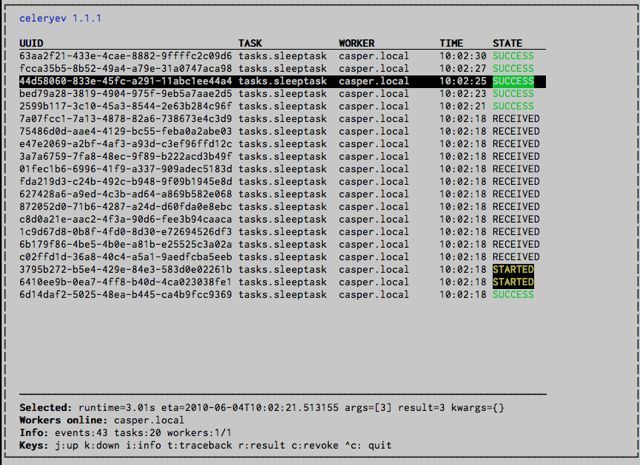
celery events is also used to start snapshot cameras (see Snapshots😃
celery -A proj events --camera=<camera-class> --frequency=1.0
and it includes a tool to dump events to stdout:
celery -A proj events --dump
For a complete list of options use --help:
celery events --help
# RabbitMQ
To manage a Celery cluster it is important to know how RabbitMQ can be monitored.
RabbitMQ ships with the rabbitmqctl(1) command, with this you can list queues, exchanges, bindings, queue lengths, the memory usage of each queue, as well as manage users, virtual hosts and their permissions.
The default virtual host ("/") is used in these examples, if you use a custom virtual host you have to add the -p argument to the command, for example: rabbitmqctl list_queues -p my_vhost ...
# Inspecting queues
Finding the number of tasks in a queue:
rabbitmqctl list_queues name messages messages_ready messages_unacknowledged
Here messages_ready is the number of messages ready for delivery (sent but not received), messages_unacknowledged is the number of messages that's been received by a worker but not acknowledged yet (meaning it is in progress, or has been reserved). messages is the sum of ready and unacknowledged messages.
Finding the number of workers currently consuming from a queue:
rabbitmqctl list_queues name consumers
Finding the amount of memory allocated to a queue:
rabbitmqctl list_queues name memory
Adding the -q option to rabbitmqctl(1) makes the output easier to parse.
# Redis
If you're using Redis as the broker, you can monitor the Celery cluster using the redis-cli(1) command to list lengths of queues.
# Inspecting queues
Finding the number of tasks in a queue:
redis-cli -h HOST -p PORT -n DATABASE_NUMBER llen QUEUE_NAME
The default queue is named celery. To get all available queues, invoke:
redis-cli -h HOST -p PORT -n DATABASE_NUMBER keys \*
Note
Queue keys only exists when there are tasks in them, so if a key doesn't exist it simply means there are no messages in that queue. This is because in Redis a list with no elements in it is automatically removed, and hence it won't show up in the keys command output, and llen for that list returns 0.
Also, if you're using Redis for other purpose, the output of the keys command will include unrelated values stored in the database. The recommended way around this is to use a dedicated DATABASE_NUMBER for Celery, you can also use database numbers to separate Celery applications from each other (virtual hosts), but this won't affect the monitoring events used by for example Flower as Redis pub/sub commands are global rather than database based.
# Munin
This is a list of known Munin plug-ins that can be useful when maintaining a Celery cluster.
rabbitmq-munin: Munin plug-ins for RabbitMQ. https://github.com/ask/rabbitmq-munincelery_tasks: Monitors the number of times each task type has been executed (requires celerymon). https://github.com/munin-monitoring/contrib/blob/master/plugins/celery/celery_taskscelery_task_states: Monitors the number of tasks in each state (requires celerymon). https://github.com/munin-monitoring/contrib/blob/master/plugins/celery/celery_tasks_states.
# Events
The worker has the ability to send a message whenever some event happens. These events are then captured by tools like Flower, and celery events to monitor the cluster.
# Snapshots
Added in version 2.1.
Even a single worker can produce a huge amount of events, so storing the history of all events on disk may be very expensive.
A sequence of events describes the cluster state in that time period, by taking periodic snapshots of this state you can keep all history, but still only periodically write it to disk.
To take snapshots you need a Camera class, with this you can define what should happen every time the state is captured; You can write it to a database, send it by email or something else entirely.
celery events is then used to take snapshots with the camera, for example if you want to capture state every 2 seconds using the camera myapp.Camera you run celery events with the following arguments:
celery -A proj events -c myapp.Camera --frequency=2.0
# Custom Camera
Cameras can be useful if you need to capture events and do something with those events at an interval. For real-time event processing you should use app.events.Receiver directly, like in Real-time processing.
Here is an eample camera, dumping the snapshot to screen:
from pprint import pformat
from celery.events.snapshot import Polaroid
class DumpCam(Polaroid):
clear_after = True # clear after flush (incl, state.event_count).
def on_shutter(self, state):
if not state.event_count:
# No new events since last snapshot.
return
print('Workers: {0}'.format(pformat(state.workers, indent=4)))
print('Tasks: {0}'.format(pformat(state.tasks, indent=4)))
print('Total: {0.event_count} events, {0.task_count} tasks'.format(state))
2
3
4
5
6
7
8
9
10
11
12
13
14
See the API reference for celery.events.state to read more about state objects.
Now you can use this cam with celery events by specifying it with the -c option:
celery -A proj events -c myapp.DumpCam --frequency=2.0
Or you can use it programmatically like this:
from celery import Celery
from myapp import DumpCam
def main(app, freq=1.0)
state = app.events.State()
with app.connection() as connection:
recv = app.events.Receiver(connection, handlers={'*': state.event})
with DumpCam(state, freq=freq):
recv.capture(limit=None, timeout=None)
if __name__ == '__main__':
app = Celery(broker='amqp://guest@localhost//')
main(app)
2
3
4
5
6
7
8
9
10
11
12
13
# Real-time processing
To process events in real-time you need the following
- An event consumer (this is the
Receiver) - A set of handlers called when events come in. You can have different handlers for each event typ, or a catch-all handler can be used (
*). - State (optional), app.events.State is a convenient in-memory representation of tasks and workers in the cluster that's updated as events come in. It encapsulates solutions for many common things, like checking if a worker is still alive (by verify heartbeats), merging event fields together as events come in, making sure time-stamps are in sync, and so on.
Combining these you can easily process events in real-time:
from celery import Celery
def my_monitor(app):
state = app.events.State()
def announce_failed_tasks(event):
state.event(event)
# task name is sent only with - received event, and state
# will keep track of this for us.
task = state.tasks.get(event['uuid'])
print('TASK_FAILED: %s[%s] %s' % (task.name, task.uuid, tas.info(),))
with app.connection() as connection:
recv = app.events.Receiver(connection, handlers={
'task-failed': announce_failed_tasks,
'*': state.event,
})
recv.capture(limit=None, timeout=None, wakeup=True)
if __name__ == '__main__':
app = Celery(broker='amqp://guest@localhost//')
my_monitor(app)
2
3
4
5
6
7
8
9
10
11
12
13
14
15
16
17
18
19
20
21
22
23
The wakeup argument to capture sends a singal to all workers to force them to send a heartbeat. This way you can immediately see workers when the monitor starts.
You can listen to specific events by specifying the handlers:
from celery import Celery
def my_monitor(app):
state = app.events.State()
def announce_failed_tasks(event):
state.event(event)
# task name is sent only with -received event, and state
# will keep track of this for us.
task = state.tasks.get(event['uuid'])
print('TASK FAILED: %s[%s] %s' % (task.name, task.uuid, task.ifo(),))
with app.connection() as connection:
recv = app.events.Receiver(connection, handlers={
'task-failed': announce_failed_tasks,
})
recv.capture(limit=None, timeout=None, wakeup=True)
if __name__ == '__main__':
app = Celery(broker='amqp://guest@localhost//')
my_monitor(app)
2
3
4
5
6
7
8
9
10
11
12
13
14
15
16
17
18
19
20
21
22
# Event Reference
This list contains the events sent by the worker, and their arguments.
# TaskEvents
# task-sent
signature: task-sent(uuid, name, args, kwargs, retries, eta, expires, queue, exchange, routing_key, root_id, parent_id)
Sent when a task message is published and the task_send_sent_event setting is enabled.
# task-received
signature: task-received(uuid, name, args, kwargs, retries, eta, hostname, timestamp, root_id, parent_id)
Sent when the worker receives a task.
# task-started
signature: task-started(uuid, hostname, timestamp, pid)
Sent just before the worker executes the task.
# task-succeeded
signature: task-succeeded(uuid, result, runtime, hostname, timestamp)
Sent if the task executed successfully. Run-time is the time it took to execute the task using the pool. (Starting from the task is sent to the worker pool, and ending when the pool result handler callback is called).
# task-failed
signature: task-failed(uuid, exception, traceback, hostname, timestamp)
Sent if the execution of the task failed.
# task-rejected
signature: task-rejected(uuid, requeue)
The task was rejected by the worker, possibly to be re-queued or moved to a dead letter queue.
# task-revoked
signature: task-revoked(uuid, terminated, signum, expired)
Sent if the task has been revoked (Note that this is likely to be sent by more than one worker).
terminatedis set to true if the task process was terminated, and thesignumfield set to the signal used.expiredis set to true if the task expired.
# task-retried
signature: task-retried(uuid, exception, traceback, hostname, timestamp)
Sent if the task failed, but will be retried in the future.
# Worker Events
# worker-online
signature: worker-online(hostname, timestamp, freq, sw_ident, sw_ver, sw_sys)
The worker has connected to the broker and is online.
hostname: Nodename of the worker.timestamp: Event time-stampfreq: Heartbeat frequency in seconds (float).sw_ident: Name of worker software (e.g.,py-celery)sw_ver: Software version (e.g, 2.2.0)sw_sys: Operating System (e.g., Linux/Darwin).
# worker-heartbeat
signature: worker-heartbeat(hostname, timestamp, freq, sw_ident, sw_ver, sw_sys, active, processed)
Sent every minute, if the worker hasn't sent a heartbeat in 2 minutes, it is considered to be offline.
hostname: Nodename of the worker.timestamp: Event time-stamp.freq: Heartbeat frequency in seconds (float).sw_ident: Name of worker software (e.g.,py-celery)sw_ver: Software version (e.g., 2.2.0).sw_sys: Operating System (e.g., Linux/Darwin).active: Number of currently executing tasks.processed: Total number of tasks processed by this worker.
# worker-offline
signature: worker-offline(hostname, timestamp, freq, sw_ident, sw_ver, sw_sys)
The worker has disconnected from the broker.
# Security
# Introduction
While Celery is written with security in mind, it should be treated as an unsafe component.
Depending on your Security Policy, there are various steps you can take your Celery installation more secure.
# Areas of Concern
# Broker
It's imperative that the broker is guarded from unwanted access, especially if accessible to the public. By default, workers trust that the data they get from the broker hasn't been tampered with. See Message signing for information on how to make the broker connection more trustworthy.
The first line of defense should be to put a firewall in front of the broker, allowing only white-listed machines to access it.
Keep in mind that both firewall misconfiguration, and temporarily disabling the firewall, is common in the real world. Solid security policy includes monitoring of firewall equipment to detect if they've been disabled, be it accidentally or on purpose.
In other words, one shouldn't bindly trust the firewall either.
If your broker supports fine-grained access control, like RabbitMQ, this is something you should look at enabling. See for example http://www.rabbitmq.com/access-control.html.
If supported by your broker backend, you can enable end-to-end SSL encryption and authentication using broker_use_ssl.
# Client
In Celery, "client" refers to anything that sends messages to the broker, for example web-servers that apply tasks.
Having the broker properly secured doesn't matter if arbitrary messages can be set through a client.
# Worker
The default permissions of tasks running inside a worker are the same ones as the privileges of the worker itself. This applies to resources, such as: memory, file-systems, and devices.
An exception to this rule is when using the multiprocessing based task pool, which is currently the default. In this case, the task will have access to any memory copied as a result of the fork() call, and access to memory contents written by parent tasks in the same worker child process.
Limiting access to memory contents can be done by launching every task in a subprocess(fork() + execve()).
Limiting file-system and device access can be accomplished by using chroot, jail, sand-boxing, virtual machines, or other mechanisms as enabled by the platform or additional software.
Note also that any task executed in the worker will have the same network access as the machine on which it's running. If the worker is located on an internal network it's recommended to add firewall rules for outbound traffic.
# Serializers
The default serializer is JSON since version 4.0, but since it has only support for a restricted set of types you may want to consider using pickle for serialization instead.
The pickle serializer is convenient as it can serialize almost any Python object, even functions with some work, but for the same reasons pickle is inherently insecure, and should be avoided whenever clients are untrusted or unauthenticated.
You can disable untrusted content by specifying a white-list of accepted content-types in the accept_content setting.
Added in version 3.0.18.
This setting was first supported in version 3.0.18. If you're running an earlier version it will simply be ignored, so make sure you're running a version that supports it.
accept_content = ['json']
This accepts a list of serializer names and content-types, so you could also specify the content type for json:
accept_content = ['application/json']
Celery also comes with a special auth serializer that validates communication between Celery clients and workers, making sure that messages originates from trusted sources. Using Public-key cryptography the auth serializer can verify the authenticity of senders, to enable this read Message Signing for more information.
# Message Signing
Celery can use the https://pypi.org/project/cryptography/ library to sign message using Public-key cryptography, where messages sent by clients are signed using a private key and then later verified by the worker using a public certificate.
Optimally certificates should be signed by an offical Certificate Authority, but they can also be self-signed.
To enable this you should configure the task_serializer setting to use the auth serializer. Enforcing the workers to only accept signed messages, you should set accept_content to ['auth']. For additional signing of the event protocol, set event_serializer to auth. Also required is configuring the paths used to locate private keys and certificates on the file-system: the security_key, security_certificates, and security_cert_store settings respectively. You can tweak the signing algorithm with security_digest. If using an encrypted private key, the password can be configured with security_key_password.
With these configured it's also necessary to call the *celery.setup_security() function. Note that this will also disable all insecure serializers so that the worker won't accept messages with untrusted content types.
This is an example configuration using the auth serializer, with the private key and certificates files located in /etc/ssl.
app = Celery()
app.conf.update(
security_key='/etc/ssl/private/worker.key',
security_certificate='/etc/ssl/certs/worker.pem',
security_cert_store='/etc/ssl/certs/*.pem',
security_digest='sha256',
task_serializer='auth',
event_serializer='auth',
accept_content=['auth']
)
app.setup_security()
2
3
4
5
6
7
8
9
10
11
While relative paths aren't disallowed, using absolute paths is recommended for these files.
Also note that the auth serializer won't encrypt the contents of a message, so if needed this will have to be enabled separately.
# Intrusion Detection
The most important part when defending your systems against intruders is being able to detect if the system has been compromised.
# Logs
Logs are usually the first place to look for evidence of security breaches, but they're useless if they can be tampered with.
A good solution is to set up centralized logging with a dedicated logging server. Access to it should be restricted. In additonal to having all of the logs in a single place, if configured correctly, it can make it harder for intruders to tamper with your logs.
This hould be fairly easy to setup using syslog (see also syslog-ng and rsyslog). Celery uses the logging library, and already has support for using syslog.
A tip for the paranoid is to send logs using UDP and cut the transmit part of the logging server's network cable.
# Tripwire
Tripwire is a (now commercial) data integrity tool, with several open source implementations, used to keep cryptographic hashes of files in the file-system, so that administrators can be alerted when they change. This way when the damage is done and your system has been compromised you can tell exactly what files intruders have changed (password files, logs, back-doors, root-kits, and so on). Often this is the only way you'll be able to detect an intrusion.
Some open source implementations include:
Also, The ZFS file-system comes with built-in integrity checks that can be used.
Footnotes: https://blog.nelhage.com/2011/03/exploiting-pickle/
# Optimizing
# Introduction
The default configuration makes a lot of compromises. It's not optimal for any single case, but works well enough for most situations.
There are optimizations that can be applied based on specific use cases.
Optimizations can apply to different properties of the running environment, be it the time tasks take to execute, the amount of memory used, or responsiveness at times of high load.
# Ensuring Operations
In the book Programming Pearls, Jon Bentley presents the concept of back-of-the-envelope calculations by asking the question;
"How much water flows out of the Mississippi River in a day?"
The point of this exercise is to show that there's a limit to how much data a system can process in a timely manner. Back of the envelope calculations can be used as a means to plan for this ahead of time.
In Celery; If a task takes 10 minutes to complete, and there are 10 new tasks coming in every minute, the queue will never be empty. This is why it's very important that you monitor queue lengths!
A way to do this is by using Munin. You should set up alerts, that'll notify you as soon as any queue has reached an unacceptable size. This way you can take appropriate action like adding new worker nodes, or revoking unnecessary tasks.
# General Settings
# Broker Connection Pools
The broker connection pool is enabled by default since version 2.5.
You can tweak the broker_pool_limit setting to minimize contention, and the value should be based on the number of active threads/green-threads using broker connections.
# Using Transient Queues
Queues created by Celery are persistent by default. This means that the broker will write messages to disk to ensure that the tasks will be executed even if the broker is restarted.
But in some cases it's fine that the message is lost, so not all tasks require durability. You can create a transient queue for these tasks to improve performance:
from kombu import Exchange, Queue
task_queues = (
Queue('celery', routing_key='celery'),
Queue('transient', Exchange=('transient', delivery_mode=1), routing_key='transient', durable=False),
)
2
3
4
5
6
or by using task_routes:
task_routes = {
'proj.tasks.add': {'queue': 'celery', 'delivery_mode': 'transient'}
}
2
3
The delivery_mode changes how the messages to this queue are delivered. A value of one means that the message won't be written to disk, and a value of two (default) means that the message can be written to disk.
To direct a task to your new transient queue you can specify the queue argument (or use the task_routes setting):
task.apply_async(args, queue='transient')
For more information see the routing guide.
# Worker Settings
# Prefetch Limits
Prefetch is a term inherited from AMQP that's often misunderstood by users.
The prefetch limit is a limit for the number of tasks (messages) a worker can reserve for itself. If it is zero, the worker will keep consuming messages, not respecting that there may be other available worker nodes that may be able to process them sooner, or that the messages may not even fit in memory.
The workers' default prefetch count is the worker_prefetch_multiplier setting multiplied by the number of concurrency slots (processes/threads/green-threads).
If you have many tasks with a long duration you want the multiplier value to be one: meaning it'll only reserve one task per worker process at a time.
However -- If you have many short-running tasks, and throughput/round trip latency is important to you, this number should be large. The worker is able to process more tasks per second if the messages have already been prefetched, and is available in memory. You may have to experiment to find the best value that works for you. Values like 50 or 150 might make sense in these circumstances. Say 64, or 128.
If you have a combination of long- and short-running tasks, the best option is to use two worker nodes that are configured separately, and route the tasks according to the runtime (see Routing Tasks).
# Reserve one task at a time
The task message is only deleted from the queue after the task is acknowledged, so if the worker crashes before acknowledging the task, it can be redelivered to another worker (or the same after recovery).
Note that an exception is considered normal operation in Celery and it will be acknowledged. Acknowledgments are really used to safeguard against failures that can not be normally handled by the Python exception system (i.e. power failure, memory corruption, hardware failure, fatal signal, etc.). For normal exceptions you should use task.retry() to retry the task.
See also:
Notes at Should I use retry or acks_late?.
When using the default of early acknowledgment, having a prefetch multiplier setting of one, means the worker will reserve at most one extra task for every worker process: or in other words, if the worker is started with -c 10, the worker may reserve at most 20 tasks (10 acknowledged tasks executing, and 10 unacknowledged reserved tasks) at any time.
Often users ask if disabling "prefetching of tasks" is possible, and it is possible with a catch. You can have a worker only reserve as many tasks as there are worker processes, with the condition that they are acknowledged late (10 unacknowledged tasks executing for -c 10)
For that, you need to enable late acknowledgment. Using this option over the default behavior means a task that's already started executing will be retried in the event of a power failure or the worker instance being killed abruptly, so this also means the task must be idempotent
You can enable this behavior by using the following configuration options:
task_acks_late = True
worker_prefetch_multiplier = 1
2
If you want to disable "prefetching of tasks" without using ack_late (because your tasks are not idempotent) that's impossible right now and you can join the discussion here https://github.com/celery/celery/discussions/7106.
# Memory Usage
If you are experiencing high memory usage on a prefork worker, first you need to determin whether the issue is also happening on the Celery master process. The Celery master process's memory usage should not continue to increase drastically after startup. If you see this hanppening,, it may indicate a memory leak bug which should be reported to the Celery issue tracker.
If only your child processes have high memory usage, this indicates an issue with your task.
Keep in mind, Python process memory usage has a "high watermark" and will not return memory to the operating system until the child process has stopped. This means a single high memory usage task could permanently increase the memory usage of a child process until it's restarted. Fixing this may require adding chunking logic to your task to reduce peak memory usage.
Celery workers have two main ways to help reduce memory usage due to the "high watermark" and/or memory leaks in child processes: the worker_max_tasks_per_child and worker_max_memory_per_child settings.
You must be careful not to set these settings too low, or else your workers will spend most of their time restarting child processes instead of processing tasks. For example, if you use a worker_max_tasks_per_child of 1 and your child process takes 1 second to start, then that child process would only be able to process a maximum of 60 tasks per minute (assuming the task ran instantly). A similar issue can occur when your tasks always exceed worker_max_memory_per_child.
Footnotes:
The chapter is available to read for free here: The back of the envelope. The book is a classic text. Highly recommended.
RabbitMQ and other brokers deliver messages round-robin, so this doesn't apply to an active system. If there's no prefetch limit and you restart the cluster, there will be timing delays between nodes starting. If there are 3 offline nodes and one active node, all messages will be delivered to the active node.
This is the concurrency setting; worker_concurrency or the celery worker -c option.
# Debugging
Debugging Tasks Remotely (using pdb)
# Basics
celery.contrib.rdb is an extended version of pdb that enables remote debugging of processes that doesn't have terminal access.
Example usage:
from celery import task
from celery.contrib import rdb
@task()
def add(x, y):
result = x + y
rdb.set_trace() # <- set break-point
return result
2
3
4
5
6
7
8
set_trace() sets a break-point at the current location and creates a socket you can telnet into to remotely debug your task.
The debugger may be started by multiple processes at the same time, so rather than using a fixed port the debugger will search for an available port, starting from the base port (6900 by default). The base port can be changed using the environment variable CELERY_RDB_PORT.
By default the debugger will only be available from the local host, to enable access from the outside you have to set the environment variable CELERY_RDB_HOST.
When the worker encounters your break-point it'll log the following information:
[INFO/MainProcess] Received task:
tasks.add[d7261c71-4962-47e5-b342-2448bedd20e8]
[WARNING/PoolWorker-1] Remote Debugger:6900:
Please telnet 127.0.0.1 6900. Type `exit` in session to continue.
[2011-01-18 14:25:44,119: WARNING/PoolWorker-1] Remote Debugger:6900:
Waiting for client...
2
3
4
5
6
If you telnet the port specified you'll be presented with a pdb shell:
$ telnet localhost 6900
Connected to localhost.
Escape character is '^]'.
> /opt/devel/demoapp/tasks.py(128)add()
-> return result
(Pdb)
2
3
4
5
6
Enter help to get a list of available commands, It may be a good idea to read the Python Debugger Manual if you have never used pdb before.
To demonstrate, we'll read the value of the result variable, change it and continue execution of the task:
(Pdb) result
4
(Pdb) result = 'hello from rdb'
(Pdb) continue
Connection closed by foreign host.
2
3
4
5
The result of our vandalism can be seen in the worker logs:
[2011-01-18 14:35:36,599: INFO/MainProcess] Task
tasks.add[d7261c71-4962-47e5-b342-2448bedd20e8] succeeded
in 61.481s: 'hello from rdb'
2
3
# Tips
Enabling the break-point signal:
If the environment variable CELERY_RDBSIG is set, the worker will open up an rdb instance whenever the SIGUSR2 signal is sent. This is the case for both main and worker processes.
For example starting the worker with:
CELERY_RDBSIG=1 celery worker -l INFO
You can start an rdb session for any of the worker processes by executing:
kill -USR2 <pid>
# Concurrency
Concurrency in Celery enables the parallel execution of tasks. The default model, prefork, is well-suited for many scenarios and generally recommended for most users. In fact, switching to another mode will silently disable certain features like soft_timeout and max_tasks_per_child.
This page gives a quick overview of the available options which you can pick between using the --pool option when starting the worker.
prefork: The default option, ideal for CPU-bound tasks and most use cases. It is robust and recommended unless there's a specific need for another model.eventletandgevent: Designed for IO-bound tasks, these models use greenlets for high concurrency. Note that certail features, like soft_timeout, are not available in these modes. These have detailed documentation pages linked below.solo: Executes tasks sequentially in the main thread.threads: Utilizes threading for concurrency, available if the concurrent.futures module is present.custom: Enables specifying a custom worker pool implementation through environment variables.
While alternative models like eventlet and gevent are available, they may lack certain features compared to prefork. We recommend prefork as the starting point unless specific requirements dictate otherwise.
# Concurrency with Eventlet
# Introduction
The Eventlet homepage describes it as a concurrent networking library for Python that allows you to change how you cun your code, not how you write it.
- It uses epoll(4) or libevent for highly scalable non-blocking I/O.
- Coroutines ensure that the developer uses a blocking style of programming that's similar to threading, but provide the benefits of non-blocking I/O.
- The event dispatch is implicit: meaning you can easily use Eventlet from the Python interpreter, or as a small part of a larger application.
Celery supports Eventlet as an alternative execution pool implementation and in some cases superior to prefork. However, you need to ensure one task doesn't block the event loop too long. Generally, CPU-bound operations don't go well with Eventlet. Also note that some libraries, usually with C extensions, cannot be monkeypatched and therefore cannot benefit from using Eventlet. Please refer to their documentation if you are not sure. For example, pylibmc does not allow cooperation with Eventlet but psycopg2 does when both of them are libraries with C extensions.
The prefork pool can take use of multiple processes, but how many is often limited to a few processes per CPU. With Eventlet you can efficiently spawn hundreds, or thousands of green threads. In an informal test with a feed hub system the Eventlet pool could fetch and process hundreds of feeds every second, while the prefork pool spent 14 seconds processing 100 feeds. Note that this is one of the applications async I/O is especially good at (asynchronous HTTP requests). You may want a mix of both Eventlet and prefork workers, and route tasks according to compatibility or what works best.
# Enabling Eventlet
You can enable the Eventlet pool by using the celery worker -P worker option.
celery -A proj worker -P eventlet -c 1000
# Examples
See the Eventlet examples directory in the Celery distribution for some examples taking use of Eventlet support.
# Concurrency with gevent
# Introduction
The gevent homepage describes it a coroutine -based Python networking library that uses greenlet to provide a high-level synchronous API on top of the libev or libuv event loop.
Features include:
- Fast event loop based on libev or libuv.
- Lightweight execution units based on greenlets.
- API that reuses concepts from the Python standard library (for examples there are events and queues).
- Cooperative sockets with SSL support
- Cooperative DNS queries performed through a threadpool, dnspython, or c-ares.
- Monkey patching utility to get 3rd party modules to become cooperative
- TCP/UDP/HTTP servers
- Subprocess support (through gevent.subprocess)
- Thread pools
gevent is inspired by eventlet but features a more consistent API, simpler implementation and better performance. Read why others use gevent and check out the list of the open source projects based on gevent.
# Enabling gevent
You can enable the gevent pool by using the celery worker -P gevent or celery worker --pool=gevent worker option.
celery -A proj worker -P gevent -C 1000
# Examples
See the gevent examples directory in the Celery distribution for some examples taking use of Eventlet support.
# Known issues
There is a known issue using python 3.11 and gevent. The issue is documented there and addressed in a gevent issue. Upgrading to greenlet 3.0 solves it.
# Signals
Signals allow decoupled application to receive notifications when certain actions occur elsewhere in the application.
Celery ships with many signals that your application can hook into a augment behavior of certain actions.
# Basics
Several kinds of events trigger signals, you can connect to these signals to perform actions as they trigger.
Example connecting to the after_task_publish signal:
from celery.signals import after_task_publish
@after_task_publish.connect
def task_sent_handler(sender=None, headers=None, body=None, **kwargs):
# information about task are located in headers for task messages
# using the task protocol version 2.
info = headers if 'task' in headers else body
print('after_task_publish for task id {info[id]}'.format(info=info,))
2
3
4
5
6
7
8
Some signals also have a sender you can filter by. For example the after_task_publish signal uses the task name as a sender, so by providing the sender argument to connect you can connect your handler to be called every time a task with name proj.tasks.add is published:
@after_task_publish.connect(sender='proj.tasks.add')
def task_sent_handler(sender=None, headers=None, body=None, **kwargs):
# information about task are located in headers for task messages
# using the task protocol version 2.
info = headers if 'task' in headers else body
print('after_task_publish for task_id {info[id]}'.format(info=info,))
2
3
4
5
6
Signals use the same implementation as django.core.dispatch. As a result other keyword parameters (e.g., signal) are passed to all signal handlers by default.
The best practice for signal handlers is to accept arbitrary keyword arguments (i.e., **kwargs). That way new Celery versions can add additional arguments without breaking user code.
# Task Signals
# before_task_publish
Added in version 3.1.
Dispatched before a task is published. Note that this is executed in the process sending the task.
Sender is the name of the task being sent.
Provides arguments:
body
Task message body.
This is a mapping containing the task message fields, see Version 2 and Version 1 for a reference of possible fields that can be defined.
exchange
Name of the exchange to send to or a Exchange object.
routing_key
Routing key to use when sending the message.
headers
Application headers mapping (can be modified).
properties
Message properties (can be modified)
declare
List of entities (Exchange, Queue, or binding to declare before publishing the message. Can be modified)
retry_policy
Mapping of retry options. Can be any argument to kombu.Connection.ensure() and can be modified.
# after_task_publish
Dispatched when a task has been sent to the broker. Note that this is executed in the process that sent the task.
Sender is the name of the task being sent.
Provides arguments:
headers
The task message headers, see Version 2 and Version 1 for a reference of possible fields that can be defined.
body
The task message body, see Version 2 and Version 1 for a reference of possible fields that can be defined.
exchange
Name of the exchange or Exchange object used.
routing_key
Routing key used.
# task_prerun
Dispatched before a task is executed.
Sender is the task object being executed.
Provides arguments:
task_id
Id of the task to be executed.
task
The task being executed.
args
The tasks positional arguments.
kwargs
The tasks keyword arguments.
# task_postrun
Dispatched after a task has been executed.
Sender is the task object executed.
Provides arguments:
task_id
Id of the task to be executed.
task
The task being executed.
args
The tasks positional arguments.
kwargs
The tasks keyword arguments.
retval
The return value of the task
state
Name of the resulting state.
# task_retry
Dispatched when a task will be retried.
Sender is the task object.
Provides arguments:
request
The current task request.
reason
Reason for retry (usually an exception instance, but can always be coerced to str).
einfo
Detailed exception information, including traceback (a billiard.einfo.ExceptionInfo object).
# task_success
Dispatched when a task succeeds.
Sender is the task object executed.
Provides arguments
result
Return value of the task.
# task_failure
Dispatched when a task fails.
Sender is the task object executed.
Provides arguments:
task_id
Id of the task.
exception
Exception instance raised.
args
Positional arguments the task was called with.
kwargs
Keyword arguments the task was called with.
traceback
Stack trace object.
einfo
The billiard.einfo.ExceptionInfo instance.
# task_internal_error
Dispatched when an internal Celery error occurs while executing the task.
Sender is the task object executed.
Provides arguments:
task_id
Id of the task
args
Positional arguments the task was called with.
kwargs
Keyword arguments the task was called with.
request
The original request dictionary. This is provided as the task. request may not be ready by the time the exception is raised.
exception
Exception instance raised.
traceback
Stack trace object.
einfo
The billiard.einfo.ExceptionInfo instance.
# task_received
Dispatched when a task is received from the broker and is ready for execution.
Sender is the consumer object.
Provides arguments:
request
This is a Request instance, and not task.request. When using the prefork pool this signal is dispatched in the parent process, so task.request isn't available and shouldn't be used. Use this object instead, as they share many of the same fields.
# task_revoked
Dispatched when a task is revoked/terminated by the worker.
Sender is the task object revoked/terminated.
Provides arguments:
request
This is a Context instance, and not task.request. When using the prefork pool this signal is dispatched in the parent process, so task.request isn't available and shouldn't be used. Use this object instead, as they share many of the same fields.
terminated
Set to True if the task was terminated.
signum
Signal number used to terminate the task. If this is None and terminated is True then TERM should be assumed.
expired
Set to True if the task expired.
# task_unknown
Dispatched when a worker receives a message for a task that's not registered.
Sender is the worker Consumer.
Provides arguments:
name
Name of task not found in registry.
id
The task id found in the message.
message
Raw message object.
exc
The error that occurred.
# task_rejected
Dispatched when a worker receives an unknown type of message to one of its task queues.
Sender is the worker Consumer.
Provides arguments:
message
Raw message object.
exc
The error that occurred (if any).
# App Signals
# import_modules
This signal is sent when a program (worker, beat, shell) etc, asks for modules in the include and imports settings to be imported.
Sender is the app instance.
# Worker Signals
# celeryd_after_setup
This signal is sent after the worker instance is set up, but before it calls run. This means that any queues from the Acelery worker -Q option is enabled, logging has been set up and so on.
It can be used to add custom queues that should always be consumed from, disregarding the celery worker -Q option. Here's an example that sets up a direct queue for each worker, these queues can then be used to route a task to any specific worker:
from celery.signals import celeryd_after_setup
@celeryd_after_setup.connect
def setup_direct_queue(sender, instance, **kwargs):
queue_name = '{0}.dq'.format(sender) # sender is the nodename of the worker
instance.app.amqp.queues.select_add(queue_name)
2
3
4
5
6
Provides arguments:
sender
Node name of the worker
instance
This is the celery.apps.worker.Worker instance to be initialized. Note that only the app and hostname (nodename) attributes have been set so far, and the rest of __init__ hasn't been executed.
conf
The configuration of the current app.
# celeryd_init
This is the first signal sent when celery worker starts up. The sender is the host name of the worker, so this signal can be used to setup worker specific configuration:
from celery.signals import celeryd_init
@celeryd_init.connect(sender='worker12@example.com')
def configure_worker12(conf=None, **kwargs):
conf.task_default_rate_limit = '10/m'
2
3
4
5
or to set up configuration for multipe workers you can omit specifying a sender when you connect:
from celery.signals import celeryd_init
@celeryd_init.connect
def configure_workers(sender=None, conf=None, **kwargs):
if sender in ('worker1@example.com', 'worker2@example.com'):
conf.task_default_rate_limit = '10/m'
if sender == 'worker3@example.com':
conf.worker_prefetch_multiplier = 0
2
3
4
5
6
7
8
Provides arguments:
sender
Nodename of the worker
instance
This is the celery.apps.worker.Worker instance to be initialized. Note that only the app and hostname (nodename) attributes have been set so far, and the rest of __init__ hasn't been executed.
conf
The configuration of the current app.
options
Options passed to the worker from command-line arguments (including defaults).
# worker_init
Dispatched before the worker is started.
# worker_before_create_process
Dispatched in the parent process, just before new child process is created in the prefork pool. It can be used to clean up instances that don't behave well when forking.
@signals.worker_before_create_process.connect
def clean_channels(**kwargs):
grpc_singleton.clean_channel()
2
3
# worker_ready
Dispatched when the worker is ready to accept work.
# heartbeat_sent
Dispatched when Celery sends a worker heartbeat.
Sender is the celery.worker.heartbeat.Heart instance.
# worker_shutting_down
Dispatched when the worker begins the shutdown process.
Provides arguments:
sig
The POSIX signal that was received.
how
The shutdown method, warm or cold.
exitcode
The exitcode that will be used when the main process exits.
# worker_process_init
Dispatched in all pool child processes when they start.
Note that handlers attached to this signal mustn't be blocking for more than 4 seconds, or the process will be killed assuming in failed to start.
# worker_process_shutdown
Dispatched in all pool child processes just before they exit.
Note: There's no guarantee that this signal will be dispatched, similarly to finally blocks it's impossible to guarantee that handlers will be called at shutdown, and if called it may be interrupted during.
Provides arguments:
pid
The pid of the child process that's about to shutdown.
exitcode
The exitcode that'll be used when the child process exit.
# worker_shutdown
Dispatched when the worker is about to shut down.
# Beat Signals
# beat_init
Dispatched when celery beat starts (either standalone or embedded).
Sender is the celery.beat.Service instance.
# beat_embedded_init
Dispatched in addition to the beat_init signal when celery beat is started as an embedded process.
Sender is the celery.beat.Service instance.
# Eventlet Signals
# eventlet_pool_started
Sent when the eventlet pool has been started.
Sender is the celery.concurrency.eventlet.TaskPool instance.
# eventlet_pool_preshutdown
Sent when the worker shutdown, just before the eventlet pool is requested to wait for remaining workers.
Sender is the celery.concurrency.eventlet.TaskPool instance.
# eventlet_pool_postshutdown
Sent when the pool has been joined and the worker is ready to shutdown.
Sender is the celery.concurrency.eventlet.TaskPool instance.
# eventlet_pool_apply
Sent whenever a task is applied to the pool.
Sender is the celery.concurrency.eventlet.TaskPool instance.
Provides arguments:
target
The target function.
args
Positional arguments.
kwargs
Keyword arguments.
# Logging Signals
# setup_logging
Celery won't configure the loggers if this signal is connected, so you can use this to completely override the logging configuration with your own.
If you'd like to augment the logging configuration setup by Celery then you can use the after_setup_logger and after_setup_task_logger signals.
Provides arguments:
loglevel
The level of the logging object.
logfile
The name of the logfile.
format
The log format string.
colorize
Specify if log messages are colored or not.
# after_setup_logger
Sent after the setup of every global logger (not task loggers). Used to augment logging configuration.
Provides arguments:
logger
The logger object.
loglevel
The level of the logging object.
logfile
The name of the logfile.
format
The log format string.
colorize
Specify if log messages are colored or not.
# after_setup_task_logger
Sent after the setup of every single task logger. Used to augment logging configuration.
Provides arguments:
logger
The logger object.
loglevel
The level of the logging object.
logfile
The name of the logfile.
format
The log format string.
colorize
Specify if log messages are colored or not.
# Command signals
# user_preload_options
This signal is sent after any of the Celery command line programs are finished parsing the user preload options.
It can be used to add additional command-line arguments to the celery umbrella command:
from celery import Celery
from celery import signals
from celery.bin.base import Option
app = Celery()
app.user_options['preload'].add(Option(
'--monitoring', action='store_true',
help='Enable our external monitoring utility, blahblah',
))
@signals.user_preload_options.connect
def handle_preload_options(options, **kwargs):
if options['monitoring']:
enable_monitoring()
2
3
4
5
6
7
8
9
10
11
12
13
14
Sender is the Command instance, and the value depends on the programe that was called (e.g., for the umbrella command it'll be a CeleryCommand object).
Provides arguments:
app
The app instance.
options
Mapping of the parsed user preload options (with default values).
# Deprecated Signals
# task_sent
This signal is deprecated, please use after_task_publish instead.
# Testing with Celery
Testing with Celery is divided into two parts:
- Unit & Integration: Using
celery.contrib.pytest. - Smoke / Production: Using pytest-celery >= 1.0.0
Installing the pytest-celery plugin will install the celery.contrib.pytest infrastructure as well, alongside the pytest plugin infrastructure. The difference is how you use it.
Both APIs are NOT compatible with each other. The pytest-celery plugin is Docker based and the celery.contrib.pytest is mock based.
To use the celery.contrib.pytest infrastructure, follow the instructions below.
The pytest-celery plugin has its own documentation.
# Tasks and unit tests
To test task behavior in unit tests the prefered method is mocking.
Eager mode
The eager mode enabled by the task_always_eager setting is by definition not suitable for unit tests.
When testing with eager mode you are only testing an emulation of what happens in a worker, and there are many discrepancies between the emulation and what happens in reality.
Note that eagerly executed tasks don't write result to backend by default. If you want to enable this functionality, have a look at task_store_eager_result.
A Celery task is much like a web view, in that it should only define how to perform the action in the context of being called as a task.
This means optimally tasks only handle things like serialization, message headers, retries, and so on, with the actual logic implemented elsewhere.
Say we had a task like this:
from .models import Product
@app.task(bind=True)
def send_order(self, product_pk, quantity, price):
price = Decimal(price) # json serializes this to string
# models are passed by id, not serialized
try:
product.order(quantity, price)
except OperationalError as exc:
raise self.retry(exc=exc)
2
3
4
5
6
7
8
9
10
11
Note: A task being bound means the first argument to the task will always be the task instance (self). which means you do get a self argument as the first argument and can use the Task class methods and attributes.
You could write unit tests for this task, using mocking like in this example:
from pytest import raises
from celery.execptions import Retry
# for python 2: use mock.patch from `pip install mock`.
from unittest.mock import patch
from proj.models import Product
from proj.tasks import send_order
class test_send_order:
@patch('proj.tasks.Product.order') # < patching Product in module
def test_success(self, product_order):
product = Product.objects.create(
name='Foo'
)
send_order(product.pk, 3, Decimal(30.3))
product_order.assert_called_with(3, Decimal(30.3))
@patch('proj.tasks.Product.order')
@patch('proj.tasks.send_order.retry')
def test_failure(self, send_order_retry, product_order):
product = Product.objects.create(
name='Foo'
)
# Set a side effect on the patched methods
# so that they raise the errors we want.
send_order_retry.side_effect = Retry()
product_order.side_effect = OperationalError()
with raises(Retry):
send_order(product.pk, 3, Decimal(30.6))
2
3
4
5
6
7
8
9
10
11
12
13
14
15
16
17
18
19
20
21
22
23
24
25
26
27
28
29
30
31
32
33
34
# pytest
Added in version 4.0.
Celery also makes a https://pypi.org/project/pytest/ plugin available that adds fixtures that you can use in your integration (or unit) test suites.
# Enabling
Celery initially ships the plugin in a disabled state, to enable it you can either:
pip install celery[pytest]pip install pytest-celery- or add an environment variable
PYTEST_PLUGINS=celery.contrib.pytest - or add
pytest_plugins = ("celery.contrib.pytest", )to your root conftest.py
# Marks
# celery - Set test app configuration
The celery mark enables you to override the configuration used fo r a single test case:
@pytest.mark.celery(result_backend='redis://')
def test_something():
...
2
3
or for all the test cases in a class:
@pytest.mark.celery(result_backend='redis://')
class test_something:
def test_one(self):
...
def test_two(self):
...
2
3
4
5
6
7
8
# Fixtures
# Function scope
celery_app - Celery app used for testing.
This fixture returns a Celery app you can use for testing.
Example:
def test_create_task(celery_app, celery_worker):
@celery_app.task
def mul(x, y):
return x * y
celery_worker.reload()
assert mul.delay(4, 4).get(timeout=10) == 16
2
3
4
5
6
7
celery_worker - Embed live worker.
This fixture starts a Celery worker instance that you can use for integration tests. The worker will be started in a separate thread and will be shutdown as soon as the test returns.
By default the fixture will wait up to 10 seconds for the worker to complete outstanding tasks and will raise an exception if the time limit is exceeded. The timeout can be customized by setting the shutdown_timeout key in the dictionary returnd by the celery_worker_parameters() fixture.
Example:
# Put this in your conftest.py
@pytest.fixture(scope='session')
def celery_config():
return {
'broker_url': 'amqp://',
'result_backend': 'redis://'
}
def test_add(celery_worker):
mytask.delay()
# If you wish to override some setting in one test cases
# only - you can use the ``celery`` mark:
@pytest.mark.celery(result_backend='rpc')
def test_other(celery_worker):
...
2
3
4
5
6
7
8
9
10
11
12
13
14
15
16
Heartbeats are disabled by default which means that the test worker doesn't send events for worker-online, worker-offline and worker-heartbeat. To enable heartbeats modify the celery_worker_parameters() fixture:
# Put this in your conftest.py
@pytest.fixture(scope='session')
def celery_worker_parameters():
return {"without_heartbeat": False}
2
3
4
# Session scope
celery_config - Override to setup Celery test app configuration.
You can redefine this fixture to configure the test Celery app.
The config returned by your fixture will then be used to configure the celery_app(), and celery_session_app() fixtures.
Example:
@pytest.fixture(scope='session')
def celery_config():
return {
'broker_url': 'amqp://',
'result_backend': 'rpc'
}
2
3
4
5
6
celery_parameters - Override to setup Celery test app parameters.
You can redefine this fixture to change the __init__ parameters of test Celery app. In contrast to celery_config(), these are directly passed to when instantiating Celery.
The config returned by your fixture will then be used to configure the celery_app(), and celery_session_app() fixtures.
Example:
@pytest.fixture(scope='session')
def celery_parameters():
return {
'task_cls': my.package.MyCustomTaskClass,
'strict_typing': False,
}
2
3
4
5
6
celery_worker_parameters - Override to setup Celery worker parameters.
You can redefine this fixture to change the __init__ parameters of test Celery workers. These are directly passed to WorkController when it is instantiated.
The config returned by your fixture will then be used to configure the celery_worker(), and celery_session_worker() fixtures.
Example:
@pytest.fixture(scope='session')
def celery_worker_parameters():
return {
'queues': ('high-prio', 'low-prio'),
'exclude_queues': ('celery')
}
2
3
4
5
6
celery_enable_logging - Override to enable logging in embedded workers.
This is a fixture you can override to enable logging in embedded workers.
Example:
@pytest.fixture(scope='session')
def celery_enable_logging():
return True
2
3
celery_includes - Add additional imports for embedded workers.
You can override fixture to include modules when an embedded worker starts.
You can have this return a list of module names to import, which can be task modules, modules registering signals, and so on.
Example:
@pytest.fixture(scope='session')
def celery_includes():
return [
'proj.tests.tasks',
'proj.tests.celery_signal_handlers'
]
2
3
4
5
6
celery_worker_pool - Override the pool used for embedded workers.
You can override fixture to configure the execution pool used for embedded workers.
Example:
@pytest.fixture(scope='session')
def celery_worker_pool():
return 'prefork'
2
3
You cannot use the gevent/eventlet pools, that is unless your whole test suite is running with the monkeypatches enabled.
celery_session_worker - Embedded worker that lives throughout the session.
This fixture starts a worker that lives throughout the testing session (it won't be started/stopped for every test).
Example:
# Add this to your conftest.py
@pytest.fixture(scope='session')
def celery_config()
return {
'broker_url': 'amqp://',
'result_backend': 'rpc',
}
# Do this in your tests
def test_add_task(celery_session_worker):
assert add.delay(2, 2).get() == 4
2
3
4
5
6
7
8
9
10
11
It's probably a bad idea to mix session and ephermeral workers.
celery_session_app - Celery app used for testing (session scope).
This can be used by other session scoped fixtures when they need to refer to a Celery app instance.
use_celery_app_trap - Raise exception on falling back to default app.
This is fixture you can override in your conftest.py, to enable the "app trap": if something tries to access the default or current_app, an exception is raised.
Example:
@pytest.fixture(scope='session')
def use_celery_app_trap():
return True
2
3
If a test wants to access the default app, you would have to mark it using the depends_on_current_app fixture:
@pytest.mark.usefixtures('depends_on_current_app')
def test_something():
something()
2
3
# Extensions and Bootsteps
# Custom Message Consumers
You may want to embed custom Kombu consumers to manually process your messages.
For that purpose a special ConsumerStep bootstep class exists, where you only need to define the get_consumers method, that must return a list of kombu.Consumer objects to start whenever the connection is established:
from celery import Celery
from celery import bootsteps
from kombu import Consumer, Exchange, Queue
my_queue = Queue('custom', Exchange('custom'), 'routing_key')
app = Celery(broker='amqp://')
class MyConsumerStep(bootsteps.ConsumerStep):
def get_consumers(self, channel):
return [Consumer(channel, queues=[my_queue], callbacks=[self.handle_message], accept=['json'])]
def handle_message(self, body, message):
print('Received message: {0!r}'.format(body))
message.ack()
app.steps['consumer'].add(MyConsumerStep)
def send_me_a_message(who, producer=None):
with app.producer_or_acquire(producer) as producer:
producer.publish(
{'hello': who},
serializer='json',
exchange=my_queue.exchange,
routing_key='routing_key',
declare=[my_queue],
retry=True,
)
if __name__ == '__main__':
send_me_a_message('world!')
2
3
4
5
6
7
8
9
10
11
12
13
14
15
16
17
18
19
20
21
22
23
24
25
26
27
28
29
30
31
32
33
Kombu Consumers can take use of two different message callback dispatching mechanisms. The first one is the callbacks argument that accepts a list of callbacks with a (body, message) signature, the second one is the on_message argument that takes a single callback with a (message,) signature. The latter won't automatically decode and deserialize the payload.
def get_consumers(self, channel):
return [Consumer(channel, queues=[my_queue], on_message=self.on_message)]
def on_message(self, message):
payload = message.decode()
print(
'Received message: {0!r} {props!r} rawlen={s}'.format(payload, props=message.properties, s=len(message.body),)
)
message.ack()
2
3
4
5
6
7
8
9
# Blueprints
Bootsteps is a technique to add functionality to the workers. A bootstep is a custom class that defines hooks to do custom actions at different stages in the worker. Every bootstep belongs to a blueprint, and the worker currently defines two blueprints:
Worker, and Consumer
Figure A: Bootsteps in the Worker and Consumer blueprints. Starting from the bottom up the first step in the worker blueprint is the Timer, and the last step is to start the Consumer blueprint, that then establishes the broker connection and starts consuming messages.
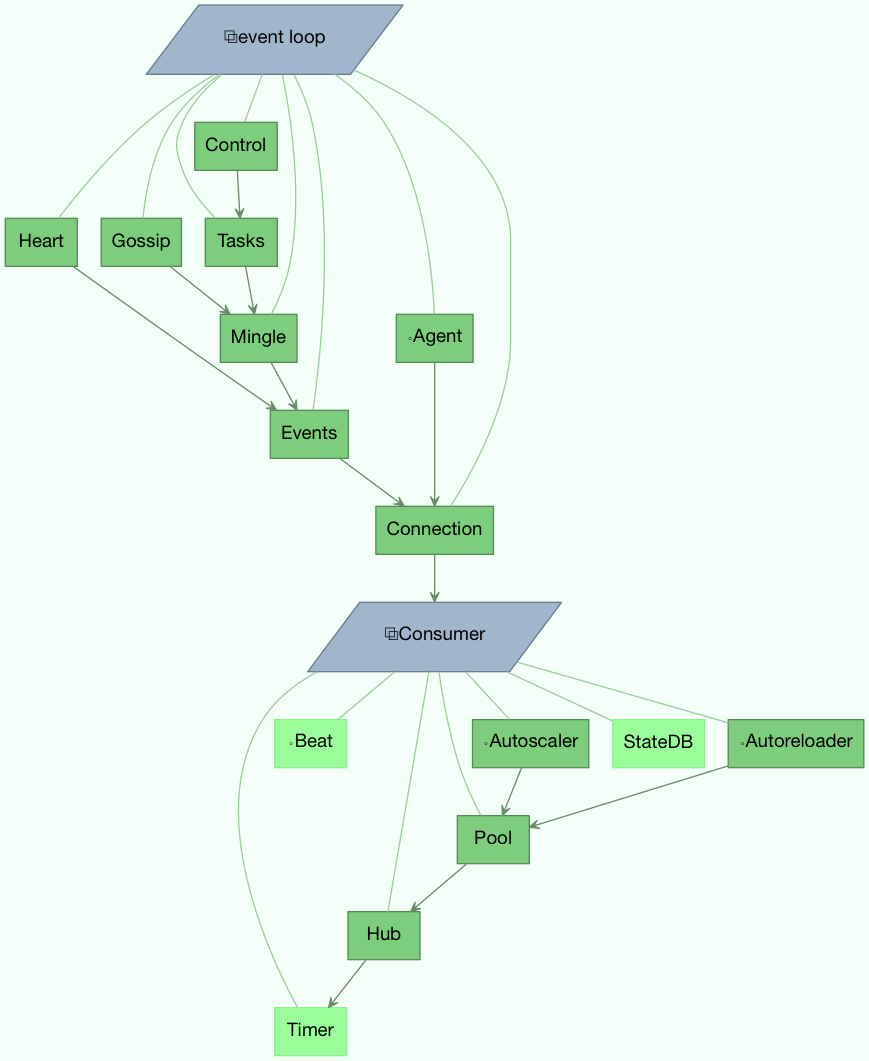
# Worker
The Worker is the first blueprint to start, and with it starts major components like the event loop, processing pool, and the timer used for ETA tasks and other timed events.
When the worker is fully started it continues with the Consumer blueprint, that sets up how tasks are executed, connects to the broker and starts the message consumers.
The WorkerController is the core worker implementation, and contains serveral methods and atributes that you can use in your bootstep.
# Attributes
app: The current app instance.
hostname: The workers node name (e.g., worker1@example.com_)
blueprint: This is the worker Blueprint.
hub: Event loop object (Hub). You can use this to register callbacks in the event loop. This is supported by async I/O enabled transports (amqp, redis), in which case the worker.use_eventloop attribute should be set. Your worker bootstep must require the Hub bootstep to use this:
class WorkerStep(bootsteps.StartStopStep):
requires = {'celery.worker.components:Hub'}
2
pool: The current process/eventlet/gevent/thread pool. See celery.concurrency.base.BasePool. Your worker bootstep must require the Pool bootstep to use this:
class WorkerStep(bootsteps.StartStopStep):
requires = {'celery.worker.components:Pool'}
2
timer: Timer used to schedule functions. Your worker bootstep must require the Timer bootstep to use this:
class WorkerStep(bootsteps.StartStopStep):
requires = {'celery.worker.components:Timer'}
2
statedb: Database <celery.worker.state.Persistent> to persist state between worker restarts. This is only defined if the statedb argument is enabled. Your worker bootstep must require the Statedb bootstep to use this:
class WorkerStep(bootsteps.StartStopStep):
requires = {'celery.worker.components:Statedb'}
2
autoscaler: Autoscaler used to automatically grow and shrink the number of processes in the pool. This is only defined if the autoscale argument is enabled. Your worker bootstep must require the Autoscaler bootstep to use this:
class WorkerStep(bootsteps.StartStopStep):
requires = ('celery.worker.autoscaler:Autoscaler',)
2
autoreloader: Autoreloader used to automatically reload use code when the file-system changes. This is only defined if the autoreload argument is enabled. Your worker bootstep must require the Autoreloader bootstep to use this;
class WorkerStep(bootsteps.StartStopStep):
requires = ('celery.worker.autoreloader:Autoreloader',)
2
# Example worker bootstep
An example Worker bootstep could be:
from celery import bootstep
class ExampleWorkerStep(bootsteps.StartStopStep):
requires = {'celery.worker.comonents:Pool'}
def __init__(self, worker, **kwargs):
print('Called when the WorkController instance is constructed')
print('Arguments to WorkController: {0!r}'.format(kwargs))
def create(self, worker):
# this method can be used to delegate the action methods
# to another object that implements ``start`` and ``stop``.
return self
def start(self, worker):
print('Called when the worker is started.')
def stop(self, worker):
print('Called when the worker shuts down')
def terminate(self, worker):
print('Called when the worker terminates')
2
3
4
5
6
7
8
9
10
11
12
13
14
15
16
17
18
19
20
21
22
Every method is passed the current WorkController instance as the first argument.
Another example could use the timer to wake up at regular intervals:
from celery import bootsteps
class DeadlockDetection(bootsteps.StartStopStep):
requires = {'celery.worker.components:Timer'}
def __init__(self, worker, deadlock_timeout=3600):
self.timeout = deadlock_timeout
self.requests = []
self.tref = None
def start(self, worker):
# run every 30 seconds
self.tref = worker.timer.call_repeatedly(
30.0, self.detect, (worker,), priority=10,
)
def stop(self, worker):
if self.tref:
self.tref.cancel()
self.tref = None
def detect(self, worker):
# update active requests
for req in worker.active_requests:
if req.time_start and time() - req.time_start > self.timeout:
raise SystemExit()
2
3
4
5
6
7
8
9
10
11
12
13
14
15
16
17
18
19
20
21
22
23
24
25
26
27
# Customizing Task Handling Logs
The Celery worker emits messages to the Python logging subsystem for various events throughout the lifecycle of a task. These messages can be customized by overriding the LOG_<TYPE> format strings which are defined in celery/app/trace.py. For example:
import celery.app.trace
celery.app.trace.LOG_SUCCESS = "This is a custom message"
2
3
The various format strings are all provided with the task name and ID for % formatting, and some of them receive extra fields like the return value or the exception which caused a task to fail. These fields can be used in custom format strings like so:
import celery.app.trace
celery.app.trace.LOG_REJECTED = "%(name)r is cursed and I won't run it: %(exc)s"
2
3
# Consumer
The Consumer blueprint establishes a connection to the broker, and is restarted every time this connection is lost. Consumer bootsteps include the worker heartbeat, the remote control command consumer, and importantly, the task consumer.
When you create consumer bootsteps you must take into account that it must be possible to restart your blueprint. An additional 'shutdown' method is defined for consumer bootsteps, this method is called when the worker is shutdown.
# Attributes
app: The current app instance.
controller: The parent WorkController object that created this consumer.
hostname: The workers node name (e.g., worker1@example.com)
blueprint: This is the worker Blueprint.
hub: Event loop object (Hub). You can use this to register callbacks in the event loop. This is only supported by async I/O enabled transports (amqp, redis), in which case the worker.use_eventlooop attribute should be set. Your worker bootstep must require the Hub bootstep to use this:
class WorkerStep(bootsteps.StartStopStep):
requires = {'celery.worker.components:Hub'}
2
connection: The current broker connection (kombu.Connection). A consumer bootstep must require the 'Connection' bootstep to use this:
class Step(bootsteps.StartStopStep):
requires = {'celery.worker.consumer.connection:Connection'}
2
event_dispatcher: A app.events.Dispatcher object that can be used to send events. A consumer bootstep must require the Events bootstep to use this.
class Step(bootsteps.StartStopStep):
requires = {'celery.worker.consumer.events:Events'}
2
gossip: Worker to worker broadcast communication (Gossip). A consumer bootstep must require the Gossip bootstep to use this.
class RatelimitStep(bootsteps.StartStopStep):
"""Rate limit tasks based on the number of workers in the cluster."""
requires = {'celery.worker.consumer.gossip:Gossip'}
def start(self, c):
self.c = c
self.c.gossip.on.node_join.add(self.on_cluster_size_change)
self.c.gossip.on.node_leave.add(self.on_cluster_size_change)
self.c.gossip.on.node_lost.add(self.on_node_lost)
self.tasks = [
self.app.tasks['proj.tasks.add']
self.app.tasks['proj.tasks.mul']
]
self.last_size = None
def on_cluster_size_change(self, worker):
cluster_size = len(list(self.c.gossip.state.alive_workers()))
if cluster_size != self.last_size:
for task in self.tasks:
task.rate_limit = 1.0 / cluster_size
self.c.reset_rate_limits()
self.last_size = cluster_size
def on_node_lost(self, worker):
# may have processed heartbeat too late, so wake up soon
# in order to see if the worker recovered.
self.c.timer.call_after(10.0, self.on_cluster_size_change)
2
3
4
5
6
7
8
9
10
11
12
13
14
15
16
17
18
19
20
21
22
23
24
25
26
27
Callbacks:
<set> gossip.on.node_join: Called whenever a new node joins the cluster, providing a Worker instance.<set> gossip.on.node_leave: Called whenever a new node leaves the cluster (shuts down), providing a Worker instance.<set> gossip.on.node_lost: Called whenever heartbeat was missed for a worker instance in the cluster (heartbeat not received or processed in time), providing a Worker instance. This doesn't necessarily mean the worker is actually offline, so use a time out mechanism if the default heartbeat timeout isn't sufficient.
pool: The current process/eventlet/gevent/thread pool. See celery.concurrency.base.BasePool.
timer: Timer celery.utils.timer2.Schedule used to schedule functions.
heart: Responsible for sending worker event heartbeats (Heart). Your consumer bootstep must require the Heart bootstep to use this:
class Step(bootsteps.StartStopStep):
requires = {'celery.worker.consumer.heart:Heart'}
2
task_consumer: The kombu.Consumer object used to consume task messages. Your consumer bootstep must require the Tasks bootstep to use this:
class Step(bootsteps.StartStopStep):
requires = {'celery.worker.consumer.Tasks:Tasks'}
2
strategies: Every registered task type has an entry in this mapping, where the value is used to execute an incoming message of this task type (the task execution strategy). This mapping is generated by the Tasks bootstep when the consumer starts:
from name, task in app.tasks.items():
strategies[name] = task.start_strategy(app, consumer)
task.__trace__ = celery.app.trace.build_tracer(
name, task, loader, hostname
)
2
3
4
5
Your consumer bootstep must require the Tasks bootstep to use this:
class Step(bootsteps.StartStopStep):
requires = {'celery.worker.consumer.tasks.Tasks'}
2
task_buckets: A defaultdict used to look-up the rate limit for a task by type. Entries in this dict may be None (for no limit) or a TokenBucket instance implementing consume(tokens) and expected_time(tokens).
TokenBucket implements the token bucket algorithm, but any algorithm may be used as long as it conforms to the same interface and defines the two methods above.
qos: The QoS object can be used to change the task channels current prefetch_count value:
# increment at next cycle
consumer.qos.increment_eventually(1)
# decrement at next cycle
consumer.qos.decrement_eventually(1)
consumer.qos.set(10)
2
3
4
5
# Methods
consumer.reset_rate_limit(): Updates the task_buckets mapping for all registered task types.
consumer.bucket_for_task(type, Bucket=TokenBucket): creates rate limit bucket for a task using its task.rate_limit attribute.
consumer.add_task_queue(name, exchange=None, exchange_type=None, routing_key=None, **options): Adds new queue to consume from. This will persist on connection restart.
consumer.cancel_task_queue(name): Stop consuming from queue by name. This will persist on connection restart.
apply_eta_task(request): Schedule ETA task to execute based on the request.eta attribute. (Request)
# Installing Bootsteps
app.steps['worker'] and app.steps['consumer'] can be modified to add new bootsteps:
app = Celery()
app.steps['worker'].add(MyWorkerStep) # < add class, don't instantiate
app.steps['consumer'].add(MyConsumerStep)
app.steps['consumer'].update[(StepA, StepB)]
app.steps['consumer']
# {step:proj.StepB{()}, step:proj.MyConsumerStep{()}, step:proj.StepA{()}}
2
3
4
5
6
7
8
The order of steps isn't important here as the order is decided by the resulting dependency graph (Step.requires).
To illustrate how you can install bootsteps and how they work, this is an example step that prints some useless debugging information. It can be added both as a worker and consumer bootstep:
from celery import Celery
from celery import bootsteps
class InfoStep(bootsteps.Step):
def __init__(self, parent, **kwargs):
# here we can prepare the Worker/Consumer object
# in any way we want, set attribute defaults, and so on.
print('{0!r} is in init'.format(parent))
def start(self, parent):
# our step is started together with all other Worker/Consumer
# bootsteps.
print('{0!r} is starting'.format(parent))
def stop(self, parent):
# the Consumer calls stop every time the consumer is
# restarted (i.e., connection is lost) and also at shutdown.
# The Worker will call stop at shutdown only.
print('{0!r} is stopping'.format(parent))
def shutdown(self, parent):
# shutdown is called by the Consumer at shutdown, it's not
# called by Worker.
print('{0!r} is shutting down'.format(parent))
app = Celery(broker='amqp://')
app.steps['worker'].add(InfoStep)
app.steps['consumer'].add(InfoStep)
2
3
4
5
6
7
8
9
10
11
12
13
14
15
16
17
18
19
20
21
22
23
24
25
26
27
28
29
Starting the worker with this step installed will give us the following logs:
<Worker: w@example.com (initializing)> is in init
<Consumer: w@example.com (initializing)> is in init
[2013-05-29 16:18:20,544: WARNING/MainProcess]
<Worker: w@example.com (running)> is starting
[2013-05-29 16:18:21,577: WARNING/MainProcess]
<Consumer: w@example.com (running)> is starting
<Consumer: w@example.com (closing)> is stopping
<Worker: w@example.com (closing)> is stopping
<Consumer: w@example.com (terminating)> is shutting down
2
3
4
5
6
7
8
9
The print statements will be redirected to the logging subsystem after the worker has been initalized, so the "is starting" lines are time-stamped. You may notice that this does no longer happen at shutdown, this is because the stop and shutdown methods are called inside a signal handler, and it's not safe to use logging inside such a handler. Logging with the Python logging module isn't reentrant: meaning you cannot interrupt the function then call it again later. It's important that the stop and shutdown methods you write is also reentrant.
Starting the worker with --loglevel=debug will show us more information about the boot process:
[2013-05-29 16:18:20,509: DEBUG/MainProcess] | Worker: Preparing bootsteps.
[2013-05-29 16:18:20,511: DEBUG/MainProcess] | Worker: Building graph...
<celery.apps.worker.Worker object at 0x101ad8410> is in init
[2013-05-29 16:18:20,511: DEBUG/MainProcess] | Worker: New boot order:
{Hub, Pool, Timer, StateDB, Autoscaler, InfoStep, Beat, Consumer}
[2013-05-29 16:18:20,514: DEBUG/MainProcess] | Consumer: Preparing bootsteps.
[2013-05-29 16:18:20,514: DEBUG/MainProcess] | Consumer: Building graph...
<celery.worker.consumer.Consumer object at 0x101c2d8d0> is in init
[2013-05-29 16:18:20,515: DEBUG/MainProcess] | Consumer: New boot order:
{Connection, Mingle, Events, Gossip, InfoStep, Agent,
Heart, Control, Tasks, event loop}
[2013-05-29 16:18:20,522: DEBUG/MainProcess] | Worker: Starting Hub
[2013-05-29 16:18:20,522: DEBUG/MainProcess] ^-- substep ok
[2013-05-29 16:18:20,522: DEBUG/MainProcess] | Worker: Starting Pool
[2013-05-29 16:18:20,542: DEBUG/MainProcess] ^-- substep ok
[2013-05-29 16:18:20,543: DEBUG/MainProcess] | Worker: Starting InfoStep
[2013-05-29 16:18:20,544: WARNING/MainProcess]
<celery.apps.worker.Worker object at 0x101ad8410> is starting
[2013-05-29 16:18:20,544: DEBUG/MainProcess] ^-- substep ok
[2013-05-29 16:18:20,544: DEBUG/MainProcess] | Worker: Starting Consumer
[2013-05-29 16:18:20,544: DEBUG/MainProcess] | Consumer: Starting Connection
[2013-05-29 16:18:20,559: INFO/MainProcess] Connected to amqp://guest@127.0.0.1:5672//
[2013-05-29 16:18:20,560: DEBUG/MainProcess] ^-- substep ok
[2013-05-29 16:18:20,560: DEBUG/MainProcess] | Consumer: Starting Mingle
[2013-05-29 16:18:20,560: INFO/MainProcess] mingle: searching for neighbors
[2013-05-29 16:18:21,570: INFO/MainProcess] mingle: no one here
[2013-05-29 16:18:21,570: DEBUG/MainProcess] ^-- substep ok
[2013-05-29 16:18:21,571: DEBUG/MainProcess] | Consumer: Starting Events
[2013-05-29 16:18:21,572: DEBUG/MainProcess] ^-- substep ok
[2013-05-29 16:18:21,572: DEBUG/MainProcess] | Consumer: Starting Gossip
[2013-05-29 16:18:21,577: DEBUG/MainProcess] ^-- substep ok
[2013-05-29 16:18:21,577: DEBUG/MainProcess] | Consumer: Starting InfoStep
[2013-05-29 16:18:21,577: WARNING/MainProcess]
<celery.worker.consumer.Consumer object at 0x101c2d8d0> is starting
[2013-05-29 16:18:21,578: DEBUG/MainProcess] ^-- substep ok
[2013-05-29 16:18:21,578: DEBUG/MainProcess] | Consumer: Starting Heart
[2013-05-29 16:18:21,579: DEBUG/MainProcess] ^-- substep ok
[2013-05-29 16:18:21,579: DEBUG/MainProcess] | Consumer: Starting Control
[2013-05-29 16:18:21,583: DEBUG/MainProcess] ^-- substep ok
[2013-05-29 16:18:21,583: DEBUG/MainProcess] | Consumer: Starting Tasks
[2013-05-29 16:18:21,606: DEBUG/MainProcess] basic.qos: prefetch_count->80
[2013-05-29 16:18:21,606: DEBUG/MainProcess] ^-- substep ok
[2013-05-29 16:18:21,606: DEBUG/MainProcess] | Consumer: Starting event loop
[2013-05-29 16:18:21,608: WARNING/MainProcess] celery@example.com ready.
2
3
4
5
6
7
8
9
10
11
12
13
14
15
16
17
18
19
20
21
22
23
24
25
26
27
28
29
30
31
32
33
34
35
36
37
38
39
40
41
42
43
44
# Command-line programs
# Adding new command-line options
Command-specific options:
You can add additional command-line options to the worker, beat, and events commands by modifying the user_options attribute of the application instance.
Celery commands uses the click module to parse command-line arguments, and so to add custom arguments you need to add click.Option instances to the relevant set.
Example adding a custom option to the celery worker command:
from celery import Celery
from click import Option
app = Celery(broker='amqp://')
app.user_options['worker'].add(Option(('--enable-my-optoin',), is_flat=True, help='Enable custom option.'))
2
3
4
5
6
All bootsteps will now recive this argument as a keyword argument to Bootstep.__init__:
from celery import bootsteps
class MyBootstep(bootsteps.Step):
def __init__(self, parent, enable_y_option=False, **options):
super().__init__(parent, **options)
if enable_y_option:
party()
app.steps['worker'].add(MyBootstep)
2
3
4
5
6
7
8
9
10
Preload options:
The celery umbrella command supports the concept of 'preload options'. These are special options passed to all sub-commands.
You can add new preload options, for example to specify a configuration template:
from celery import Celery
from celery import signals
from click import Option
app = Celery()
app.user_options['preload'].add(Option('-Z', '--template'), default='default', help='Configuration template to use.')
@signals.user_preload_options.connect
def on_preload_parsed(options, **kwargs):
use_template(options['template'])
2
3
4
5
6
7
8
9
10
11
# Adding new celery sub-commands
New commands can be added to the celery umbrella command by using setuptools entry-points.
Entry-point is special meta-data that can be added to your packages setup.py program, and then after installation, read from the system using the importlib module.
Celery recognizes celery.commands entry-points to install additional sub-commands, where the value of the entry-point must point to a valid click command.
This is how the https://pypi.org/project/Flower/ monitoring extension may add the celery flower command, by adding an entry-point in setup.py:
setup(
name='flower',
entry_points={
'celery.commands': [
'flower = flower.command:flower',
]
}
)
2
3
4
5
6
7
8
The command definition is in two parts separated by the equal sign, where the first part is the name of the sub-command (flower), then the second part is the fully qualified symbol path to the function that implements the command:
flower.command:flower
The module path and the name of the attribute should be separated by colon as above.
In the module flower/command.py, the command function may be defined as the following:
import click
@click.command()
@click.option('--port', default=8888, type=int, help='Webserver port')
@click.option('--debug', is_flag=True)
def flower(port, debug):
print('Running our command')
2
3
4
5
6
7
# Worker API
# Hub - The workers async event loop
supported transports: amqp, redis
Added in version 3.0.
The worker uses asynchronous I/O when the amqp or redis broker transports are used. The eventual goal is for all transports to use the event-loop, but that will take some time so other transports still use a threading-based solution.
hub.add*(fd, callback, flags)*
hub.add_reader*(fd, callback, *args)*
Add callback to be called when fd is readable. The callback will stay registered until explicitly using hub.remove(fd), or the file descriptor is automatically discarded because it's no longer valid. Note that only one callback can be registered for any given file descriptor at a time, so calling add a second time will remove any callback that was previously registered for that file descriptor. A file descriptor is any file-like object that supports the fileno method, or it can be the file descriptor number (int).
hub.add_writer*(fd, callback, *args)*
Add callback to be called when fd is writable. See also notes for hub.add_reader() above.
hub.remove*(fd)*
Remove all callbacks for file descriptor fd from the loop.
# Timer - Scheduling events
timer.call_after(secs, callback, args=(), kwargs=(), priority=0).
timer.call_repeatedly(secs, callback, args=(), kwargs=(), priority=0).
timer.call_at(eta, callback, args=(), kwargs=(), priority=0).
# Configuration and defaults
# Example configuration file
This is an example configuration file to get you started. It should contain all you need to run a basic Celery set-up.
# Broker settings.
broker_url = 'amqp://guest:guest@localhost:5672//'
# List of modules to import when the Celery worker starts.
imports = ('myapp.tasks',)
# Using the database to store task state and results.
result_backend='db+sqlite:///results.db'
task_annotations = {'tasks.add': {'rate_limit': '10/s'}}
2
3
4
5
6
7
8
9
10
# New lowercase settings
Version 4.0 introduced new lower case settings and setting organization.
The major difference between previous version, apart from the lower case names, are the renaming of some prefixes, like celery_beat_ to beat_, celeryd_ to worker_, and most of the top level celery_ settings have been moved into a new task_ prefix.
Celery will still be able to read old configuration files until Celery 6.0. Afterwards, support for the old configuration files will be removed. We provide the celery upgrade command that should handle plenty of cases (including Django).
Please migrate to the new configuration scheme as soon as possible.
# Configuration Directives
# General settings
# accept_content
Default: {'json'}(set, list, or tuple)
A white-list of content-types/serializers to allow.
If a message is received that's not in this list then the message will be discarded with an error.
By default only json is enabled but any content type can be added, including pickle and yaml; when this is the case make sure untrusted parties won't have access to your broker. See Security for more.
Example:
# using serializer name
accept_content = ['json']
# or the actual content-type (MIME)
accept_content = ['application/json']
2
3
4
5
# result_accept_content
Default: None (can be set, list or tuple).
Added in version 4.3.
A white-list of content-types/serializers to allow for the result backend.
If a message is received that's not in this list then the message will be discarded with an error.
By default it is the same serializer as accept_content. However, a different serializer for accepted content of the result backend can be specified. Usually this is needed if signed messaging is used and the result is stored unsigned in the result backend. See Security for more.
Example:
# using serializer name
result_accept_content = ['json']
# or the actual content-type (MIME)
result_accept_content = ['application/json']
2
3
4
5
# Time and date settings
# enable_utc
Added in version 2.5.
Default: Enabled by default since version 3.0.
If enabled dates and times in messages will be converted to use the UTC timezone.
Note that workers running Celery versions below 2.5 will assume a local timezone for all messages, so only enable if all workers have been upgraded.
# timezone
Added in version 2.5.
Default: "UTC".
Configure Celery to use a custom timezone. The timezone value can be any time zone supported by the Zoneinfo library.
If not set the UTC timezone is used. For backwards compatibility there's also a enable_utc setting, and when this is set to false the system local timezone is used instead.
# Task settings
# task_annotations
Added in version 2.5.
Default: None.
This setting can be used to rewrite any task attribute from the configuration. The setting can be a dict, or a list of anotation objects that filter for tasks and return a map of attributes to change.
This will change the rate_limit attribute for the tasks.add task:
task_annotations = {'tasks.add': {'rate_limit': '10/s'}}
or change the same for all tasks:
task_annotations = {'*', {'rate_limit': '10/s'}}
You can change methods too, for example the on_failure handler:
def my_on_failure(self, exc, task_id, args, kwargs, einfo):
print('Oh no! Task failed: {0!r}'.format(exc))
task_annotations = {'*': {'on_failure': my_on_failure}}
2
3
4
If you need more flexibility then you can use objects instead of a dict to choose the tasks to annotate:
class MyAnnotate:
def annotate(self, task):
if task.name.startswith('tasks.'):
return {'rate_limit': '10/s'}
task_annotations = (MyAnnotate(), {other,})
2
3
4
5
6
7
# task_compression
Default: None.
Default compression used for task messages. Can be gzip, bzip2 (if available), or any custom compression schemes in the Kombu compression registry.
The default is to send uncompressed messages.
# task_protocol
Default: 2 (since 4.0).
Set the default task message protocol version used to send tasks. Supports protocols: 1 and 2.
Protocol 2 is supported by 3.1.24 and 4.x+.
# task_serializer
Default: "json" (since 4.0, earlier: pickle).
A string identifying the default serialization method to use. Can be json (default), pickle, yaml, msgpack, or any custom serialization methods that have been registered with kombu.serialization.registry.
See also
# task_publish_retry
Added in version 2.2.
Default: Enabled.
Decides if publishing task messages will be retried in the case of connection loss or other connection errors. See also task_publish_retry_policy.
# task_publish_retry_policy
Added in version 2.2.
Default: See Message Sending Retry.
Defines the default policy when retrying publishing a task message in the case of connection loss or other connection errors.
# Task execution settings
# task_always_eager
Default: Disabled.
If this is True, all tasks will be executed locally by blocking until the task returns. apply_async() and Task.delay() will return an EagerResult instance, that emulates the API and behavior of AsyncResult, except the result is already evaluated.
That is, tasks will be executed locally instead of being sent to the queue.
# task_eager_propagates
Default: Disabled.
If this is True, eagerly executed tasks (applied by task.apply(), or when the task_always_eager setting is enabled), will propagate exceptions.
It's the same as always running apply() with throw=True.
# task_store_eager_result
Added in version 5.1.
Default: Disabled.
If this is True and task_always_eager is True and task_ignore_result is False, the results of eagerly executed tasks will be saved to the backend.
By default, even with task_always_eager set to True and task_ignore_result set to False, the result will not be saved.
# task_remote_tracebacks
Default: Disabled.
If enabled task results will include the workers stack when re-raising task errors.
This requires the https://pypi.org/project/tblib/ library, that can be installed using pip:
pip install celery[tblib]
See Bundles for information on combining multiple extension requirements.
# task_ignore_result
Default: Disabled.
Whether to store the task return values or not (tombstones). If you still want to store errors, just not successful return values, you can set task_store_errors_even_if_ignored.
# task_store_errors_even_if_ignored
Default: Disabled.
If set, the worker stores all task errors in the result store even if Task.ignore_result is on.
# task_track_started
Default: Disabled.
If True the task will report its status as 'started' when the task is executed by a worker. The default value is False as the normal behavior is to not report that level of granularity. Tasks are either pending, finished, or waiting to be retried. Having a 'started' state can be useful for when there are long running tasks and there's a need to report what task is currently running.
# task_time_limit
Default: No time limit.
Task hard time limit in seconds. The worker processing the task will be killed and replaced with a new one when this is exceeded.
# task_allow_error_cb_on_chord_header
Added in version 5.3.
Default: Disabled.
Enabling this flag will allow linking an error callback to a chord header, which by default will not link when using link_error(), and preventing from the chord's body to execute if any of the tasks in the header fails.
Consider the following canvas with the flag disabled (default behavior):
header = group([t1, t2])
body = t3
c = chord(header, body)
c.link_error(error_callback_sig)
2
3
4
If any of the header tasks failed (t1 or t2), by default, the chord body (t3) would not execute, and error_callback_sig will be called once (for the body).
Enabling this flag will change the above behavior by:
error_callback_sigwill be linked tot1andt2(as well ast3).- If any of the header tasks failed,
error_callback_sigwill be called for each failed header task and the body (even if the body didn't run).
Consider now the following canvas with the flag enabled:
header = group([failingT1, failingT2])
body = t3
c = chord(header, body)
c.link_error(error_callback_sig)
2
3
4
If any of the header tasks failed (failingT1 and failingT2), then the chord body (t3) would not execute, and error_callback_sig will be called 3 times (two times for the header and one time for the body).
Lastly, consider the following canvas with the flag enabled:
header = group([failingT1, failingT2])
body = t3
upgraded_chord = chain(header, body)
upgraded_chord.link_error(error_callback_sig)
2
3
4
This canvas will behave exactly the same as the previous one, since the chain will be upgraded to a chord internally.
# task_soft_time_limit
Default: No soft time limit.
Task soft time limit in seconds.
The SoftTimeLimitExceeded exception will be raised when this is exceeded. For example, the task can catch this to clean up before the hard time limit comes:
from celery.exceptions import SoftTimeLimitExceeded
@app.task
def mytask():
try:
return do_work()
except SoftTimeLimitExceeded:
cleanup_in_a_hurry()
2
3
4
5
6
7
8
# task_acks_late
Default: Disabled.
Late ack means the task messages will be acknowledged after the task has been executed, not right before (the default behavior).
See also
# task_acks_on_failure_or_timeout
Default: Enabled.
When enabled messages for all tasks will be acknowledged even if they fail or time out.
Configuring this setting only applies to tasks that are acknowledged after they have been executed and only if task_acks_late is enabled.
# task_reject_on_worker_lost
Default: Disabled.
Even if task_acks_late is eanbled, the worker will acknowledge tasks when the worker process executing them abruptly exits or is signaled (e.g., KILL/INT, etc).
Setting this to true allows the message to be re-queued instead, so that the task will execute again by the same worker, or another worker.
Enabling this can cause message loops; make sure you know what you're doing.
# task_default_rate_limit
Default: No rate limit.
The global default rate limit for tasks.
This value is used for tasks that doesn't have a custom rate limit.
See also
The worker_disable_rate_limits setting can disable all rate limits.
# Task result backend settings
# result_backend
Default: No result backend enabled by default.
The backend used to store task results (tombstones). Can be one of the following:
rpc: Send results back as AMQP messages See RPC backend settings.database: Use a relational database supported by SQLAlchemy. See Database backend settings.redis: Use Redis to store the results. See Redis backend settings.cache: Use Memcached to store the results. See Cache backend settings.mongodb: Use MongoDB to store the results. See MongoDB backend settings.cassandra: Use Cassandra to store the results. See Cassandra/AstraDB backend settings.elasticsearch: Use Elasticsearch to store the results. See Elasticsearch backend settings.ironcache: Use IronCache to store the results. See IronCache backend settingscouchbase: Use Couchbase to store the results. See Couchbase backend settings.arangodb: Use ArangoDB to store the results. See ArangoDB backend settings.couchdb: Use CouchDB to store the results. See CouchDB backend settings.cosmosdbsql(experimental): Use the CosmosDB PaaS to store the results. See CosmosDB backend settings (experimental).filesystem: Use a shared directory to store the results. See File-system backend settings.consul: Use the Consul K/V store to store the results See Consul K/V backend settings.azureblockblob: Use the AzureBlockBlob PaaS store to store the results See Azure Block Blob backend settings.s3: Use the S3 to store the results See S3 backend settings.gcs: Use the GCS to store the results See GCS backend settings.
# result_backend_always_retry
Default: False
If enable, backend will try to retry on the event of recoverable execptions instead of propagating the exception. It will use an exponential backoff sleep time between 2 retries.
# result_backend_max_sleep_between_retries_ms
Default: 10000
This specifies the maximum sleep time between two backend operation retry.
# result_backend_base_sleep_between_retries_ms
Default: 10
This specifies the base amount of sleep time between tow backend operation retry.
# result_backend_max_retries
Default: Inf
This is the maximum of retries in case of recoverable exceptions.
# result_backend_thread_safe
Default: False
If True, then the backend object is shared across threads. This may be useful for using a shared connection pool instead of creating a connection for every thread.
# result_backend_transport_options
Default: {} (empty mapping).
A dict of additional options passed to the underlying transport.
See your transport user manual for supported options (if any).
Example setting the visibility timeout (supported by Redis and SQS transport):
result_backend_transport_options = {'visibility_timeout': 18000} # 5 hours
# result_serializer
Default: json since 4.0 (earlier: pickle).
Result serialization format.
See Serializers for information about supported serialization formats.
# result_compression
Default: No compression.
Optional compression method used for task results. Supports the same options as the task_compression setting.
# result_extended
Default: False
Enables extended task result attributes (name, args, kwargs, worker, retries, queue, delivery_info) to be written to backend.
# result_expires
Default: Expire after 1 day.
Time (in seconds, or a timedelta object) for when after stored task tombstones will be deleted.
A built-in periodic task will delete the results after this time (celery.backend_cleanup), assuming that celery beat is enabled. The task runs daily at 4am.
A value of None or 0 means results will never expire (depending on backend specifications).
For the moment this only works with the AMQP, database, cache, Couchbase, filesystem and Redis backends.
When using the database of filesystem backend, celery beat must be running for the results to be expired.
# result_cache_max
Default: Disabled by default.
Enables client caching of results.
This can be useful for the old deprecated 'amqp' backend where the result is unavailable as soon as one result instance consumes it.
This is the total number of results to cache before older results are evicted. A value of 0 or None means no limit, and a value of -1 will disable the cache.
Disabled by default.
# result_chord_join_timeout
Default: 3.0.
The timeout in seconds (int/float) when joining a group's results within a chord.
# result_chord_retry_interval
Default: 1.0.
Default interval for retrying chord tasks.
# override_backends
Default: Disabled by default.
Path to class that implements backend.
Allows to override backend implementation. This can be useful if you need to store additional metadata about executed tasks, override retry policies, etc.
Example:
override_backends = {"db": "custom_module.backend.class"}
# Database backend settings
# Database URL Examples
To use the database backend you have to configure the result_backend setting with a connection URL and the db+ prefix:
result_backend = 'db+scheme://user:password@host:port/dbname'
Examples:
# sqlite (filename)
result_backend = 'db+sqlite:///results.sqlite'
# mysql
result_backend = 'db+mysql://scott:tiger@localhost/foo'
# postgresql
result_backend = 'db+postgresql://scott:tiger@localhost/mydatabase'
# oracle
result_backend = 'db+oracle://scott:tiger@127.0.0.1:1521/sidname'
2
3
4
5
6
7
8
9
10
11
Please see Supporeted Databases for a table of supported databases, and Connection String for more information about connection strings (this is the part of the URI that comes the db+ prefix).
# database_create_tables_at_setup
Added in version 5.5.0.
Default: True by default.
- If True, Celery will create the tables in the database during setup.
- If False, Celery will create the tables lazily, i.e. wait for the first task to be executed before creating the tables.
Before celery 5.5, the tables were created lazily i.e. it was equivalent to database_create_tables_at_setup set to False.
# database_engine_optons
Default: {} (empty mapping).
To specify additional SQLAlchemy database engine options you can use the database_engine_options setting:
# echo enables verbose logging from SQLAlchemy
app.conf.database_engine_options = {'echo': True}
2
# database_short_lived_sessions
Default: Disabled by default.
Short lived sessions are disabled by default. If enabled they can drastically reduce performance, especially on systems processing lots of tasks. This option is useful on low traffic workers that experience errors as a result a cached database connections going stale through inactivity. For example, intermittent errors like (OperationalError) (2006, MySQL server has gone away) can be fixed by enabling short lived sessions. This option oly affects the database backend.
# database_table_schemas
Default: {} (empty mapping).
When SQLAlchemy is configured as the result backend, Celery automatically creates two tables to store result meta-data for tasks. This setting allows you to customize the schema of the tables:
# use custom schema for the database result backend.
database_table_schemas = {
'task': 'celery',
'group': 'celery',
}
2
3
4
5
# database_table_names
Default: {} (empty mapping).
When SQLAlchemy is configured as the result backend, Celery automatically creates two tables to store result meta-data for tasks. This setting allows you to customize the table names:
# use custom table names for the database result backend.
database_table_names = {
'task': 'myapp_taskmeta',
'group': 'myapp_groupmeta',
}
2
3
4
5
# RPC backend settings
# result_persistent
Default: Disabled by default (transient messages).
If set to True, result messages will be persistent. This means the message won't be lost after a broker restart.
result_backend = 'rpc://'
result_persistent = False
2
Please note: using this backend could trigger the raise of celery.backends.rpc.BacklogLimitExceeded if the task tombstone is too old.
for i in range(10000):
r = debug_task.delay()
print(r.state) # this would raise celery.backends.rpc.BacklogLimitExceeded
2
3
4
# Cache backend settings
The cache backend supports the https://pypi.org/project/pylibmc/ and https://pypi.org/project/python-memcached/ libraries. The latter is used only if https://pypi.org/project/pylibmc/ isn't installed.
Using a single Memcached server:
result_backend = 'cache+memcached://127.0.0.1:11211/'
Using multiple Memcached servers:
result_backend = """
cache+memcached://172.19.26.240:11211;172.19.26.242:11211/
""".strip()
2
3
The "memory" backend stores the cache in memory only:
result_backend = 'cache'
cache_backend = 'memory'
2
# cache_backend_options
Default: {} (empty mapping).
You can set https://pypi.org/project/pylibmc/ options using the cache_backend_options setting:
cache_backend_options = {
'binary': True,
'behaviors': {'tcp_nodelay': True},
}
2
3
4
# cache_backend
This setting is no longer used in celery's builtin backends as it's now possible to specify the cache backend directly in the result_backend setting.
The django-celery-results -- Using the Django ORM/Cache as a result backend library uses cache_backend for choosing django caches.
# MongoDB backend settings
The MongoDB backend requires the pymongo library: http://github.com/mongodb/mongo-python-driver/tree/master
# mongodb_backend_settings
This is a dict supporting the following keys:
- database: The database name to connect to. Defaults to
celery. - taskmeta_collection: The collection name to store task meta data. Defaults to
celery_taskmeta. - max_pool_size: Passed as
max_pool_sizeto PyMongo's Connection or MongoClient constructor. It it the maximum number of TCP connections to keep open to MongoDB at a given time. If there are more open connections thanmax_pool_size, sockets will be closed when they are released. Defaults to 10. - options: Additional keyword arguments to pass to the mongodb connection constructor. See the pymongo docs to see a list of arguments supported.
result_backend = 'mongodb://localhost:27017/'
mongodb_backend_settings = {
'database': 'mydb',
'taskmeta_collection': 'my_taskmeta_collection',
}
2
3
4
5
# Redis backend settings
# Configuring the backend URL
The Redis backend requires the https://pypi.org/project/redis/ library.
To install this package use pip:
pip install celery[redis]
See Bundles for information on combining multiple extension requirements.
This backend requires the result_backend setting to be set to a Redis or Redis over TLS URL:
result_backend = 'redis://username:password@host:port/db'
For example:
result_backend = 'redis://localhost/0'
is the same as:
result_backend = 'redis://'
Use the rediss:// protocol to connect to redis over TLS:
result_backend = 'rediss://username:password@host:port/db?ssl_cert_reqs=required'
Note that the ssl_cert_reqs string should be one of required, optional, or none (though, for backends compatibility with older Celery versions, the string may also be one of CERT_REQUIRED, CERT_OPTIONAL, CERT_NONE, but those values only work for Celery, not for Redis directly).
If a Unix socket connection should be used, the URL needs to be in the format:
result_backend = 'socket:///path/to/redis.sock'
The fields of the URL are defined as follows:
username
Added in version 5.1.0.
Username used to connect to the database.
Note that this is only supported in Redis>=6.0 and with py-redis>=3.4.0 installed.
If you use an older database version or an older client version you can omit the username:
result_backend = 'redis://:password@host:port/db'
password
Password used to connect to the database.
host
Host name or IP address of the Redis server (e.g., localhost).
port
Port to the Redis server, Default is 6379.
db
Database number to use. Default is 0. The db can include an optional leading slash.
When using a TLS connection (protocol is rediss://), you may pass in all values in broker_use_ssl as query parameters. Paths to certificates must be URL encoded, and ssl_cert_reqs is required. Example:
result_backend = 'rediss://:password@host:port/db?\
ssl_cert_reqs=required\
&ssl_ca_certs=%2Fvar%2Fssl%2Fmyca.pem\ # /var/ssl/myca.pem
&ssl_certfile=%2Fvar%2Fssl%2Fredis-server-cert.pem\ # /var/ssl/redis-server-cert.pem
&ssl_keyfile=%2Fvar%2Fssl%2Fprivate%2Fworker-key.pem' # /var/ssl/private/worker-key.pem
2
3
4
5
# redis_backend_health_check_interval
Default: Not configured
The Redis backend supports health checks. This value must be set as an integer whose value is the number of seconds between health checks. If a ConnectionError or a TimeoutError is encountered during the health check, the connection will be re-established and the command retried exactly once.
# redis_backend_use_ssl
Default: Disabled.
The Redis backend supports SSL. This value must be set in the form of a dictionary. The valid key-value pairs are the same as the ones mentioned in the redis sub-section under broker_use_ssl.
# redis_max_connections
Default: No limit.
Maximum number of connections available in the Redis connection pool used for sending and retrieving results.
Redis will raise a ConnectionError if the number of concurrent connections exceeds the maximum.
# redis_socket_connect_timeout
Added in version 4.0.1.
Default: None
Socket timeout for connections to Redis from the result backend in seconds (int/float).
# redis_socket_timeout
Default: 120.0 seconds.
Socket timeout for reading/writing operations to the Redis server in seconds (int/float), used by the redis result backend.
# redis_retry_on_timeout
Added in version 4.4.1.
Default: False
To retry reading/writing operations on TimeoutError to the Redis server, used by the redis result backend. Shouldn't set this variable if using Redis connection by unix socket.
# redis_socket_keepalive
Added in version 4.4.1.
Default: False
Socket TCP keepalive to keep connections healthy to the Redis server, used by the redis result backend.
# Cassandra/AstraDB backend settings
This Cassandra backend driver requires https://pypi.org/project/cassandra-driver/.
This backend can refer to either a reqular Cassandra installation or a managed AstraDB instance. Depending on which one, exactly one between the cassandra_servers and cassandra_secure_bundle_path settings must be provided (but not both).
To install, use pip:
pip install celery[cassandra]
See Bundles for information on combining multiple extension requirements.
This backend requires the following configuration directives to be set.
# cassandra_servers
Default: [] (empty list)
List of host Cassandra servers. This must be provided when connection to a Cassandra cluster. Passing this setting is strictly exclusive to cassandra_secure_bundle_path. Example:
cassandra_servers = ['localhost']
# cassandra_secure_bundle_path
Default: None.
Absolute path to the secure-connect-bundle zip file to connect to an Astra DB instance. Passing this setting is strictly exclusive to cassandra_servers. Example:
cassandra_secure_bundle_path = '/home/user/bundles/secure-connect.zip'
When connecting to Astra DB, it is necessary to specify the plain-text auth provider and the associated username and password, which take the value of the Client ID and the Client Secret, respectively, of a valid token generated for the Astra DB instance. See below for an Astra DB configuration example.
# cassandra_port
Default: 9042.
Port to contact the Cassandra servers on.
# cassandra_keyspace
Default: None.
The keyspace in which to store the results. For example:
cassandra_keyspace = 'tasks_keyspace'
# cassandra_table
Default: None.
The table (column family) in which to store the results. For example:
cassandra_table = 'tasks'
# cassandra_read_consistency
Default: None.
The read consistency used. Values can be ONE, TWO, THREE, QUORUM, ALL, LOCAL_QUORUM, EACH_QUORUM, LOCAL_ONE.
# cassandra_write_consistency
Default: None.
The write consistency used. Values can be ONE, TWO, THREE, QUORUM, ALL, LOCAL_QUORUM, EACH_QUORUM, LOCAL_ONE.
# cassandra_entry_ttl
Default: None.
Time-to-live for status entries. They will expire and be removed after that many seconds after adding. A value of None (default) means they will never expire.
# cassandra_auth_provider
Default: None.
AuthProvider cass within cassandra.auth module to use. Values can be PlainTextAuthProvider or SaslAuthProvider.
# cassandra_auth_kwargs
Default: {} (empty mapping).
Named arguments to pass into the authentication provider. For example:
cassandra_auth_kwargs = {
username: 'cassandra',
password: 'cassandra'
}
2
3
4
# cassandra_options
Default: {} (empty mapping).
Named arguments to pass into the cassandra.cluster class.
cassandra_options = {
'cql_version': '3.2.1',
'protocol_version': 3
}
2
3
4
# Example configuration (Cassandra)
result_backend = 'cassandra://'
cassandra_servers = ['localhost']
cassandra_keyspace = 'celery'
cassandra_table = 'tasks'
cassandra_read_consistency = 'QUORUM'
cassandra_write_consistency = 'QUORUM'
cassandra_entry_ttl = 86400
2
3
4
5
6
7
# Example configuration (Astra DB)
result_backend = 'cassandra://'
cassandra_keyspace = 'celery'
cassandra_table = 'tasks'
cassandra_read_consistency = 'QUORUM'
cassandra_write_consistency = 'QUORUM'
cassandra_auth_provider = 'PlainTextAuthProvider'
cassandra_auth_kwargs = {
'username': '<<CLIENT_ID_FROM_ASTRA_DB_TOKEN>>',
'password': '<<CLIENT_SECRET_FROM_ASTRA_DB_TOKEN>>'
}
cassandra_secure_bundle_path = '/path/to/secure-connect-bundle.zip'
cassandra_entry_ttl = 86400
2
3
4
5
6
7
8
9
10
11
12
# Additional configuration
The Cassandra driver, when establishing the connection, undergoes a stage of negotiating the protocol version with the server(s). Similarly, a load-balancing policy is automatically supplied (by default DCAwareRoundRobinPolicy, which in turn has local_dc setting, also determined by the driver upon connection). When possible, one should explicitly provide these in the configuration: moreover, future versions of the Cassandra driver will requires at least the load-balancing policy to be specified (using execution profiles, as shown below).
A full configuration for the Cassandra backend would thus have the following additional lines:
from cassandra.policies import DCAwareRoundRobinPolicy
from cassandra.cluster import ExecutionProfile
from cassandra.cluster import EXEC_PROFILE_DEFAULT
myEProfile = ExecutionProfile(
load_balancing_policy=DCAwareRoundRobinPolicy(
local_dc='datacenter1', # replace with your DC name
)
)
cassandra_options = {
'protocol_version': 5, # for Cassandra 4, change if needed
'execution_profiles': {EXEC_PROFILE_DEFAULT: myEProfile},
}
2
3
4
5
6
7
8
9
10
11
12
And similarly for Astra DB:
from cassandra.policies import DCAwareRoundRobinPolicy
from cassandra.cluster import ExecutionProfile
from cassandra.cluster import EXEC_PROFILE_DEFAULT
myEProfile = ExecutionProfile(
load_balancing_policy=DCAwareRoundRobinPolicy(
local_dc='europe-west1', # for Astra DB, region name = dc name
)
)
cassandra_options = {
'protocol_version': 4, # for Astra DB
'execution_profiles': {EXEC_PROFILE_DEFAULT: myEProfile},
}
2
3
4
5
6
7
8
9
10
11
12
# S3 backend settings
This s3 backend driver requires https://pypi.org/project/s3/.
To install, use s3:
pip install celery[s3]
See Bundles for information on combining multiple extension requirements.
This backend requires the following configuration directives to be set.
# s3_access_key_id
Default: None.
The s3 access key id. For example:
s3_access_key_id = 'access_key_id'
# s3_secret_access_key
Default: None.
The s3 secret access key. For example:
s3_secret_access_key = 'access_secret_access_key'
# s3_bucket
Default: None.
The s3 bucket name. For example:
s3_bucket = 'bucket_name'
# s3_base_path
Default: None.
A base path in the s3 bucket to use to store result keys. For example:
s3_base_path = '/prefix'
# s3_endpoint_url
Default: None.
A custom s3 endpoint url. Use it to connect to a custom self-hosted s3 compatible backend (Ceph, Scality...). For example:
s3_endpoint_url = 'https://.s3.custom.url'
# s3_region
Default: None.
The s3 aws region. For example:
s3_region = 'us-east-1'
# Example configuration
s3_access_key_id = 's3-access-key-id'
s3_secret_access_key = 's3-secret-access-key'
s3_bucket = 'mybucket'
s3_base_path = '/celery_result_backend'
s3_endpoint_url = 'https://endpoint_url'
2
3
4
5
# Azure Block Blob backend settings
To use AzureBlockBlob as the result backend you simply need to configure the result_backend setting with the correct URL.
The required URL format is azureblockblob:// followed by the storage connection string. You can find the storage connection string in the Access Keys pane of your storage account resource in the Azure Portal.
# Example configuration
result_backend = 'azureblockblob://DefaultEndpointsProtocol=https;AccountName=somename;AccountKey=Lou...bzg==;EndpointSuffix=core.windows.net'
# azureblockblob_container_name
Default: celery.
The name for the storage container in which to store the results.
# azureblockblob_base_path
Added in version 5.1.
Default: None.
A base path in the storage container to use to store result keys. For example:
azureblockblob_base_path = 'prefix/'
# azureblockblob_retry_initial_backoff_sec
Default: 2.
The initial backoff interval, in seconds, for the first retry. Subsequent retries are attempted with an exponential strategy.
# azureblockblob_retry_increment_base
Default: 2.
# azureblock_blob_retry_max_attempts
Default: 3.
The maximum number of retr attempts.
# azureblockblob_connection_timeout
Default: 20.
Timeout in seconds for establishing the azure block blob connection.
# azureblockblob_read_timeout
Default: 120.
Timeout in seconds for reading of an azure block blob.
# GCS backend settings
This gcs backend driver requires https://pypi.org/project/google-cloud-storage/ and https://pypi.org/project/google-cloud-firestore/.
To install, use gcs:
pip install celery[gcs]
See Bundles for information on combining multiple extension requirements.
GCS could be configured via the URL provided in result_backend, for example:
result_backend = 'gs://mybucket/some-prefix?gcs_project=myproject&ttl=600'
result_backend = 'gs://mybucket/some-prefix?gcs_project=myproject?firestore_project=myproject2&ttl=600'
2
This backend requires the following configuration directives to be set:
# gcs_bucket
Default: None.
The gcs bucket name. For example:
gcs_bucket = 'bucket_name'
# gcs_project
Default: None.
The gcs project name. For example:
gcs_project = 'test-project'
# gcs_base_path
Default: None.
A base path in the gcs bucket to use to store all result keys. For example:
gcs_base_path = '/prefix'
# gcs_ttl
Default: 0.
The time to live in seconds for the results blobs. Requires a GCS bucket with "Delete" Object Lifecycle Management action enabled. Use it to automatically delete results from Cloud Storage Buckets.
For example to auto remove results after 24 hours:
gcs_ttl = 86400
# gcs_threadpool_maxsize
Default: 10.
Threadpool size for GCS operations. Same value defines the connection pool size. Allows to control the number of concurrent operations. For example:
gcs_threadpool_maxsize = 20
# firestore_project
Default: gcs_project.
The Firestore project for Chord reference counting. Allows native chord ref counts. If not specified defaults to gcs_project. For example:
firestore_project = 'test-project2'
# Example configuration
gcs_bucket = 'mybucket'
gcs_project = 'myproject'
gcs_base_path = '/celery_result_backend'
gcs_ttl = 86400
2
3
4
# Elasticsearch backend settings
To use Easticsearch as the result backend you simply need to configure the result_backend setting with the correct URL.
# Example configuration
result_backend = 'elasticsearch://example.com:9200/index_name/doc_type'
# elasticsearch_retry_on_timeout
Default: False
Should timeout trigger a retry on different node?
# elasticsearch_max_retries
Default: 3.
Maximum number of retries before an exception is propagated.
# elasticsearch_timeout
Default: 10.0 seconds.
Global timeout, used by the elasticsearch result backend.
# elasticsearch_save_meta_as_text
Default: True
Should meta saved as text or as native json. Result is always serialized as text.
# AWS DynamoDB backend settings
The Dynamodb backend requires the https://pypi.org/project/boto3/ library. To install this package use pip:
pip install celery[dynamodb]
See Bundles for information on combining multiple extension requirements.
The Dynamodb backend is not compatible with tables that have a sort key defined.
If you want to query the results table based on something other than the partition key, please define a global secondary index (GSI) instead.
This backend requires the result_backend setting to be set to a DynamoDB URL:
result_backend = 'dynamodb://aws_access_key_id:aws_secret_access_key@region:port/table?read=n&write=m'
For example, specifying the AWS region and the table name:
result_backend = 'dynamodb://@us-east-1/celery_results'
or retrieving AWS configuration parameters from the environment, using the default table name (celery) and specifying read and write provisioned throughout:
result_backend = 'dynamodb://@/?read=5&write=5'
or using the downloadable version of DynamoDB locally:
result_backend = 'dynamodb://@localhost:8000'
or using downloadable version or other service with conforming API deployed on any host:
result_backend = 'dynamodb://@us-east-1'
dynamodb_endpoint_url = 'http://192.168.0.40:8000'
2
The fields of the DynamoDB URL in result_backend are defined as follows:
aws_access_key_id&aws_secret_access_key
The credentials for accessing AWS API resources. These can also be resolved by the https://pypi.org/project/boto3/ library from verious sources, as described there.
region
The AWS region, e.g. us-east-1 or localhost for the Downloadable version. See the https://pypi.org/project/boto3/ library documentation for definition options.
port
The listening port of the local DynamoDB isntance, if you are using the downloadable version. If you have not specified the region parameter as localhost, setting this parameter has no effect.
table
Table name to use. Default is celery. See the DynamoDB Naming Rules for information on the allowed characters and length.
read&write
The Read & Write Capacity Units for the created DynamoDB table. Default is 1 for both read and write. More details can be found in the Provisioned Throughout documentation.
ttl_seconds
Time-to-live (in seconds) for results before they expire. The default is to not expire results, while also leaving the DynamoDB table's Time to Live settings untouched. If ttl_seconds is set to positive value, results will expire after the specified number of seconds. Setting ttl_seconds to a negative value means to not expire results, and also to actively disable the DynamoDB table's Time to Live setting. Note that trying to change a table's Time to Live setting multiple times in quick succession will cause a throttling error. More details can be found in the DynamoDB TTL documentation.
# IronCache backend settings
The IronCache backend requires the https://pypi.org/project/iron_celery/ library:
To install this package use pip:
pip install iron_celery
IronCache is configured via the URL provided in result_backend, for example:
result_backend = 'ironcache://project_id:token@'
Or to change the cache name:
ironcache:://project_id:token@/awesomecache
For more information, see: https://github.com/iron-io/iron_celery.
# Couchbase backend settings
The Couchbase backend requires the https://pypi.org/project/couchbase/ library.
To install this package use pip:
pip install celery[couchbase]
See Bundles for instructions how to combine multiple extension requirements.
This backend can be configured via the result_backend set to a Couchbase URL:
result_backend = 'couchbase://username:password@host:port/bucket'
# couchbase_backend_settings
Default: {} (empty mapping)
This is a dict supporting the following keys:
host
Host name of the Couchbase server. Defaults to localhost.
port
The port the Couchbase server is listening to. Defaults to 8091.
bucket
The default bucket the Couchbase server is writing to. Defaults to default.
username
User name to authenticate to the Couchbase server as (optional)
password
Password to authenticate to the Couchbase server (optional)
# ArangoDB backend settings
The ArangoDB backend requires the https://pypi.org/project/pyArango/ library.
To install this package use pip:
pip install celery[arangodb]
See Bundles for instructions how to combine multiple extension requirements.
This backend can be configured via the result_backend set to a ArangoDB URL:
result_backend = 'arangodb://username:password@host:port/database/collection'
# arangodb_backend_settings
Default: {} (empty mapping).
This is a dict supporting the following keys:
host
Host name of the ArangoDB server. Defaults to localhost.
port
The port the ArangoDB server is listening to. Defaults to 8529.
database
The default database in the ArangoDB server is writing to. Defaults to celery.
collection
The default collection in the ArangoDB servers database is writing to. Defaults to celery.
username
User name to authenticate to the ArangoDB server as (optional).
password
Password to authenticate to the ArangoDB server (optional).
http_protocol
HTTP Protocol in ArangoDB server connection. Defaults to http.
verify
HTTPS Verification check while creating the ArangoDB connection. Defaults to False.
# CosmosDB backend settings (experimental)
To use CosmosDB as the result backend, you simply need to configure the result_backend setting with the correct URL.
# Example configuration
result_backend = 'cosmosdbsql://:{InsertAccountPrimaryKeyHere}@{InsertAccountNameHere}.documents.azure.com'
# cosmosdbsql_database_name
Default: celerydb.
The name for the database in which to store the results.
# cosmosdbsql_collection_name
Default: celerycol.
The name of the collection in which to store the results.
# cosmosdbsql_consistency_level
Default: Session.
Represents the consistency levels supported for Azure Cosmos DB client operations.
Consistency levels by order of strenght are: Strong, BoundedStaleness, Session, ConsistentPrefix and Eventual.
# cosmosdbsql_max_retry_attempts
Default: 9.
Maximum number of retries to be performed for a request.
# cosmosdbsql_max_retry_wait_time
Default: 30.
Maximum wait time in seconds to wait for a request while the retires are happening.
# CouchDB backend settings
The CouchDB backend requires the https://pypi.org/project/pycouchdb/ library:
To install this Couchbase package use pip:
pip install celery[couchdb]
See Bundles for information on combining multiple extension requirements.
The URLs is formed out of the following parts:
username
User name to authenticate to the CouchDB server as (optional).
password
Password to authenticate to the CouchDB server (optional).
host
Host name of the CouchDB server. Defaults to localhost.
port
The port the CouchDB server is listening to. Defaults to 8091.
container
The default container the CouchDB server is writing to. Defaults to default.
# File-system backend settings
This backend can be configured using a file URL, for example:
CELERY_RESULT_BACKEND = 'file:///var/celery/results'
The configured directory needs to be shared and writable by all servers using the backend.
If you're trying Celery on a single system ou can simply use the backend without any further configuration. For larger clusters you could use NFS, GlusterFS, CIFS, HDFS (using FUSE), or any other file-system.
# Consul K/V store backend settings
The Consul backend requires the https://pypi.org/project/python-consul2/ library:
To install this package use pip:
pip install python-consul2
The Consul backend can be configured using a URL, for example:
CELERY_RESULT_BACKEND = 'consul://localhost:8500/'
or:
result_backend = 'consul://localhost:8500/'
The backend will store results in the K/V store of Consul as individual keys. The backend supports auto expire of results using TTLs in Consul. The full syntax of the URL is:
consul://host:port[?one_client=1]
The URL is formed out of the following parts:
host
Host name of the Consul server.
port
The port the Consul server is listening to.
one_client
By default, for correctness, the backend uses a separate client connection per operation. In case of extreme load, the rate of creation of new connections can cause HTTP 429 "too many connections" error responses from the Consul server when under load. The recommended way to handle this is to enable retries in python-consul2 using the patch at https://github.com/poppyred/python-consul2/pull/31.
Alternatively, if one_client is set, a single client connection will be used for all operations instead. This should eliminate the HTTP 429 errors, but the storage of results in the backend can become unreliable.
# Message Routing
# task_queues
Default: None (queue taken from default queue settings).
Most users will not want to specify this setting and should rather use the automatic routing facilities.
If you really want to configure advanced routing, this setting should be a list of kombu.Queue objects the worker will consume from.
Note that workers can be overridden this setting via the -Q option, or individual queues from this list (by name) can be excluded using the -X option.
Also see Basics for more information.
The default is a queue/exchagne/binding key of celery, with exchange type direct.
See also task_routes.
# task_routes
Default: None.
A list of routers, or a single router used to route tasks to queues. When deciding the final destination of a task the routers are consulted in order.
A router can be specified as either:
- A function with the signature
(name, args, kwargs, options, task=None, **kwargs) - A string providing the path to a router function.
- A dict containing router specification: Will be converted to a celery.routes.MapRoute instance.
- A list of
(pattern, route)tuples: Will be converted to a celery.routes.MapRoute instance.
Example:
task_routes = {
'celery.ping': 'default',
'mytasks.add': 'cpu-bound',
'feed.tasks.*': 'feeds', # <-- glob pattern
re.compile(r'(image|video)\.tasks\..*'): 'media', # <-- regex
'video.encode': {
'queue': 'video',
'exchange': 'media',
'routing_key': 'media.video.encode',
},
}
task_routes = ('myapp.tasks.route_task', {'celery.ping': 'default'})
2
3
4
5
6
7
8
9
10
11
12
13
Where myapp.tasks.route_task could be:
def route_task(self, name, args, kwargs, options, task=None, **kw):
if task == 'celery.ping':
return {'queue': 'default'}
2
3
route_task may return a string or a dict. A string then means it's a queue name in task_queues, a dict means it's a custom route.
When sending tasks, the routers are consulted in order. The first router that doesn't return None is the route to use. The message options is then merged with the found route settings, where the task's settings have priority.
Example if apply_async() has these arguments:
Task.apply_async(immediate=False, exchange='video', routing_key='video.compress')
and a router returns:
{'immediate': True, 'exchange': 'urgent'}
the final message options will be:
immediate=False, exchange='video', routing_key='video.compress'
(and any default message options defined in the Task class)
Values defined in task_routes have precedence over values defined in task_queues when merging the two.
With the follow settings:
task_queues = {
'cpubound': {
'exchange': 'cpubound',
'routing_key': 'cpubound',
},
}
task_routes = {
'tasks.add': {
'queue': 'cpubound',
'routing_key': 'tasks.add',
'serializer': 'json',
}
}
2
3
4
5
6
7
8
9
10
11
12
13
14
The final routing options for tasks.add will become:
{
'exchange': 'cpubound',
'routing_key': 'tasks.add',
'serializer': 'json'
}
2
3
4
5
See Routers for more examples.
# task_queue_max_priority
brokers: RabbitMQ
Default: None.
See RabbitMQ Message Priorities.
# task_default_priority
brokers: RabbitMQ, Redis
Default: None.
See RabbitMQ Message Priorities.
# task_inherit_parent_priority
brokers: RabbitMQ
Default: False.
If enabled, child tasks will inherit priority of the parent task.
# The last task in chain will also have priority set to 5.
chain = celery.chain(add.s(2) | add.s(2).set(priority=5) | add.s(3))
2
Priority inheritance also works when calling child tasks from a parent task with delay or apply_async.
See RabbitMQ Message Priorities.
# worker_direct
Default: Disabled.
This option enables so that every worker has a dedicated queue, so that tasks can be routed to specific workers.
The queue name for each worker is automatically generated based on the worker hostname and a .dq suffix, using the C.dq2 exchange.
For example the queue name for the worker with node name w1@example.com becomes:
w1@example.com.dq
Then you can route the task to the worker by specifying the hostname as the routing key and the C.dq2 exchange:
task_routes = {
'tasks.add': {'exchange': 'C.dq2', 'routing_key': 'w1@example.com'}
}
2
3
# task_create_missing_queues
Default: Enabled.
If enabled (default), any queues specified that aren't defined in task_queues will be automatically created. See Automatic routing.
# task_default_queue
Default: "celery".
The name of the default queue used by .apply_async if the message has no route or no custom queue has been specified.
This queue must be listed in task_queues. If task_queues isn't specified then it's automatically created containing one queue entry, where this name is used as the name of that queue.
See also
# task_default_queue_type
Added in version 5.5.
Default: "classic".
This setting is used to allow changing the default queue type for the task_default_queue queue. The other viable option is "quorum" which is only supported by RabbitMQ and sets the queue type to quorum using the x-queue-type queue argument.
If the worker_detect_quorum_queues setting is enabled, the worker will automatically detect the queue type and disable the global QoS accordingly.
Quorum queues require confirm publish to be enabled. Use broker_transport_options to enable confirm publish by setting:
broker_transport_options = {"confirm_publish": True}
For more information, see RabbitMQ documentation.
# task_default_exchange
Default: Uses the value set for task_default_exchange.
Name of the default exchange to use when no custom exchange is specified for a key in the task_queues setting.
# task_default_exchange_type
Default: "direct".
Default exchange type used when no custom exchange type is specified for a key int the task_queues setting.
# task_default_routing_key
Default: Uses the value set for task_default_queue.
The default routing key used when no custom routing key is specified for a key in the task_queues setting.
# task_default_delivery_mode
Default: "persistent".
Can be transient (messages not written to disk) or persistent (written to disk).
# Broker Settings
# broker_url
Default: "amqp://"
Default broker URL. This must be a URL in the form of:
transport://userid:password@hostname:port/virtual_host
Only the scheme part (transport://) is required, the rest is optional, and defaults to the specific transports default values.
The transport part is the broker implementation to use, and the default is amqp, (uses librabbitmq if installed or falls back to pyamqp). There are also other choices available, including: redis://, sqs://, and qpid://.
The scheme can also be a fully qualified path to your own transport implementation:
broker_url = 'proj.transports.MyTransport://localhost'
More than one broker URL, of the same transport, can also be specified. The broker URLs can be passed in as a single string that's semicolon delimited:
broker_url = 'transport://userid:password@hostname:port//;transport://userid:password@hostname:port//'
Or as a list:
broker_url = [
'transport://userid:password@localhost:port//',
'transport://userid:password@hostname:port//'
]
2
3
4
The brokers will then be used in the broker_failover_strategy.
See Celery with SQS in the Kombu documentation for more information.
# broker_read_url / broker_write_url
Default: Taken from broker_url.
These settings can be configured, instead of broker_url to specify different connection parameters for broker connections used for consuming and producing.
Example:
broker_read_url = 'amqp://user:pass@broker.example.com:56721'
broker_write_url = 'amqp://user:pass@broker.example.com:56722'
2
Both options can also be specified as a list for failover alternates, see broker_url for more information.
# broker_failover_strategy
Default: "round-robin".
Default failover strategy for the broker Connection object. If supplied, may map to a key in 'kombu.connection.failover_strategies', or be a reference to any method that yields a single item from a supplied list.
Example:
# Random failover strategy
def random_failover_strategy(servers):
it = list(servers) # don't modify callers list
shuffle = random.shuffle
for _ in repeat(None):
suffle(it)
yield it[0]
broker_failover_strategy = random_failover_strategy
2
3
4
5
6
7
8
9
# broker_heartbeat
transports supported: pyamqp
Default: 120.0 (negotiated by server).
Note: This value is only used by the worker, clients do not use a heartbeat at the moment.
It's not always possible to detect connection loss in a timely manner using TCP/IP alone, so AMQP defines something called heartbeats that's is used both by the client and the broker to detect if a connection was closed.
If the heartbeat value is 10 seconds, then the heartbeat will be monitored at the interval specified by the broker_heartbeat_checkrate setting (by default this is set to double the rate of the heartbeat value, so for the 10 seconds, the heartbeat is checked every 5 seconds).
# broker_heartbeat_checkrate
transports supported: pyamqp
Default: 2.0.
At intervals the worker will monitor that the broker hasn't missed too many heartbeats. The rate at which this is checked is calculated by dividing the broker_heartbeat value with this value, so if the heartbeat is 10.0 and the rate is the default 2.0, the check will be performed every 5 seconds (twice the heartbeat sending rate).
# broker_use_ssl
transports supported: pyamqp, redis
Default: Disabled.
Toggles SSL usage on broker connection and SSL settings.
The valid values for this option vary by transport.
pyamqp
If True the connection will use SSL with default SSL settings. If set to a dict, will configure SSL connection according to the specified policy. The format used is Python's ssl.wrap_socket() options.
Note that SSL socket is generally served on a separate port by the broker.
Example providing a client cert and validating the server cert against a custom certificate authority:
import ssl
broker_use_ssl = {
'keyfile': '/var/ssl/private/worker-key.pem',
'certfile': '/var/ssl/amqp-server-cert.pem',
'ca_certs': '/var/ssl/myca.pem',
'cert_reqs': ssl.CERT_REQUIRED
}
2
3
4
5
6
7
8
Added in version 5.1: Starting from Celery 5.1, py-amqp will always validate certificates received from the server and it is no longer required to manually set cert_reqs to ssl.CERT_REQUIRED.
The previous default, ssl.CERT_NONE is insecure and we its usage should be discouraged. If you'd like to revert to the previous insecure default set cert_reqs to ssl.CERT_NONE.
redis
The setting must be a dict with the following keys:
ssl_cert_reqs(required): one of theSSLContext.verify_modevalues:ssl.CERT_NONEssl.CERT_OPTIONALssl.CERT_REQUIRED
ssl_ca_certs(optional): path to the CA certificatessl_certfile(optional): path to the client certificatessl_keyfile(optional): path to the client key
# broker_pool_limit
Added in version 2.3.
Default: 10.
The maximum number of connections that can be open in the connection pool.
The pool is enabled by default since version 2.5, with a default limit of ten connections. This number can be tweaked depending on the number of threads/green-threads (eventlet/gevent) using a connection. For example running eventlet with 1000 greenlets that use a connection to the broker, contention can arise and you should consider increasing the limit.
If set to None or 0 the connection pool will be disabled and connections will be established and closed for every use.
# broker_connection_timeout
Default: 4.0.
The default timeout in seconds before we give up establishing a connection to the AMQP server. This setting is disabled when using gevent.
The broker connection timeout only applies to a worker attempting to connect to the broker. It does not apply to producer sending a task, see broker_transport_options for how to provide a timeout for that situation.
# broker_connection_retry
Default: Enabled.
Automatically try to re-establish the connection to the AMQP broker if lost after the initial connection is made.
The time between retries is increased for each retry, and is not exhausted before broker_connection_max_retries is exceeded.
The broker_connection_retry configuration setting will no longer determine whether broker connection retries are made suring startup in Celery 6.0 and above. If you wish to refrain from retrying connections on startup, you should set broker_connection_retry_on_startup to False instead.
# broker_connection_retry_on_startup
Default: Enabled.
Automatically try to establish the connection to the AMQP broker on Celery startup if it is unavailable.
The time between retries is increased for each retry, and is not exhausted before broker_connection_max_retries is exceeded.
# broker_connection_max_retries
Default: 100.
Maximum number of retries before we give up re-establishing a connection to the AMQP broker.
If this is set to None, we'll retry forever.
# broker_channel_error_retry
Added in version 5.3.
Default: Disabled.
Automatically try to re-establish the connection to the AMQP broker if any invalid response has been returned.
The retry count and interval is the same as that of broker_connection_retry. Also, this option doesn't work when broker_connection_retry is False.
# broker_login_method
Default: "AMQPLAIN".
Set custom amqp login method.
# broker_native_delayed_delivery_queue_type
Added in version 5.5.
transports supported: pyamqp
Default: "quorum".
This setting is used to allow changing the default queue type for the native delayed delivery queues. The other viable option is "classic" which is only supported by RabbitMQ and sets the queue type to classic using the x-queue-type queue argument.
# broker_transport_options
Added in version 2.2.
Default: {} (empty mapping).
A dict of additional options passed to the underlying transport.
See your transport user manual for supported options (if any).
Example setting the visibility timeout (supported by Redis and SQS transport):
broker_transport_options = {'visibility_timeout': 18000} # 5 hours
Example setting the producer connection maximum number of retries (so producers won't retry forever if the broker isn't available at the first task execution):
broker_transport_options = {'max_retries': 5}
# Worker
# imports
Default: [] (empty list).
A sequence of modules to import when the worker starts.
This is used to specify the task modules to import, but also to import signal handlers and additional remote control commands, etc.
The modules will be imported in the original order.
# include
Default: [] (empty list)
Exact same semantics as imports, but can be used as a means to have different import categories.
The modules in this setting are imported after the modules in imports.
# worker_deduplicate_successful_tasks
Added in version 5.1.
Default: False
Before each task execution, instruct the worker to check if this task is a duplicate message.
Deduplication occurs only with tasks that have the same identifier, enabled late acknowledgment, were redelivered by the message broker and their state is SUCCESS in the result backend.
To avoid overflowing the result backend with queries, a local cache of successfully executed task is checked before querying the result backend in case the task was already successfully executed by the same worker that received the task.
This cache can be made persistent by setting the worker_state_db setting.
If the result backend is not persistent (the RPC backend, for example), this setting is ignored.
# worker_concurrency
Default: Number of CPU cores.
The number of concurrent worker processes/threads/green threads executing tasks.
If you're doing mostly I/O you can have more processes, but if mostly CPU-bound, try to keep it close to the number of CPUs on your machine. If not set, the number of CPUs/cores on the hos will be used.
# worker_prefetch_multiplier
Default: 4.
How many messages to prefetch at a time multiplied by the number of concurrent processes. The default is 4 (four messages for each process). The default setting is usually a good choice, however -- if you have very long running tasks waiting in the queue and you have to start the workers, note that the first worker to start will receive four times the number of message initially. Thus the tasks may not be fairly distributed to the workers.
To disable prefetching, set worker_prefetch_multiplier to 1. Changing that setting to 0 will allow the worker to keep consuming as many messages as it wants.
For more on prefetching, read Prefetch Limits
Tasks with ETA/countdown aren't affected by prefetch limits.
# worker_enable_prefetch_count_reduction
Added in version 5.4.
Default: Enabled.
The worker_enable_prefetch_count_reduction setting governs the restoration behavior of the prefetch count to its maximum allowable value following a connection loss to the message broker. By default, this setting is enabled.
Upon a connection loss, Celery will attempt to reconnect to the broker automatically, provided the broker_connection_retry_on_startup or broker_connection_retry is not set to False. During the period of lost connection, the message broker does not keep track of the number of tasks already fetched. Therefore, to manage the task load effectively and prevent overloading, Celery reduces the prefetch count based on the number of tasks that are currently running.
The prefetch count is the number of messages that a worker will fetch from the broker at a time. The reduced prefetch count helps ensure that tasks are not fetched excesively during periods of reconnection.
With worker_enable_prefetch_count_reduction set to its default value (Enabled), the prefetch count will be gradually restored to its maximum allowed value each time a task that was running before the connection was lost is completed. This behavior helps maintain a balanced distribution of tasks among the workers while managing the load effectively.
To disable the reduction and restoration of the prefetch count to its maximum allowed value on reconnection, set worker_enable_prefetch_count_reduction to False. Disabling this setting might be useful in scenarios where a fixed prefetch count is desired to control the rate of task processing or manage the worker load, especially in environments with fluctuating connectivity.
The worker_enable_prefetch_count_reduction setting provides a way to control the restoration behavior of the prefetch count following a connection loss, aiding in maintaining a balanced task distribution and effective load management across the workers.
# worker_lost_wait
Default: 10.0 seconds.
In some cases a worker may be killed without proper cleanup, and the worker may have published a result before terminating. This value specifies how long we wait for any missing results before raising a WorkerLostError exception.
# worker_max_tasks_per_child
Maximum number of tasks a pool worker process can execute before it's replaced with a new one. Default is no limit.
# worker_max_memory_per_child
Default: No limit. Type: int (kilobytes)
Maximum amount of resident memory, in kilobytes (1024 bytes), that may be consumed by a worker before it will be replaced by a new worker. If a single task causes a worker to exceed this limit, the task will be completed, and the worker will be replaced afterwards.
Example:
worker_max_memory_per_child = 12288 # 12 * 1024 = 12MB
# worker_disable_rate_limits
Default: Disabled (rate limits enabled).
Disable all rate limits, event if tasks has explicit rate limits set.
# worker_state_db
Default: None.
Name of the file used to stores persistent worker state (like revoked tasks). Can be a relative or absolute path, but be aware that the suffix .db may be appended to the file name (depending on Python version).
Can also be set via the celery worker --statedb argument.
# worker_timer_precision
Default: 1.0 seconds.
Set the maximum time in seconds that the ETA scheduler can sleep between rechecking the schedule.
Setting this value to 1 second means the schedulers precision will be 1 second. If you need near millisecond precision you can set this to 0.1.
# worker_enable_remote_control
Default: Enabled by default.
Specify if remote control of the workers is enabled.
# worker_proc_alive_timeout
Default: 4.0.
The timeout in seconds (int/float) when waiting for a new worker process to start up.
# worker_cancel_long_running_tasks_on_connection_loss
Added in version 5.1.
Default: Disabled by default.
Kill all long-running tasks with late acknowledgment enabled on connection loss.
Tasks which have not been acknowledgment before the connection loss cannot do so anymore since their channel is gone and the task is redelivered back to the queue. This is why tasks with late acknowledged enabled must be idempotent as they may be executed more than once. In this case, the task is being executed twice per connection loss (and sometimes in parallel in other workers).
When turning this option on, those tasks which have not been completed are cancelled and their execution is terminated. Tasks which have completed in any way before the connection loss are recorded as such in the result backend as long as task_ignore_result is not eanbled.
This feature was introduced as a future breaking change. If it is turned off, Celery will emit a warning message.
In Celery 6.0, the worker_cancel_long_running_tasks_on_connection_loss will be set to True by default as the current behavior leads to more problems than it solves.
# worker_detect_quorum_queues
Added in version 5.5.
Default: Enabled.
Automatically detect if any of the queues in task_queues are quorum queues (including the task_default_queue) and disable the global QoS if any quorum queue is detected.
# worker_soft_shutodwn_timeout
Added in version 5.5.
Default: 0.0.
The standard warm shutdown will wait for all tasks to finish before shutting down unless the cold shutdown is triggered. The soft shutdown will add a waiting time before the cold shutdown is initiated. This setting specifies how long the worker will wait before the cold shutdown is initiated and the worker is terminated.
This will apply also when the worker initiate cold shutdown without doing a warm shutdown first.
If the value is set to 0.0, the soft shutdown will be practically disabled. Regardless of the value, the soft shutdown will be disabled if there are no tasks running (unless worker_enable_soft_shutdown_on_idle is enabled).
Experiment with this value to find the optimal time for your tasks to finish gracefully before the worker is teminated. Recommended values can be 10, 30, 60 seconds. Too high value can lead to a long waiting time before the worker is terminated and trigger a KILL siganl to forcefully terminate the worker by the host system.
# worker_enable_soft_shutdown_on_idle
Added in version 5.5.
Default: False.
If the worker_soft_shutdown_timeout is set to a value greater than 0.0, the worker will skip the soft shutdown anyways if there are no tasks running. This setting will enable the soft shutdown even if there are no tasks running.
When the worker received ETA tasks, but the ETA has not been reached yet, and a shutdown is initiated, the worker will skip the soft shutdown and initiate the cold shutdown immediately if there are no tasks running. This may lead to failure in re-queueing the ETA tasks during worker teardown. To mitigate this, enable this configuration to ensure the worker waits regadless, which gives enough time for a graceful shutdown and successful re-queueing of the ETA tasks.
# Events
# worker_send_task_events
Default: Disabled by default.
Send task-related events so that task can be monitored using tools like flower. Sets the default value for the workers -E argument.
# task_send_sent_event
Added in version 2.2.
Default: Disabled by default.
If enabled, a task-sent event will be sent for every task so tasks can be tracked before they're consumed by a worker.
# event_queue_ttl
transports supported: amqp
Default: 5.0 seconds.
Message expiry time in seconds (int/float) for when messages sent to a monitor clients event queue is deleted (x-message-ttl).
For example, if this value is set to 10 then a message delivered to this queue will be deleted after 10 seconds.
# event_queue_expires
transports supported: amqp
Default: 60.0 seconds.
Expiry time in seconds (int/float) for when after a monitor clients event queue will be deleted (x-expires).
# event_queue_prefix
Default: "celeryev".
The prefix to use for event receiver queue names.
# event_exchange
Default: "celeryev".
Name of the event exchange.
This option is in experimental stage, please use it with caution.
# event_serializer
Default: "json".
Message serialization format used when sending event messages.
# event_logfile
Added in version 5.4.
Default: None
An optional file path for celery events to log into (defaults to stdout).
# event_pidfile
Added in version 5.4.
Default: None
An optional file path for celery events to create/store its PID file (default to no PID file created).
# events_uid
Added in version 5.4.
Default: None
An optional user ID to use when events celery events drops its privileges (defaults to no UID change).
# events_gid
Added in version 5.4.
Default: None
An optional group ID to use when celery events daemon drops its privileges (defaults to no GID change).
# events_umask
Added in version 5.4.
Default: None
An optional umask to use when celery events creates files (log, pid...) when daemonizing.
# events_executable
Added in version 5.4.
Default: None
An optional python executable path for celery events to use when deaemonizing (defaults to sys.executable).
# Remote Control Commands
To disable remote control commands see the worker_enable_remote_control setting.
# control_queue_ttl
Default: 300.0
Time in seconds, before a message in a remote control command queue will expire.
If using the default of 300 seconds, this means that if a remote control command is sent and no worker picks it up within 300 seconds, the command is discarded.
This setting also applies to remote control reply queues.
# control_queue_expires
Default: 10.0
Time in seconds, before an unused remote control command queue is deleted from the broker.
This setting also applies to remote control reply queues.
# control_exchange
Default: "celery".
Name of the control command exchange.
This option is in experimental stage, please use it with caution.
# Logging
# worker_hijack_root_logger
Added in version 2.2.
Default: Enabled by default (hijack root logger).
By default any previously configured handlers on the root logger will be removed. If you want to customize your own logging handlers, then you can disable this behavior by setting worker_hijack_root_logger = False.
Logging can also be customized by connecting to the celery.signals.setup_logging signal.
# worker_log_color
Default: Enabled if app is logging to a terminal.
Enables/disables colors in logging output by the Celery apps.
# worker_log_format
Default:
"[%(asctime)s: %(levelname)s/%(processName)s] %(message)s"
The format to use for log messages.
See the Python logging module for more information about log formats.
# worker_task_log_format
Default:
"[%(asctime)s: %(levelname)s/%(processName)s]
%(task_name)s[%(task_id)s]: %(message)s"
2
The format to use for log messages logged in tasks.
See the Python logging module for more information about log formats.
# worker_redirect_stdouts
Default: Enabled by default.
If enabled stdout and stderr will be redirected to the current logger.
Used by celery worker and celery beat.
# worker_redirect_stdouts_level
Default: WARNING.
The log level output to stdout and stderr is logged as. Can be one of DEBUG, INFO, WARNING, ERROR or CRITICAL.
# Security
# security_key
Default: None.
Added in version 2.5.
The relative or absolute path to a file containing the private key used to sign messages when Message Signing is used.
# security_key_password
Default: None
Added in version 5.3.0.
The password used to decrypt the private key when Message Signing is used.
# security_certificate
Default: None.
Added in version 2.5.
The relative or absolute path to an X.509 certificate file used to sign messages when Message Signing is used.
# security_cert_store
Default: None.
Added in version 2.5.
The directory containing X.509 certificates used for Message Signing. Can be a glob with wild-cards, (for example /etc/certs/*.pem).
# security_digest
Default: sha256.
Added in version 4.3.
A cryptography digest used to sign messages when Message Signing is used. https://cryptography.io/en/latest/hazmat/primitives/cryptographic-hashes/#module-cryptography.hazmat.primitives.hashes.
# Custom Component Classes (advanced)
# worker_pool
Default: "prefork" (celery.concurrency.prefork:TaskPool).
Name of the pool class used by the worker.
Eventlet/Gevent
Never use this option to select the eventlet or gevent pool. You must use the -P option to celery worker instead, to ensure the monkey patches aren't applied too late, causing things to break in strange ways.
# worker_pool_restarts
Default: Disabled by default.
If enabled the worker pool can be restarted using the pool_restart remote control command.
# worker_autoscaler
Added in version 2.2.
Default: "celery.worker.autoscale:Autoscaler".
Name of the autoscaler class to use.
# worker_consumer
Default: "celery.worker.consumer:Consumer".
Name of the consumer class used by the worker.
# worker_timer
Default: "kombu.asynchronous.hub.timer:Timer".
Name of the ETA scheduler class used by the worker. Default is or set by the pool implementation.
# worker_logfile
Added in version 5.4.
Default: None
An optional file path for celery worker to log into (defaults to stdout).
# worker_pidfile
Added in version 5.4.
Default: None
An optional file path for celery worker to create/store its PID file (defaults to no PID file created).
# worker_uid
Added in version 5.4.
Default: None
An optional user ID to use when celery worker daemon drops its privileges (defaults to no UID change).
# worker_gid
Added in version 5.4.
Default: None
An optional group ID to use when celery worker daemon drops its privileges (defaults to no GID change).
# worker_umask
Added in version 5.4.
Default: None
An optional umask to use when celery worker creates file (log, pid...) when daemonizing.
# worker_executable
Added in version 5.4.
Default: None
An optional python executable path for celery worker to use when deaemonizing (defaults to sys.executable).
# Beat Settings (celery beat)
# beat_schedule
Default: {} (empty mapping).
The periodic task schedule used by beat. See Entries.
# beat_scheduler
Default: "celery.beat:PersistentScheduler".
The default scheduler class. May be set to "django_celery_beat.schedulers:DatabaseScheduler" for instance, if used alongside https://pypi.org/project/django-celery-beat/ extension.
Can also be set via the celery beat -S argument.
# beat_schedule_filename
Default: "celerybeat-schedule".
Name of the file used by PersistentScheduler to store the last run times of periodic tasks. Can be a relative or absolute path, but be aware that the suffix .db may be appended to the file name (depending on Python version).
Can also be set via the celery beat --schedule argument.
# beat_sync_every
Default: 0.
The number of periodic tasks that can be called before another database sync issued. A value of 0 (default) means sync based on timing -- default of 3 minutes are determined by scheduler.sync_every. If set to 1, beat will call sync after every task message sent.
# beat_max_loop_interval
Default: 0.
The maximum number of seconds beat can sleep between checking the schedule.
The default for this value is scheduler specific. For the default Celery beat scheduler the value is 300 (5 minutes), but for the https://pypi.org/project/django-celery-beat/ database scheduler it's 5 seconds because the schedule may be changed externally, and so it must take changes to the schedule into account.
Also when running Celery beat embedded (-B) on Jython as a thread the max interval is overriden and set to 1 so that it's possible to shut down in a timely manner.
# beat_cron_starting_deadline
Added in version 5.3.
Default: None.
When using cron, the number of seconds beat can look back when deciding whether a cron schedule is due. When set to None, cronjobs that are past due will always run immediately.
Setting this higher than 3600 (1 hour) is highly discouraged.
# beat_logfile
Added in version 5.4.
Default: None
An optional file path for celery beat to log into (defaults to stdout).
# beat_pidfile
Added in version 5.4.
Default: None
An optional file path for celery beat to create/store it PID file (defaults to no PID file created).
# beat_uid
Added in version 5.4.
Default: None
An optional user ID to use when beat celery beat drops its privileges (defaults to no UID change).
# beat_gid
Added in version 5.4.
Default: None
An optional group ID to use when celery beat daemon drops its privileges (defaults to no GID change).
# beat_umask
Added in version 5.4.
Default: None
An optional umask to use when celery beat creates files (log, pid...) when daemonizing.
# beat_executable
Added in version 5.4.
Default: None
An optional python executable path for celery beat to use when deaemonizing (defaults to sys.executable).
# Documenting Tasks with Sphinx
This document describes how auto-generate documentation for Tasks using Sphinx.
# celery.contrib.sphinx
Sphinx documentation plugin used to document tasks.
# Introduction
Usage:
The Celery extension for Sphinx requires Sphinx 2.0 or later.
Add the extension to your docs/conf.py configuration module:
extensions = (...,
'celery.contrib.sphinx')
2
If you'd like to change the prefix for tasks in reference documentation then you can change the celery_task_prefix configuration value:
celery_task_prefix = '(task)' # < defaul
With the extension installed autodoc will automatically find task decorated objects (e.g. when using the automodule directive) and generate the correct (as well as add a (task) prefix), and you can also refer to the tasks using :task:proj.tasks.add syntax.
Use .. autotask:: to alternatively manually document a task.
- Application
- Main Name
- Configuration
- Laziness
- Breaking the chain
- Abstract Tasks
- Tasks
- Basics
- Names
- Task Request
- Logging
- Retrying
- Argument validation with Pydantic
- Union types, arguments to generics
- Optional parameters/return values
- Return value handling
- Pydantic parameters
- List of Options
- States
- Semipredicates
- Custom task classes
- How it works
- Tips and Best Practices
- Performance and Strategies
- Example
- Calling Tasks
- Basics
- Linking(callbacks/errbacks)
- On message
- ETA and Countdown
- Expiration
- Message Sending Retry
- Connection Error Handling
- Serializers
- Compression
- Connections
- Routing options
- Results options
- Advanced Options
- Canvas: Designing Work-flows
- Signatures
- The Primitives
- Stamping
- Workers Guide
- Starting the worker
- Stopping the worker
- Restarting the worker
- Automatic re-connection on connection loss a broker
- Process Signals
- Variables in file paths
- Concurrency
- Remote control
- The broadcast() function
- Commands
- Time Limits
- Rate Limits
- Max tasks per child setting
- Max memory per child setting
- Autoscaling
- Queues
- Inspecting workers
- Additional Commands
- Writing your own remote control commands
- Daemonization
- Generic init-scripts
- Usage systemd
- Running the worker with superuser privileges (root)
- https://pypi.org/project/supervisor
- Launchd (macOS)
- Periodic Tasks
- Introduction
- Time Zones
- Entries
- Crontab schedules
- Solar schedules
- Starting the Scheduler
- Routing Tasks
- Basics
- Special Routing Options
- AMQP Primer
- Routing Tasks
- Monitoring and Management Guide
- Introduction
- Workers
- RabbitMQ
- Redis
- Munin
- Events
- Event Reference
- Security
- Introduction
- Areas of Concern
- Serializers
- Message Signing
- Intrusion Detection
- Optimizing
- Introduction
- Ensuring Operations
- General Settings
- Worker Settings
- Debugging
- Basics
- Tips
- Concurrency
- Concurrency with Eventlet
- Concurrency with gevent
- Signals
- Basics
- Task Signals
- App Signals
- Worker Signals
- Beat Signals
- Eventlet Signals
- Logging Signals
- Command signals
- Deprecated Signals
- Testing with Celery
- Tasks and unit tests
- pytest
- Enabling
- Marks
- Fixtures
- Extensions and Bootsteps
- Custom Message Consumers
- Blueprints
- Worker
- Consumer
- Installing Bootsteps
- Command-line programs
- Worker API
- Configuration and defaults
- Example configuration file
- New lowercase settings
- Configuration Directives
- Documenting Tasks with Sphinx
- celery.contrib.sphinx